
umbrelOS Panel Installation
Calagopus is available for umbrelOS through the Calagopus Community App Store. Each app bundles its own PostgreSQL and Valkey containers, and umbrelOS generates the encryption key for you, so there is nothing to configure before installing.
Running game servers on a home server
Wings will run fine on umbrelOS, but game servers are CPU- and RAM-intensive workloads that compete with your other Umbrel apps. This is well-suited for homelab use. For production hosting, consider running Wings on a dedicated machine connected to a standalone Panel instead.
1. Add the Community App Store
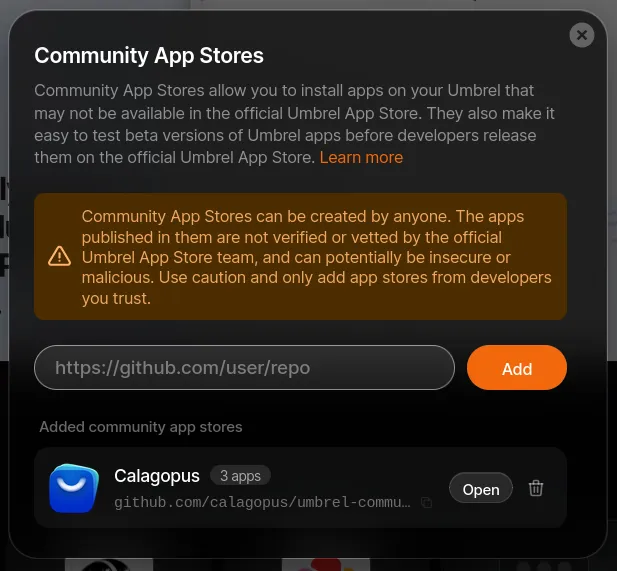
In the umbrelOS dashboard, open the App Store, click the ⋯ menu in the top-right corner, and choose Community App Stores. Paste the store URL and click Add:
https://github.com/calagopus/umbrel-community-storeClick Open next to the newly added Calagopus store.
2. Install the app
The store offers three apps, pick the one that matches your needs and click Install:
| App | Use when |
|---|---|
| Calagopus AIO | Standard install, Panel + Wings, no extensions. The best choice for most people. |
| Calagopus Heavy AIO | You plan to install extensions, includes the build tooling needed to compile them |
| Calagopus | Panel only, you connect one or more separate Wings nodes to run game servers |
Install only one variant
All three apps publish the panel on port 8000 and SFTP on port 2022, so only one of them can run on the same Umbrel at a time.
umbrelOS pulls the images and starts the app. The first start runs the database migrations, which can take a minute.
3. Access the Panel
Click the Calagopus icon on your umbrelOS home screen, or open your browser and navigate to:
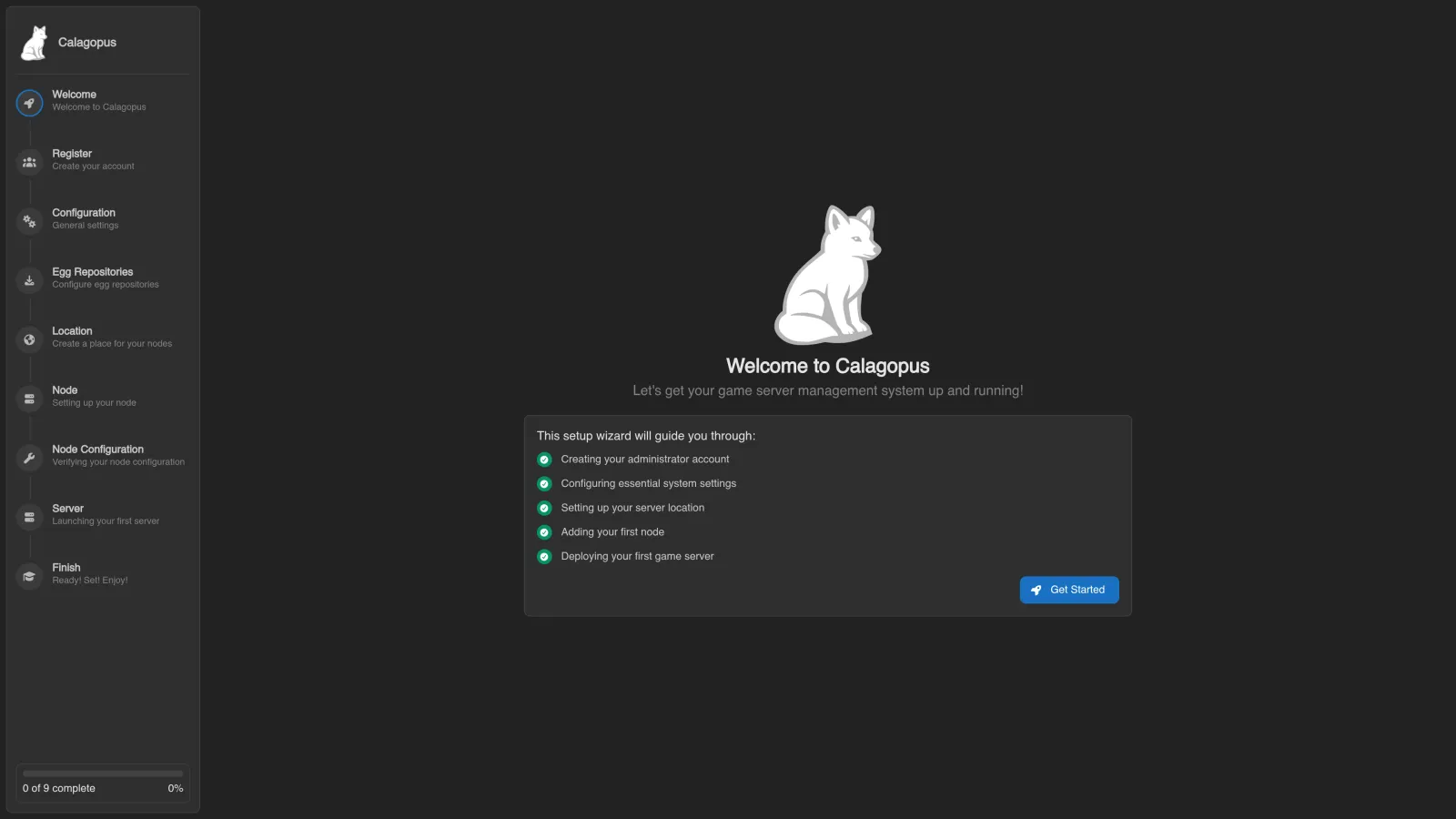
http://umbrel.local:8000You will see the OOBE (Out Of Box Experience) setup screen where you create your first admin account and complete initial configuration.
The ports used are:
| Port | Purpose |
|---|---|
8000 | Panel web UI and API |
2022 | SFTP access to game server files via Wings (AIO variants only) |
Your game servers will also need their own port allocations, configure those on the Wings node after setup.
Updating
The Community App Store is updated shortly after each new Calagopus release. umbrelOS shows available updates in the App Store, click Update on the Calagopus app to pull the new image and restart it; your data is preserved.