
Schedules
Schedules automate work on your server. Each schedule combines triggers (when it fires), an optional pre-condition (checked right before it runs), and an ordered list of actions (what it actually does). The subtitle shows your usage against the server's feature limit, e.g. "1 of 15 maximum schedules created."

The list shows each schedule's name, Last Run, Last Failure, Status (Active or Inactive), and Created timestamps. Click a row to open the schedule, or right-click it for Run Now, Export, Duplicate, and Delete.
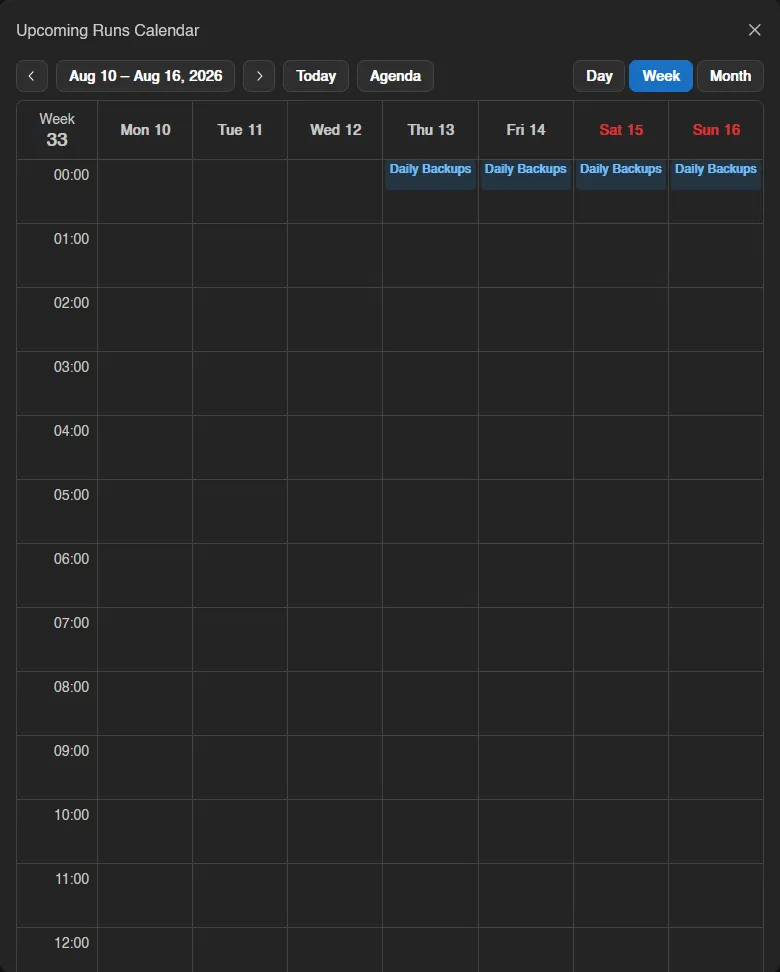
View Calendar opens the Upcoming Runs Calendar, which plots upcoming cron runs in a day, week, or month view. Click an entry to jump to its schedule.
INFO
What a subuser can do here is controlled by the schedules permission group. See the Permissions Reference.
Creating a Schedule
Click Create. A schedule starts with a Schedule Name, an Enabled toggle, and any number of triggers added via Add Trigger. Saving takes you straight to the schedule's page, where you add actions. The same form opens later via Edit on the schedule's page.
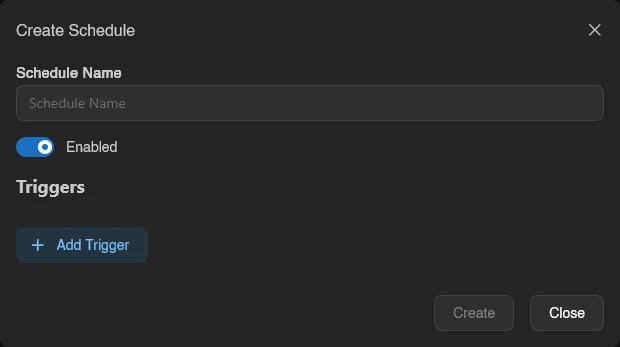
A disabled schedule ignores its triggers and can't be run manually until re-enabled.
Triggers
A schedule runs whenever any one of its triggers fires.
| Trigger | Fires |
|---|---|
| Time Interval (Cron) | On a time schedule, in the server's timezone |
| Power Action | When a Power Action (Start, Stop, Restart, Kill) is requested |
| Server State | When the server reaches a Server State (Running, Offline, Starting, Stopping) |
| Backup Status | When a server backup reaches a Backup Status (Starting, Finished, Failed) |
| Database Backup Status | When a database backup reaches a Backup Status (Starting, Finished, Failed) |
| Schedule Completion | When another Schedule finishes, filtered by Completion Status (Successful or Failed) |
| Resource Usage | When a Metric (CPU Usage, Memory Usage, Disk Usage) passes a threshold continuously For (seconds) |
| Console Line | When the console prints a line matching Line Contains (optionally Case Insensitive), with the line optionally stored into a variable via Output into |
| Crash | When the server crashes |
Cron Triggers
By default the cron trigger uses friendly controls: pick how often it Runs (Every few minutes, Every few hours, Daily, Weekly, Monthly) plus the matching interval, weekday, day, and At time fields. A plain-language description of the resulting schedule is shown underneath, along with a "Times use the server timezone" hint naming the zone (or UTC).
Flip Edit as cron expression to write the expression yourself; clicking the field opens a small per-segment editor.
WARNING
Calagopus cron expressions put seconds first: second minute hour day month weekday. So 0 0 0 * * * is daily at midnight. Classic five-field crontab lines work as-is (5 to 7 fields are accepted); the seconds field only applies when present.
Bulk Actions
Select rows with their checkboxes, by dragging across them, or with Ctrl+A (Esc clears); only rows on the current page are selected. The action bar then offers:
| Action | Notes |
|---|---|
| Run Now | Triggers the selected schedules, either Run now (check conditions first) or Run now (ignore conditions). Disabled schedules are skipped. |
| Enable / Disable | Each only touches the schedules not already in that state; the buttons show how many that is. |
| Delete | Deletes them after a confirmation. |
Selecting needs schedules.update or schedules.delete. Each action reports how many items it changed, skipped or failed in a toast.

The Schedule Page
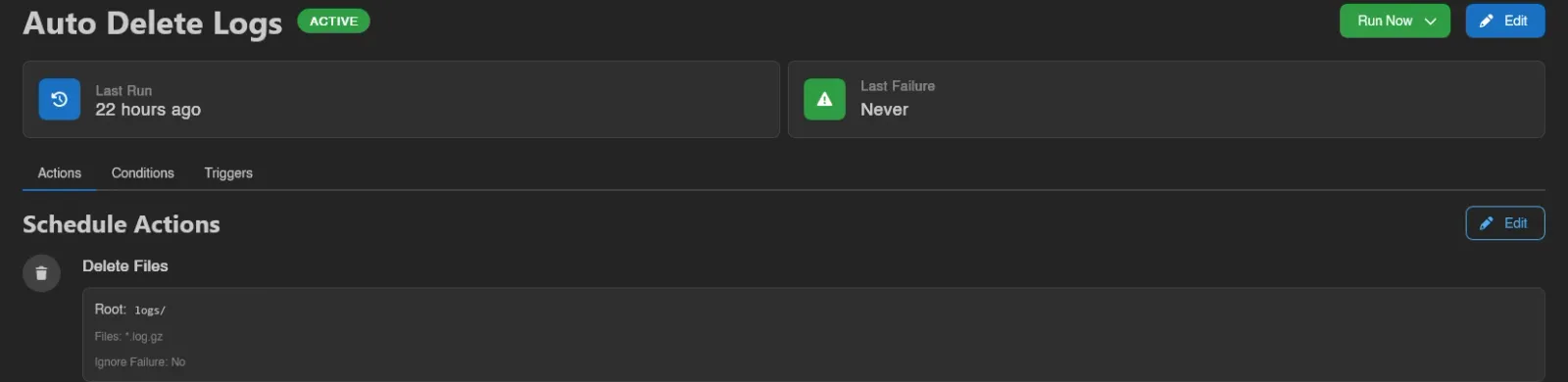
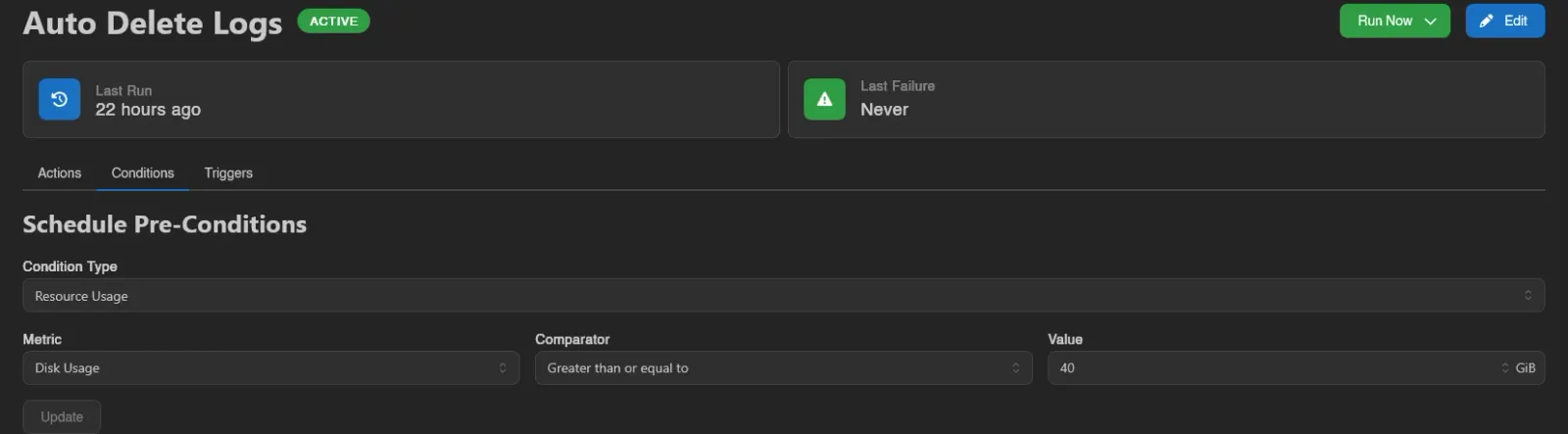
Opening a schedule shows its name with an Active/Inactive badge, a Run Now button, and Edit. Two cards show Last Run and Last Failure ("Never" until they happen). Below that are three tabs: Actions, Conditions, and Triggers.
Run Now offers two modes: Run now (check conditions first) and Run now (ignore conditions). The button is disabled while the schedule itself is disabled ("Cannot run a disabled schedule").
Actions
The Schedule Actions tab is the heart of a schedule: an ordered list of steps. Add one with Add Step (or Create First Step on an empty schedule), drag the handle to reorder, and click a step's chevron to expand its full configuration. The maximum number of steps per schedule is a panel-wide setting under Settings > Server.
Each step's menu offers Edit, Duplicate, and Delete. While the schedule executes, the current step shows a Running badge; a step that failed on the last run shows a red warning icon with the error message.
Steps are picked from a searchable Action Type list, organized into five groups.
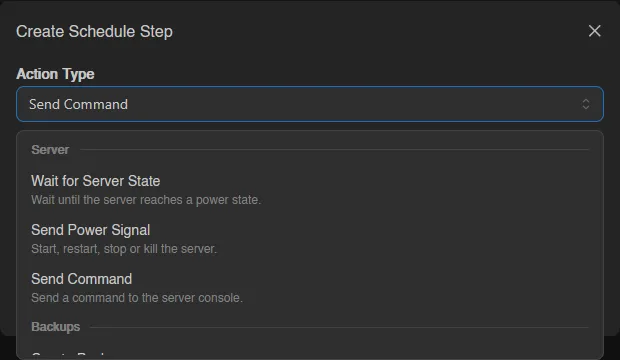
Most steps have an Ignore Failure switch to let the schedule carry on if that step fails. Long-running operations (backups, file copies, archives) additionally have Run in Foreground, which makes the schedule wait for the operation to finish before moving on.
Server
| Step | What it does | Key fields |
|---|---|---|
| Send Command | Send a command to the server console. | Command |
| Send Power Signal | Start, restart, stop or kill the server. | Power Action |
| Wait for Server State | Wait until the server reaches a power state. | Server State, Timeout (milliseconds) |
Backups
| Step | What it does | Key fields |
|---|---|---|
| Create Backup | Create a backup of the server files. | Backup Name (auto-generated if left empty), Backup Group, Ignored Files, Output Backup UUID Into, Run in Foreground |
| Restore Backup | Stop the server and restore a backup of the server files. | Backup to Restore, Delete all files before restore, Restore startup settings |
| Delete Backup | Delete a backup selected by the backup selector. | Backup to Delete |
| Move Backup | Move a backup selected by the backup selector into a backup group. | Backup to Move, Target Backup Group |
| Create Database Backup | Create a backup of a managed database. | Managed Database, Backup Name, Backup Group, Output Backup UUID Into, Run in Foreground |
| Restore Database Backup | Restore a database backup into a managed database. | Database Backup to Restore, Only Consider Backups From, Restore Into |
| Delete Database Backup | Delete a database backup selected by the backup selector. | Database Backup to Delete, Only Consider Backups From |
| Move Database Backup | Move a database backup selected by the backup selector into a backup group. | Database Backup to Move, Only Consider Backups From, Target Backup Group |
The backup selector picks the Latest Backup, the Oldest Backup, a Specific Backup (UUID), or one By Name (optionally matching the oldest instead of the newest), and can be narrowed to a backup group.
The four database steps use the same selector, restricted to database backups. Each has an Only Consider Backups From picker that narrows the selector to dumps taken from one managed database; leave it at Any managed database to consider every dump on the server.
Restore Database Backup also has Restore Into, which defaults to "The database the backup was taken from": set it when that database no longer exists, or to copy data into a different managed database running the same engine.
WARNING
Restoring stops the server and overwrites its files; avoid combining Restore Backup with power or server state triggers that could re-trigger the schedule. Restore Database Backup overwrites the contents of the target database and does not wait for the import to finish, so later steps can run while it is still in progress. Delete Backup and Delete Database Backup permanently delete the backup and its files on the node, and fail if the selected backup is locked.
Files
| Step | What it does | Key fields |
|---|---|---|
| Create Directory | Create a new folder in the server files. | Root Path, Directory Name |
| Write File | Write or append text to a file. | File Path, Content, Append to File |
| Copy File | Copy a file to a new location. | Source File, Destination, Run in Foreground |
| Delete Files | Delete files or folders. | Root Path, Files to Delete |
| Rename Files | Rename or move files. | Root Path, file pairs (from / to) |
| Compress Files | Compress files into an archive. | Root Path, Files to Compress, Archive Format (.tar family, .zip, .7z), Archive Name, Run in Foreground |
| Decompress File | Extract an archive into a folder. | Root Path, File, Run in Foreground |
| Pull File | Download a file from a URL into a folder. | File URL, Root Path, File Name (derived from the URL or the response when left empty), Use Response File Name, Run in Foreground |
Startup Settings
| Step | What it does | Key fields |
|---|---|---|
| Update Startup Variable | Change the value of a startup variable. | Environment Variable, Value |
| Update Startup Command | Change the command used to start the server. | Startup Command |
| Update Docker Image | Change the Docker image the server runs in. | Docker Image |
Advanced Logic
| Step | What it does | Key fields |
|---|---|---|
| Sleep | Wait for a set amount of time before continuing with the next action. | Duration (milliseconds), up to 24 hours |
| Ensure | Stop the schedule here unless a condition is true. | Condition builder |
| If / Else If / Else / End If | Run the following steps only when a condition is true, until Else/End If. | Condition builder on If and Else If |
| Exit | Stop the schedule here, marking the run as successful or failed. | Mark run as successful |
| Format | Build a text value from variables and store it in a variable. | Format String (wrap variables in {{...}}), Output into |
| Match Regex | Extract parts of a text value using a regular expression. | Input, Regex, Outputs (one variable per capture, added via Add Output) |
| Wait for Console Line | Wait until the server console outputs a matching line. | Line Contains, Case Insensitive, Timeout (milliseconds), Output into |
| HTTP Request | Send an HTTP request, for example to a webhook. | See below |
Creating an If step automatically adds its End If, and steps inside the block are indented in the list. The menu on an If or Else If step offers Add Else If and Add Else to grow the block. The editor warns if a block is broken: "An "If" block is missing its "End If"" or an Else/Else If/End If exists "without a matching "If" before it".
Variables
Many step fields accept either plain text or a variable; the icon at the field's right edge toggles between the two ("Use a variable instead of plain text"). Variables are produced by outputs elsewhere in the schedule: the Console Line trigger's Output into, Match Regex captures, Format, the UUID outputs of Create Backup and Create Database Backup, and the HTTP Request outputs. A variable holds up to 16 KiB.
HTTP Request
The most configurable step:
| Field | Notes |
|---|---|
| Method | GET, POST, PUT, PATCH, DELETE, or HEAD. |
| URL | The request URL. |
| Headers | Name/value pairs via Add Header, up to 32. |
| Body | Optional. |
| Timeout (milliseconds) | Up to 60 seconds. |
| Ignore Error Status Codes | Keeps an error response from failing the step. |
| Output Status Code Into / Output Response Body Into | Store the response into variables for later steps. |
INFO
For admins: HTTP Request steps are sent from the node, and Wings enforces node-level limits, by default 5 requests per 60-second window per server, a 16 KiB captured-response cap, private CIDR ranges blocked, and an option to disable the step entirely. See the Wings configuration reference.
Conditions
The Schedule Pre-Conditions tab defines a condition checked before the schedule runs (unless triggered with Run now (ignore conditions)). Build it with the Condition Type select; the combinators AND (All must be true), OR (Any must be true), and NOT (Must not be true) nest further conditions via Add Condition, up to three levels deep.
| Condition | Checks |
|---|---|
| None | Nothing, always passes |
| AND (All must be true) | Every nested condition |
| OR (Any must be true) | At least one nested condition |
| NOT (Must not be true) | Inverts its nested condition |
| Server State | The server's current power state |
| Uptime | Server uptime against a Comparator and Value (seconds) |
| Resource Usage | A Metric (CPU Usage in percent, Memory Usage or Disk Usage as a size) against a Comparator and value |
| File Exists | Whether a File Path exists |
| Variable Exists / Variable Equals / Variable Contains / Variable Starts With / Variable Ends With | A schedule variable against a value |
Comparators are Smaller than, Smaller than or equal to, Equal to, Greater than or equal to, and Greater than. The same builder appears inside Ensure, If, and Else If steps.
Changes here must be saved with Update; navigating away with unsaved changes prompts you first.
Triggers
The Schedule Triggers tab lists each trigger as a card. Cron cards also show the next and last run times. To change triggers, use Edit at the top of the page.
Import and Export
Right-click a schedule for Export, then Export as JSON or Export as YAML; this downloads the schedule as a file (schedule-<uuid>.json or .yml) that can be imported again, on this server or another one.
Import accepts a .json, .yml, or .yaml schedule file. You can also drag files straight onto the page ("Drop some files here to import them as Schedules"); multiple files import multiple schedules. Imports count toward the schedule limit.
Duplicating and Deleting
Duplicate in the row menu asks for a New Name (prefilled with "(copy)") and creates a copy of the schedule. Delete asks for confirmation and removes the schedule outright.