
Managed Databases
Managed databases are dedicated Redis, MongoDB, PostgreSQL, or MariaDB instances run for you by DB Agent, with their own container, power controls, and live stats. They count toward the server's shared database limit; see Databases for how the limit and the tab bar work when your server also has classic databases.
The Managed Databases tab lists each instance's name, type, address, memory, disk, and lock state; an instance with a pending template update also shows an Update Available badge. Right-click a row for power actions (Start, Restart, Stop, Kill) and Delete, or click it to open the instance page.
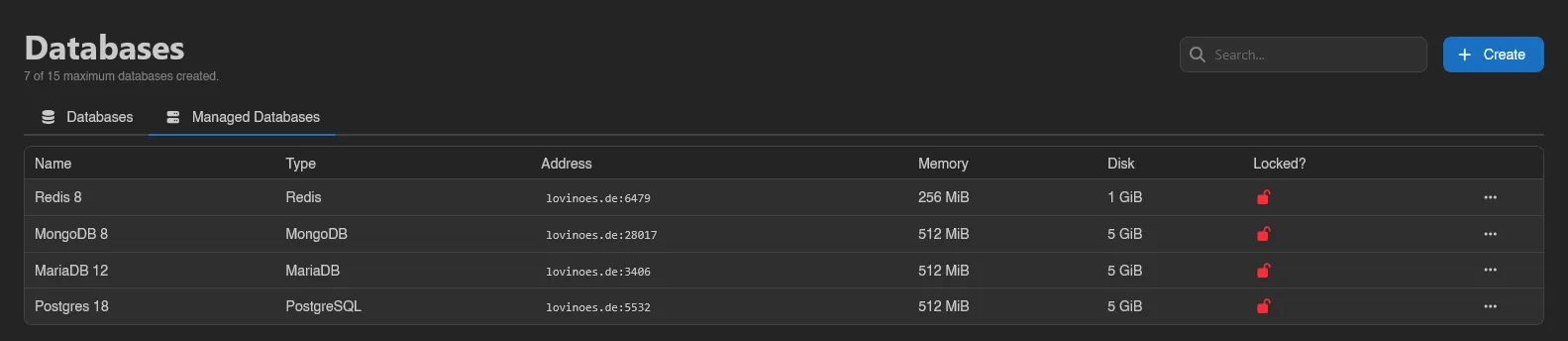
Creating a Managed Database
Click Create on the Managed Databases tab. Choose a Database Name and a Template; templates are grouped by database type, and each one defines the instance's resource limits (memory, swap, disk, CPU, and IO weight). If the template offers more than one Docker Image, you pick one too.
INFO
Templates and the resource limits they carry are configured by administrators under Database Agent Templates; the per-instance database and user caps live in Settings > Server. See the DB Agent docs for how instances are provisioned.
The Instance Page
Each instance has its own page at /server/<id>/databases/instances/<id> with the instance name, its type badge, and badges for Locked, Update Available, and Restoring backup where relevant.
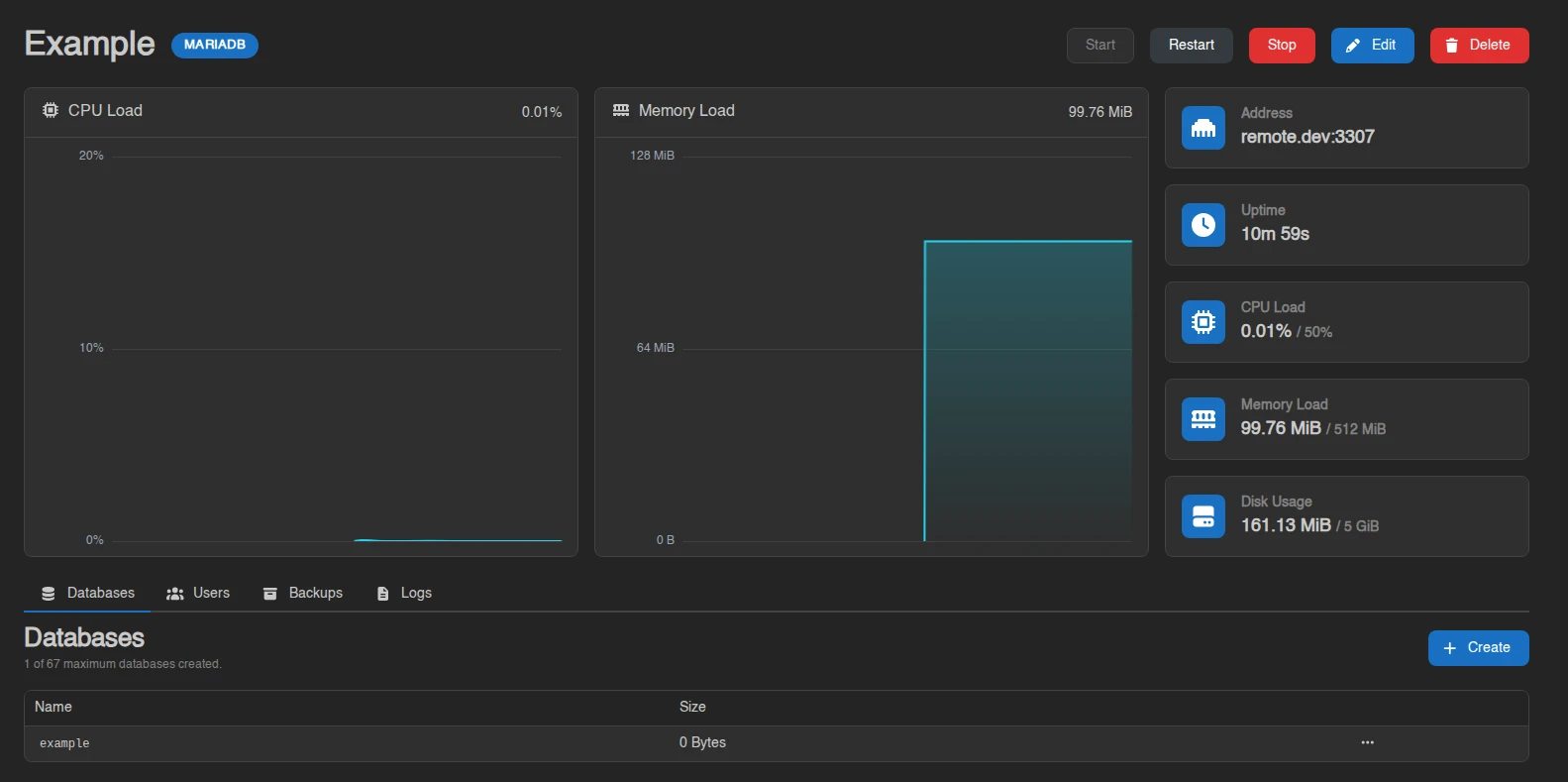
Along the top:
- Start, Restart, and Stop power buttons. While the instance is stopping, Stop turns into Kill; killing warns you first, since forcibly killing a database can corrupt data.
- Export and Import (Redis only, and only while running): download a dump of the whole instance, or upload one, optionally with Wipe all existing data before importing.
- Apply Update, shown when the instance's template has a newer configuration. Applying it restarts the database on the updated template.
- Edit to rename the instance or toggle Locked. A locked instance can't be deleted, template updates can't be applied, and its user passwords can't be rotated.
- Delete to remove the instance and all its data. Type the name to confirm.
Below that are live CPU Load and Memory Load graphs (with an "Instance is offline" overlay when it's off) and stat tiles for Address, Uptime, CPU Load, Memory Load, and Disk Usage. Tiles show usage against the template's limits; a limit of zero displays as Unlimited. If a background operation like a remote import is running, a progress ring appears next to the power buttons where you can watch or cancel it, or Cancel all operations at once.
While a database backup is being restored into the instance, a banner at the top reads "A backup is currently being restored into this managed database. Please wait..." with a progress bar and time estimate, and Start, Restart, and Stop are disabled until it finishes. A toast tells you whether the restore completed or failed.
A restore also write locks the instance, and anything connected to it notices. New connections are refused with "database is write locked", and connections that are already open are dropped, so a game server using the database will see its connection die mid-query and need to reconnect once the restore is done.
Restores are the only thing that locks an instance; exports and remote imports you start yourself do not, so your own export will not freeze the database under a running server. The query explorer also refuses to run while the lock is held.

Databases Tab
Not shown for Redis, which has no named databases. Lists the databases inside the instance with their size, up to its own per-instance cap.
Create asks for a name (letters and numbers only) and requires the instance to be running. It also has a Create a user for this database switch, on by default, which "creates a user named after the database, grants it access and shows its credentials once the database is created": leave it on and you get a working database and login in one step. A warning icon next to a database means it has no user attached yet, so nothing can connect to it.
Right-click a database for:
| Action | What it does |
|---|---|
| Explore Data | Opens the Data Explorer. |
| Export | Downloads a dump of this database. |
| Import | Uploads a Dump File, optionally wiping existing data first. MongoDB imports also need the Source Database name the dump was taken from. |
| Import from Remote | Dumps another database server over a Connection String and imports the result. An optional Source Database field "Overrides the database named in the connection string", and a wipe toggle clears the target first. The connection string is only used to take the dump, it is never stored. Runs in the background as a cancellable operation. |
| Recreate | Wipes all data and recreates an empty database with the same name and user access. Type the name to confirm. |
| Delete | Permanently deletes the database and its data. |
Users Tab
Per-instance database users, shown with the database-instances.users permission and capped by Max Users per Database Instance under Settings > Server ("0 of 10 maximum users created."). Each row lists the databases that user can reach as badges under a Databases column, blue for read and write access, grey for read-only.
Create takes a Username of 2 to 23 characters, letters and digits only, and for everything except Redis a Database Access list. What you type is a suffix rather than the final name: the agent prefixes it to keep users from different servers apart, so appuser is created as something like ub3bf2a14_appuser, and that prefixed form is what the table, the credentials and your connection string all use.
You never choose a password either; the agent generates one and Details shows it.
Database Access
Access is granted per database rather than per instance. The list names every database in the instance with a No Access / Read Only / Read & Write control beside it, and one user can hold a different level in each. You get the same list whether you are creating a user or editing one through Permissions, and the Databases badges on the row summarize the result.
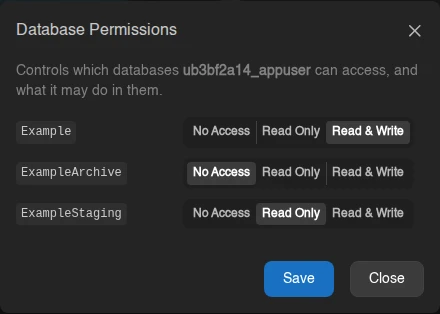
No Access is the absence of a grant rather than a stored setting. Creating a database only takes a name, so a new one starts out unreachable until you grant somebody access to it. Recreate keeps the grants, so wiping a database does not change who can reach it.
Redis instances have no databases, so their users are instance-wide and Permissions never appears for them. An instance whose databases you have not created yet says "This instance has no databases yet." and hides the action too.
Editing access also needs database-instances.databases, since the panel has to read the instance's databases to draw the list. Without it, both the Create button and the Permissions action disappear.
The instance also has to be running. While it is stopped, Create, Permissions and Delete are greyed out, and Create says why: "The instance must be running to create users." Redis is the exception again, since its users have no grants to apply, so they can be created and removed with the instance off.
database-instances.users includes the passwords
Classic databases keep their password behind a separate databases.read-password permission. Managed instances have no such split, so anyone who can open this tab can read every user's password from Details. Grant it as you would hand out the credentials themselves. See the Permissions Reference.
Right-click a user for:
| Action | What it does |
|---|---|
| Details | Opens the Database Credentials modal: address, username, password, and a JDBC Connection String, plus the same Rotate Password button classic databases have. When the user can reach more than one database, a selector switches which one the connection string is built for. |
| Permissions | Opens Database Permissions - "Controls which databases can access, and what it may do in them." - the same No Access / Read Only / Read & Write list used when creating the user. |
| Delete | Removes the user. |
Backups Tab
Shown with the backups.read permission. Lists the database backups taken from this instance, under a counter like "2 of 15 maximum backups created on this server, shared with server backups." - the same limit the server's Backups page counts against. Backups that belong to a backup group show the group's name under theirs.

Create asks for a Name and, when the server has groups, a Backup Group, then dumps the running instance. It is disabled while the instance is offline ("The managed database must be running to take a backup.") and while a restore is in progress.
Flip All MariaDB backups on this server (the engine name follows the instance) to widen the list to every database backup of the same engine on this server. A Source column then names the managed database each dump was taken from, marking one whose database no longer exists as "Example (deleted)". Restoring one of those into this instance is how you move data between managed databases, or recover a dump whose database has been deleted.
Right-click a backup for Edit, Download, Restore, and Delete; they work as described under Backup Actions.
Logs Tab
A live log stream from the instance's container, the managed-database equivalent of the server console (read-only, no command input). While the agent is pulling a new Docker image, pull and extract progress bars appear beneath the log.