
Nests
Nests are categories for eggs, and eggs are the templates that define how a server type is installed, started, stopped, and configured. Everything egg-related lives here: a nest holds its eggs, and each egg holds its install script, startup and stop configuration, variables, and Docker images.
The list shows each nest's ID, name, author, description, and created timestamp. Use the search box to filter, click a nest's ID to open it, or hit Create in the top right for a new one.

Creating and Editing a Nest
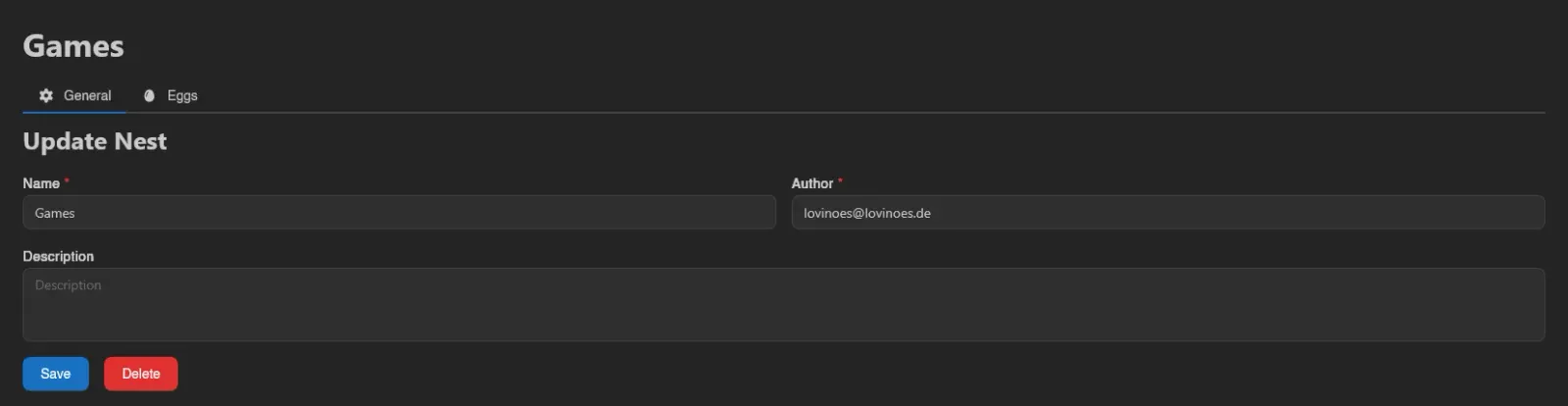
A nest is just three fields: Name, Author, and an optional Description. Save creates it, Save & Stay creates it without leaving the form.
Opening an existing nest shows two tabs: General, the same form plus a Delete button, and Eggs. Deleting a nest asks whether you also want to delete all eggs inside it, via the Do you want to delete all eggs in this nest? switch in the confirmation.
Eggs
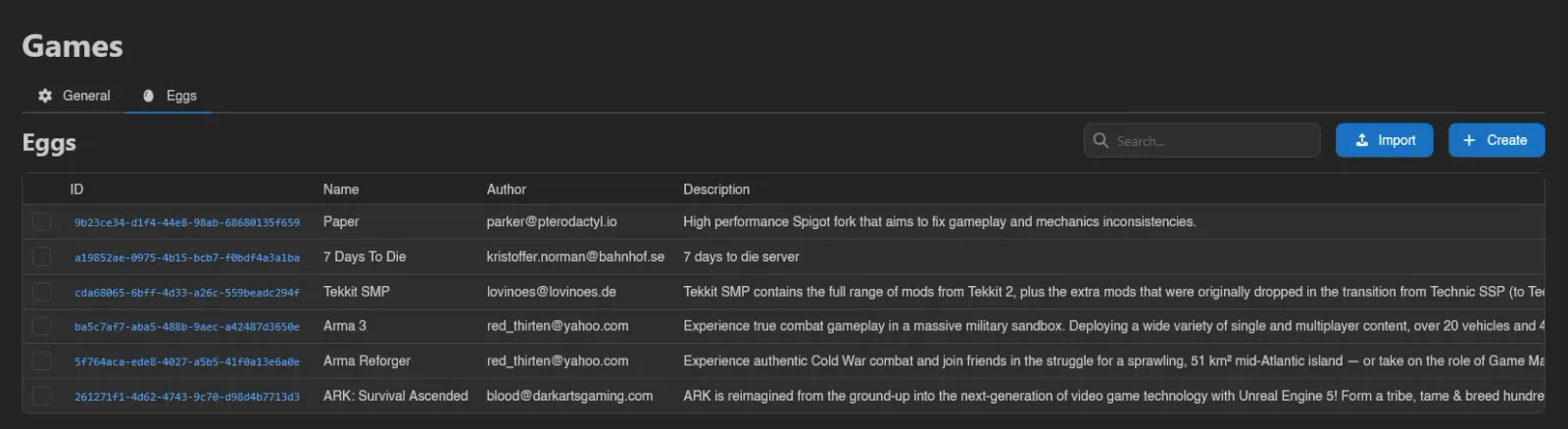
The Eggs tab lists the nest's eggs with the same columns as the nest list (ID, Name, Author, Description, Created) plus a selection checkbox per row.
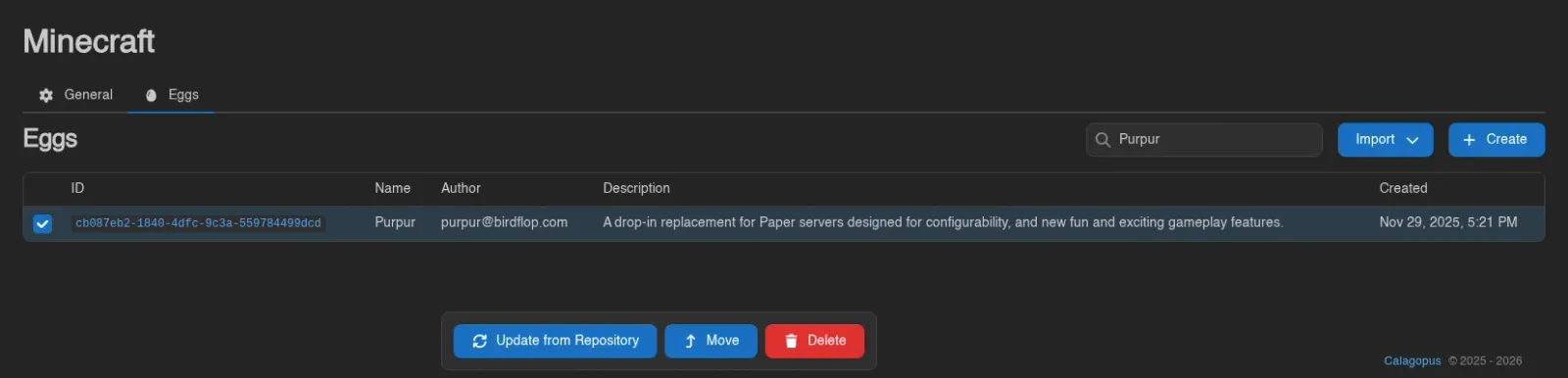
Eggs support bulk operations: drag across rows to select, Ctrl/Cmd-click or use the checkboxes, Ctrl/Cmd+A to select everything, Escape to clear. With eggs selected, an action bar appears with Update from Repository, Move (to another nest), and Delete.
Creating an Egg
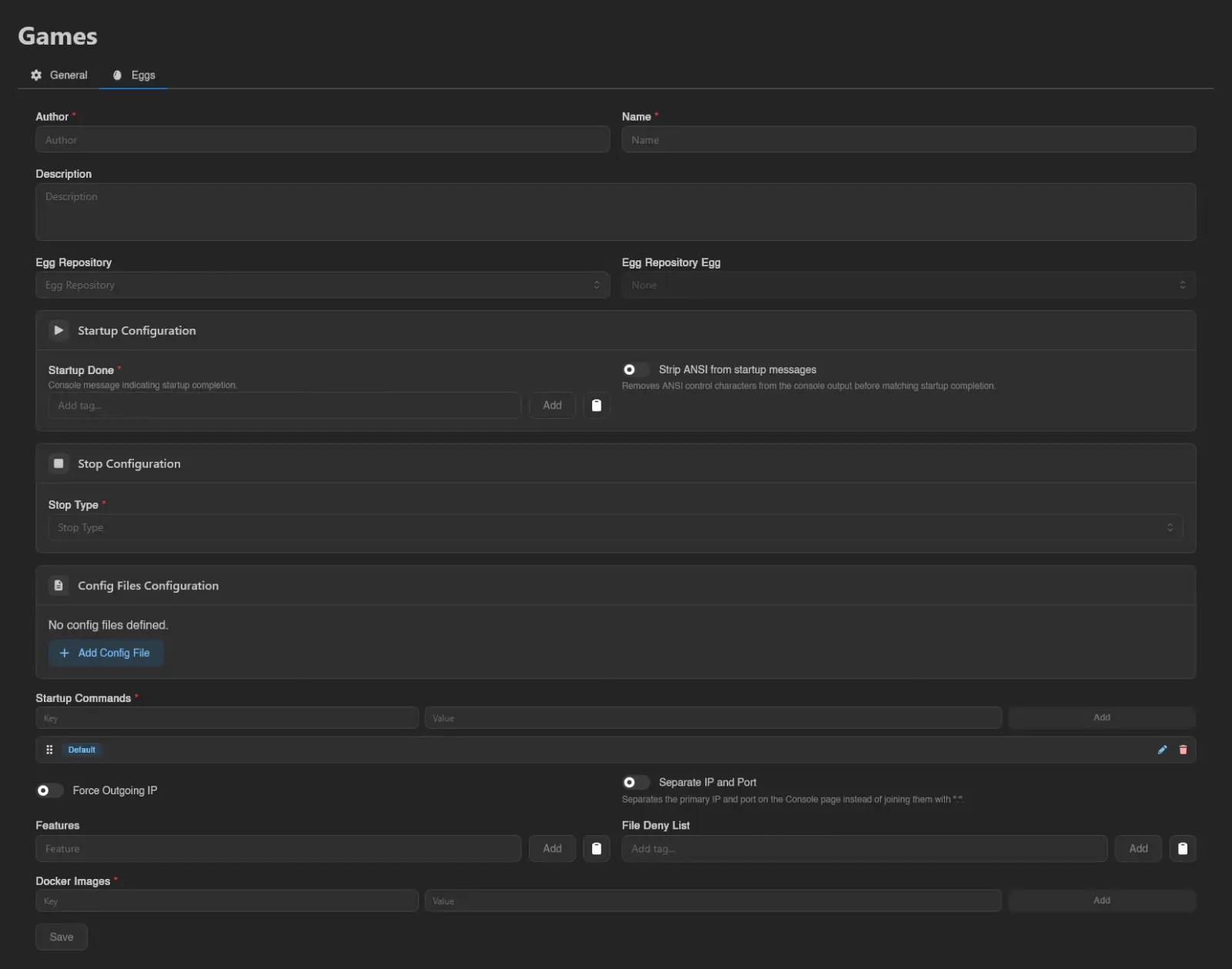
Create opens the egg form described under General below. New eggs start with a stub install script (a debian:latest container running /bin/bash) that you fill in afterwards.
Importing Eggs
Import is a dropdown with two sources: from File and from URL.
from File accepts an egg file in JSON or YAML format (.json, .yml, .yaml), including eggs exported from Pterodactyl. You can also drag files from your file manager anywhere onto the page and drop them to import several at once.
from URL fetches the eggs instead. Paste up to 25 http/https URLs and the panel downloads them (5 at a time), auto-detecting JSON or YAML. Each egg may be at most 1 MiB. If some URLs fail, the import still succeeds for the rest and lists the failures with a reason next to each URL. Eggs imported this way are not linked to a repository, so they won't be updated automatically - Update on an existing egg also offers from URL for refreshing one by hand.
To pull eggs from a Git repository and keep them updated, use Egg Repositories.
Editing an Egg
Opening an egg shows five tabs: General, Installation Script, Variables, Mounts, and Servers.
General
The top of the form covers identity and repository linkage:
| Field | What it does |
|---|---|
| Author / Name / Description | Basic metadata. |
| Egg Repository / Egg Repository Egg | Links this egg to an egg from a synced egg repository, enabling Update from Repository. |
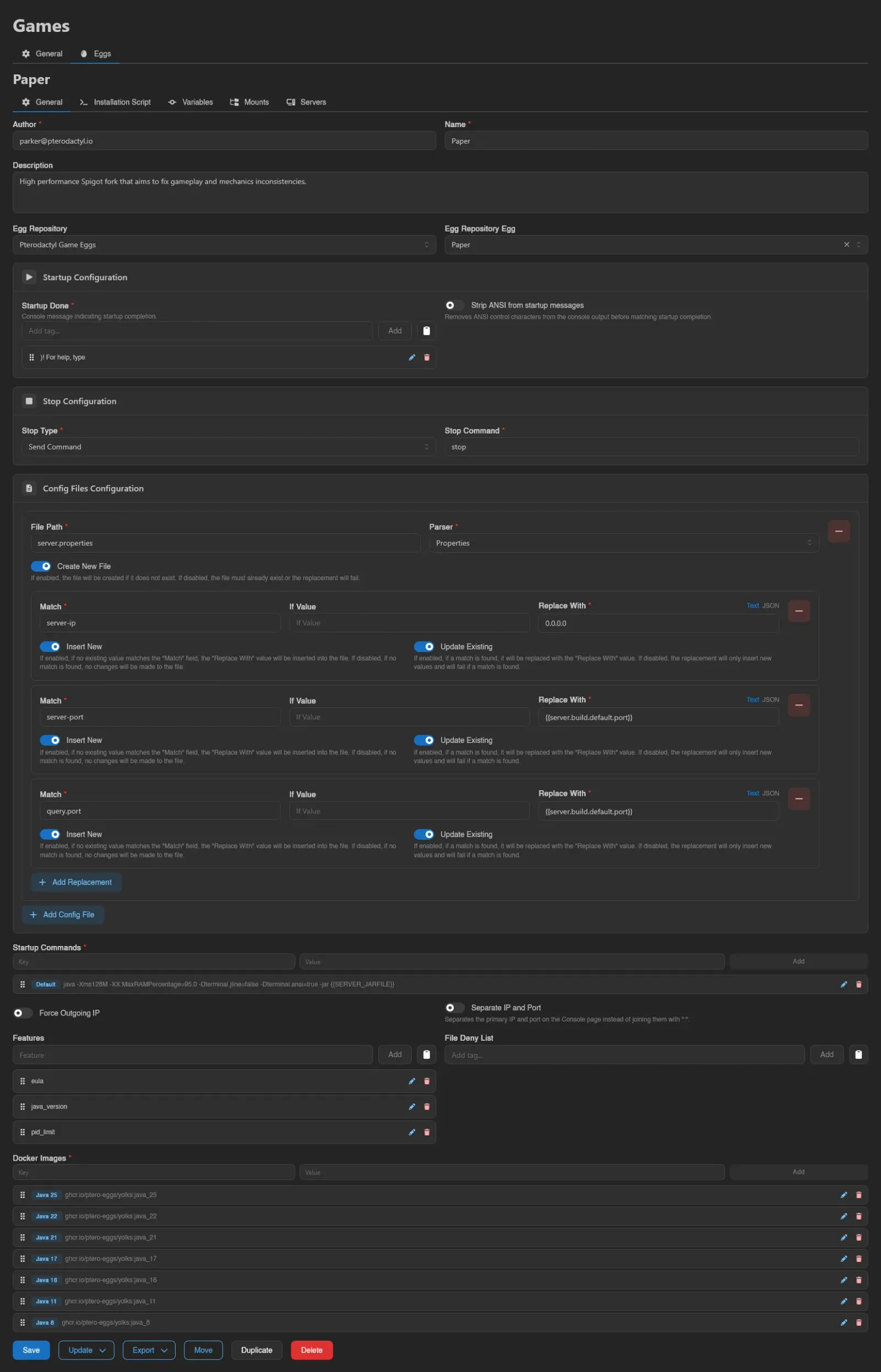
Below that, three configuration cards:
- Startup Configuration: Startup Done, one or more console messages indicating startup completion (the panel marks the server as running when one appears), and Strip ANSI from startup messages, which removes ANSI control characters before matching.
- Stop Configuration: Stop Type is Send Command (with a Stop Command field), Send Signal (with a Stop Signal picker:
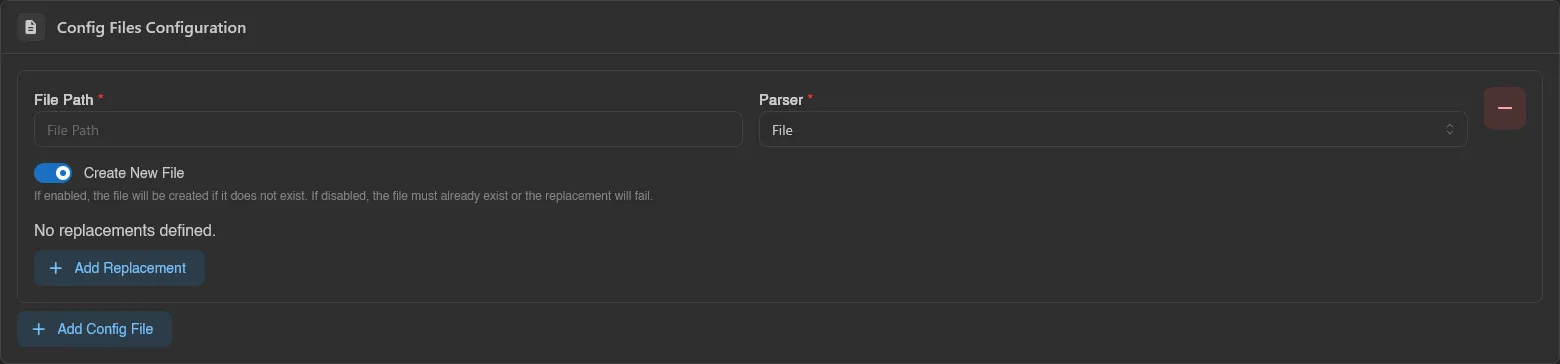
SIGABRT,SIGINT,SIGTERM,SIGQUIT,SIGKILL), or Docker Stop. - Config Files Configuration: files the panel rewrites on boot. Each entry has a File Path, a Parser (File, YAML, Properties, INI, JSON, XML, TOML), a Create New File switch, and a list of replacements (Match, optional If Value, Replace With as either Text or JSON, plus Insert New and Update Existing switches controlling whether unmatched values get inserted and matched ones replaced).

The rest of the form:
| Field | What it does |
|---|---|
| Startup Commands | Named startup command presets as key/value pairs. Users pick between them on the server's Startup page. |
| Force Outgoing IP | Forces the server's outgoing traffic through its allocation IP. |
| Separate IP and Port | Shows the primary IP and port separately on the Console page instead of joining them with :. |
| Features | Feature tags for this egg. |
| File Deny List | File patterns users cannot touch in the file manager. |
| Docker Images | Named Docker images as key/value pairs (label to image). Users switch between them on the Startup page. |
The tag-style inputs (Startup Done, Features, File Deny List) share a clipboard menu with Copy All and Paste (Replace) for carrying lists between eggs.
At the bottom, next to Save:
- Update: dropdown with from File (upload a
.json/.yml/.yamlegg to overwrite this one) and from Repository (re-pull from the linked egg repository egg; disabled if none is linked). - Export: dropdown with Export as JSON, Export as YAML, and Export as Pterodactyl (JSON in Pterodactyl's egg format, for taking eggs back the other way).
- Move (to another nest), Duplicate (copy under a new name, optionally into a different nest), and Delete.
Installation Script
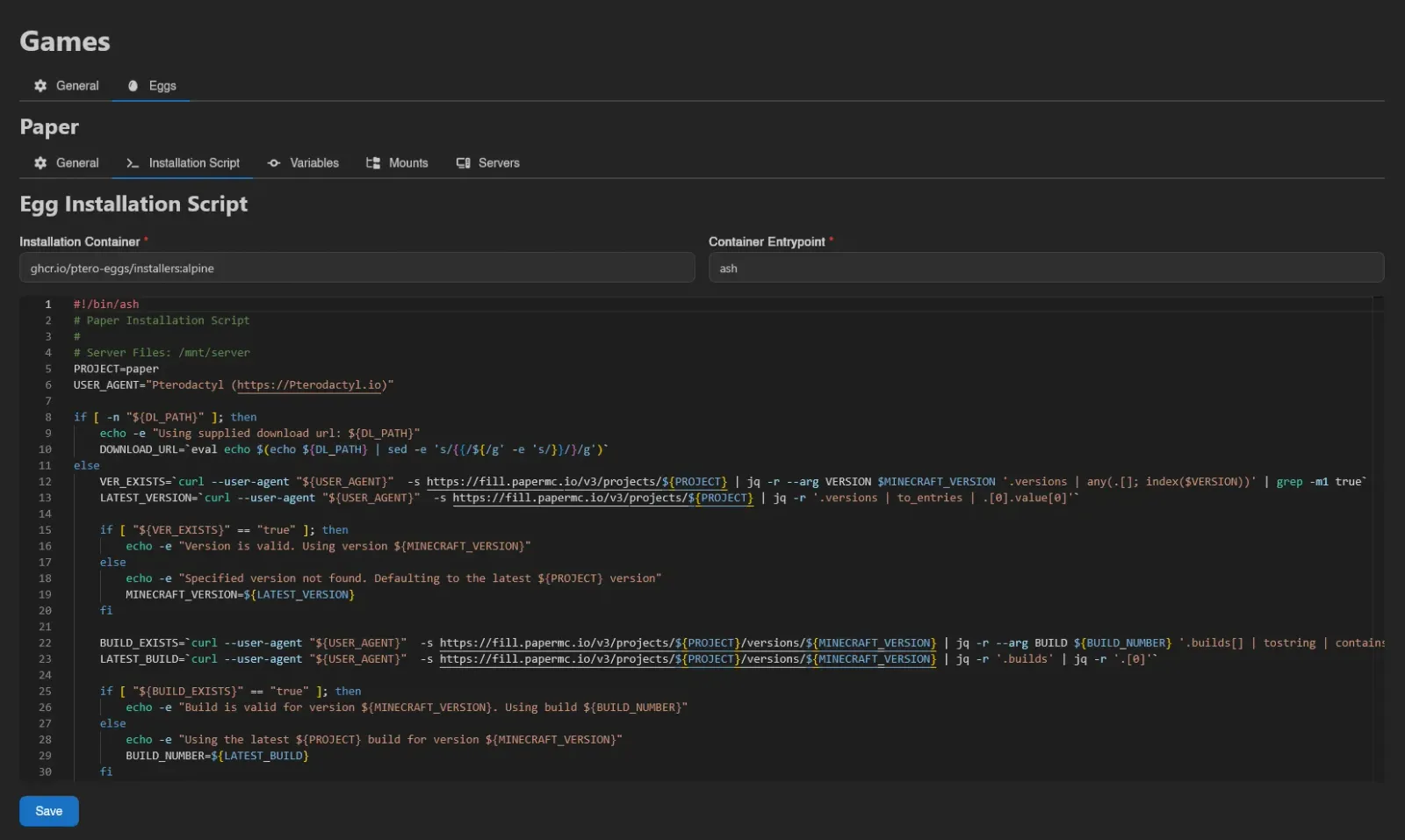
The script that runs when a server using this egg is installed or reinstalled. Installation Container is the Docker image the script runs in, Container Entrypoint the shell that executes it, and below both sits a code editor for the script itself.
Reporting Progress
Wings gives the install container an INSTALL_PROGRESS_FILE environment variable pointing at a file inside the container. Write a line to that file and the server's installing banner turns into a progress bar with a label, instead of an indefinite "installing" message. Wings re-reads the file every 500 ms and uses the last non-empty line, so appending as you go is fine.
Each line is a progress value, optionally followed by a space and a label:
echo "42" > "$INSTALL_PROGRESS_FILE"                    # 42%
echo "42 Downloading" > "$INSTALL_PROGRESS_FILE"        # 42%, labeled
echo "512/2048 Downloading" > "$INSTALL_PROGRESS_FILE"  # explicit total
With no /, the total is assumed to be 100, so the number is a percentage. Two things to watch out for. A trailing % makes the line invalid, and it is dropped without an error. When the total is anything other than 100, the panel renders the pair as a byte count, so 512/2048 shows as bytes: right for a download, misleading for anything else. Only the last 4096 bytes of the file are read, and labels are capped at 255 characters.
There is a matching INSTALL_STATUS_FILE for the final status of the install.
Variables
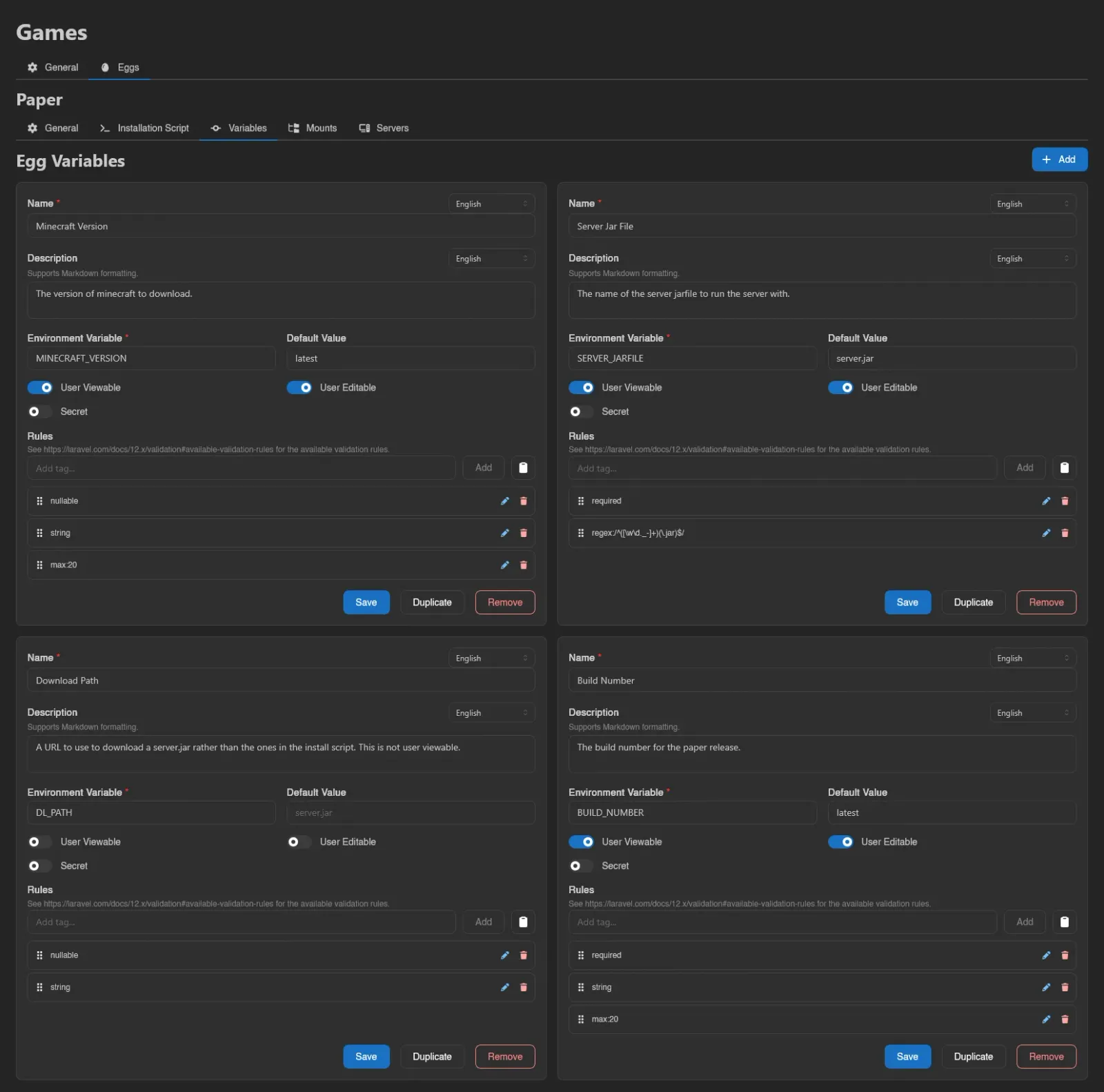
Each variable is a card in a grid; drag a card by the grip handle in its top-right corner to reorder them, which sets the order users see on the Startup page. Add creates a blank card.
| Field | What it does |
|---|---|
| Name / Description | Shown to users. Both are translatable per language, and the description supports Markdown. |
| Environment Variable | The ENV_VAR passed to the container. Typed input is uppercased automatically, with spaces and hyphens converted to underscores. |
| Default Value | Value used when the user hasn't set one. |
| User Viewable / User Editable | Whether users see and can change the variable on the Startup page. |
| Secret | Hides the value like a password. |
| Rules | Validation rules applied to user input, using Laravel validation rule syntax. |
Each card has its own Save, Duplicate, and Remove buttons.
Mounts
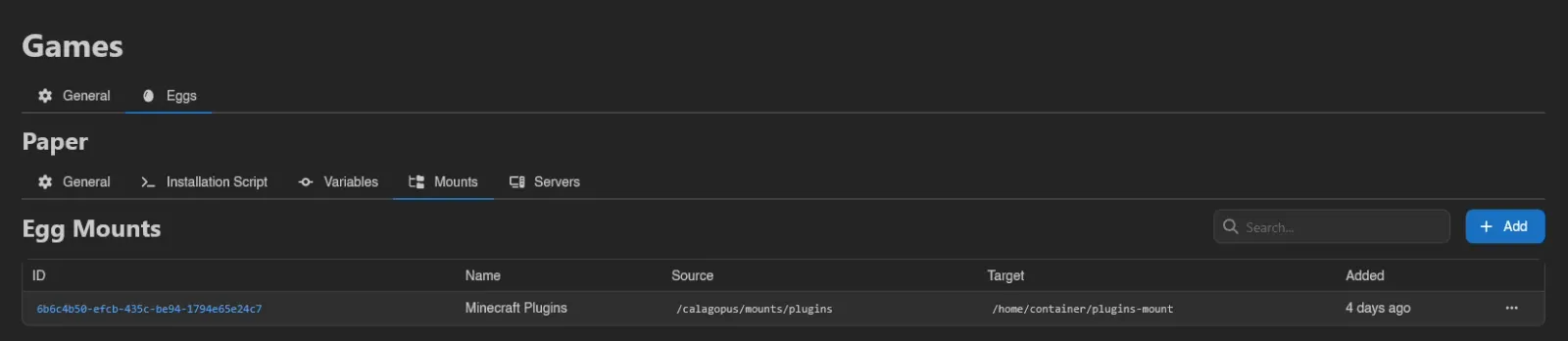
Mounts attached here become available to every server using this egg, on top of any per-server mounts. The searchable table lists ID, Name, Source, Target, and Added; Add opens a modal to pick one of the panel's configured mounts, and each row's context menu offers Remove. See the server-side Mounts page for how users interact with them.
Devices
Assign devices that servers using this egg may attach (requires eggs.devices). Add selects a device; Remove detaches its egg assignment. The server's node must also be assigned to the device, and the device must be attached to the server before it is used.
Servers
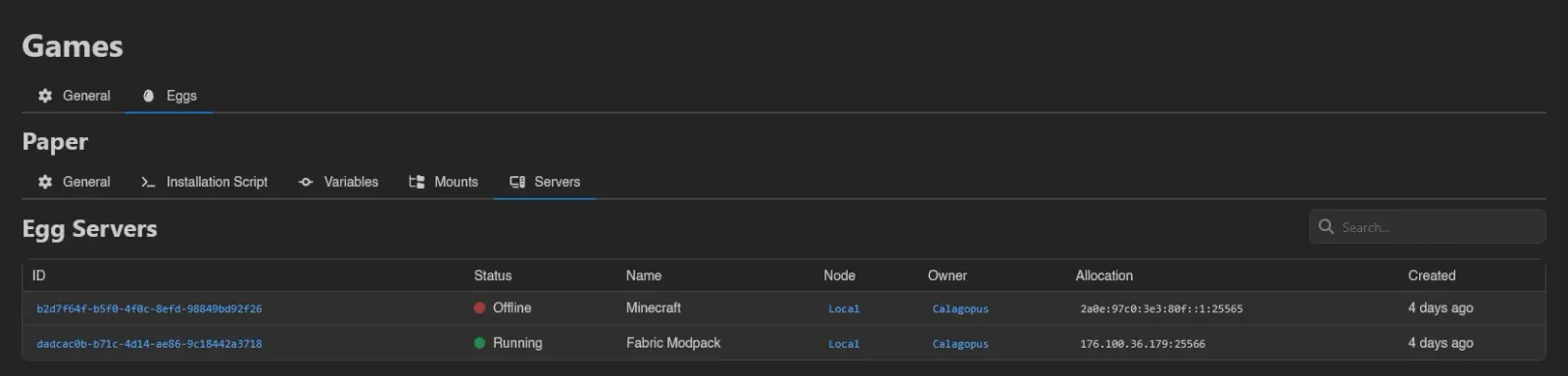
A read-only, searchable list of all servers currently using this egg, with the same columns as the Servers list, handy before deleting or heavily editing one.
INFO
Nest and egg actions are gated by the nests.* and eggs.* admin permissions (the Mounts tab additionally needs eggs.mounts). See the Permissions Reference.