Binary Panel Installation
No extension support
The binary installation method does not support extensions in any capacity. If you need extensions, use the Docker installation instead.
Calagopus Panel ships as a compiled binary available on GitHub Releases.
Prerequisites
This guide assumes you have PostgreSQL and Valkey installed on your server. You can substitute Redis for Valkey, though Valkey is notably faster.
Add the PostgreSQL APT repository following this guide, then install:
sudo apt update
sudo apt install postgresql-18
sudo systemctl enable --now postgresql
Install Valkey:
sudo apt update
sudo apt install -y valkey
sudo systemctl enable valkey-server
sudo systemctl start valkey-server
Download the Binary
sudo curl -L "https://github.com/calagopus/panel/releases/latest/download/panel-rs-$(uname -m)-linux" -o /usr/local/bin/calagopus-panel
sudo chmod +x /usr/local/bin/calagopus-panel

calagopus-panel version
Database Configuration
Create the database user and database before continuing. Connect to PostgreSQL:
sudo -u postgres psqlThen create the user and database:
CREATE USER calagopus WITH PASSWORD 'yourPassword';
CREATE DATABASE panel OWNER calagopus;
GRANT ALL PRIVILEGES ON DATABASE panel TO calagopus;
exit
Configure Environment Variables
Download the example .env file:
mkdir -p /etc/calagopus
cd /etc/calagopus

curl -o .env https://raw.githubusercontent.com/calagopus/panel/refs/heads/main/.env.example
ls -lha # should show you the .env file
Open the .env in your preferred editor and configure the variables. See the Environment Configuration reference for details on each one. At minimum set these:
Set DATABASE_URL to your database connection string:
DATABASE_URL="postgresql://calagopus:yourPassword@localhost:5432/panel"REDIS_URL defaults to redis://localhost and can stay as-is unless Valkey/Redis is on another host.
Set APP_ENCRYPTION_KEY to a random value:
RANDOM_STRING=$(cat /dev/urandom | LC_ALL=C tr -dc 'a-zA-Z0-9' | fold -w 16 | head -n 1)
sed -i -e "s/CHANGEME/$RANDOM_STRING/g" .env
Test the Configuration
Run the panel once to verify there are no errors:
calagopus-panelIf everything is configured correctly the panel will start the HTTP server without errors. Kill it with Ctrl-C and proceed to install it as a service.
Install as a Service
calagopus-panel service-installThis creates and enables a systemd service that starts on boot. Check its status with:
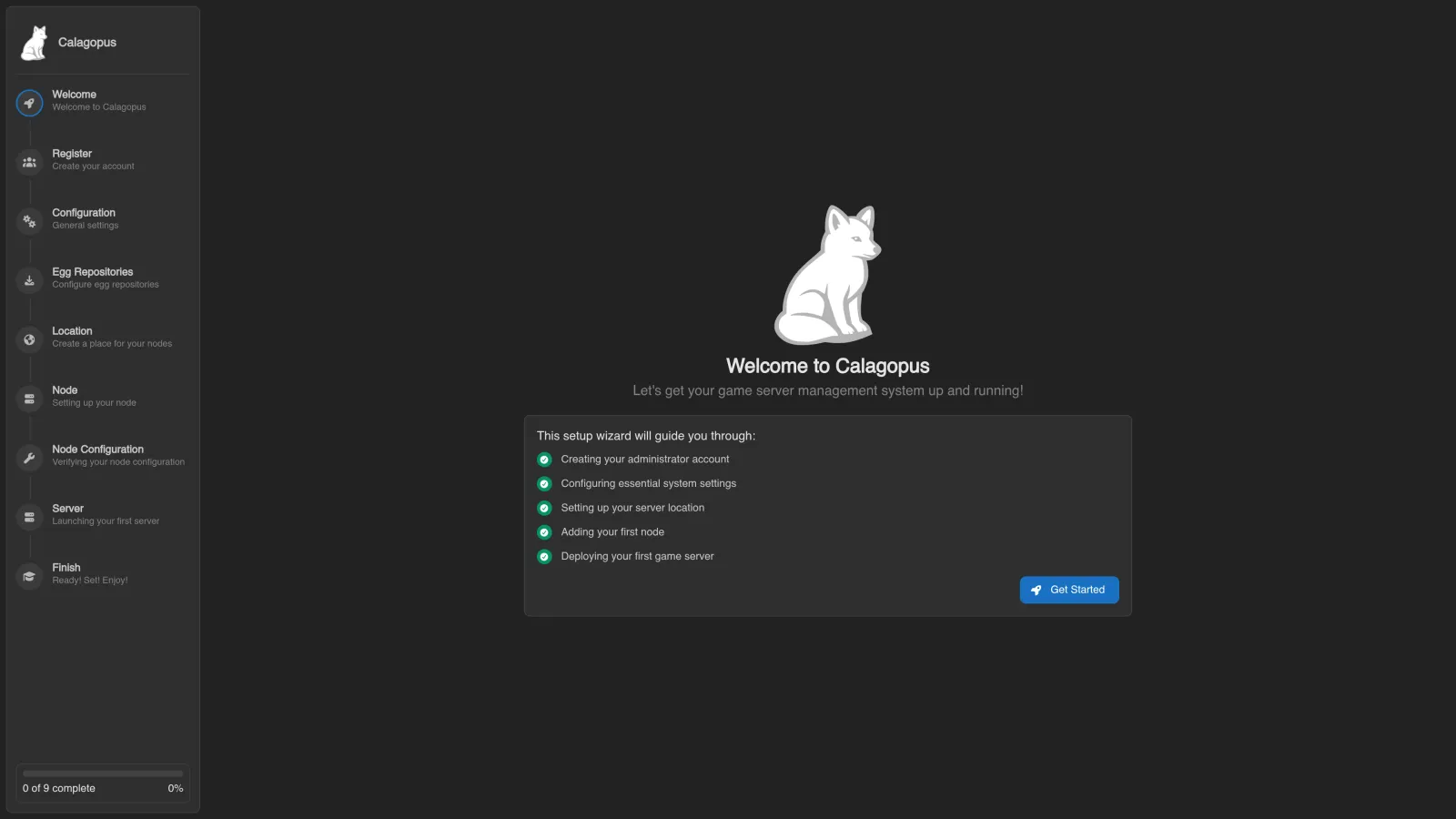
systemctl status calagopus-panelIf everything went well, the panel is available at http://<your-server-ip>:8000 and will show the OOBE (Out Of Box Experience) setup screen.