
Installing Extensions
Extensions ship as .c7s.zip files - a single archive containing both backend and frontend code. This page covers how to install one in your Calagopus Panel.
Requires the :heavy image or a development environment
Installing extensions requires the Panel to compile new code (yours, plus whatever the extension brings) at install time. The regular :latest and :nightly Docker images don't include the toolchain for that. You need either:
- The
:heavyor:nightly-heavyDocker image variant, or - A full local development environment
If you're not on the heavy docker image already, switch to the heavy variant first. See Switching to the heavy image.
Install an Extension
The steps depend on which environment you're running. Pick the matching tab:
Once your stack is on :heavy or :nightly-heavy, you have two options.
Option 1: Upload through the admin UI. Open the Panel's extension management page, drop the .c7s.zip file into the upload area, and the Panel handles the rest - install, compile, and load.
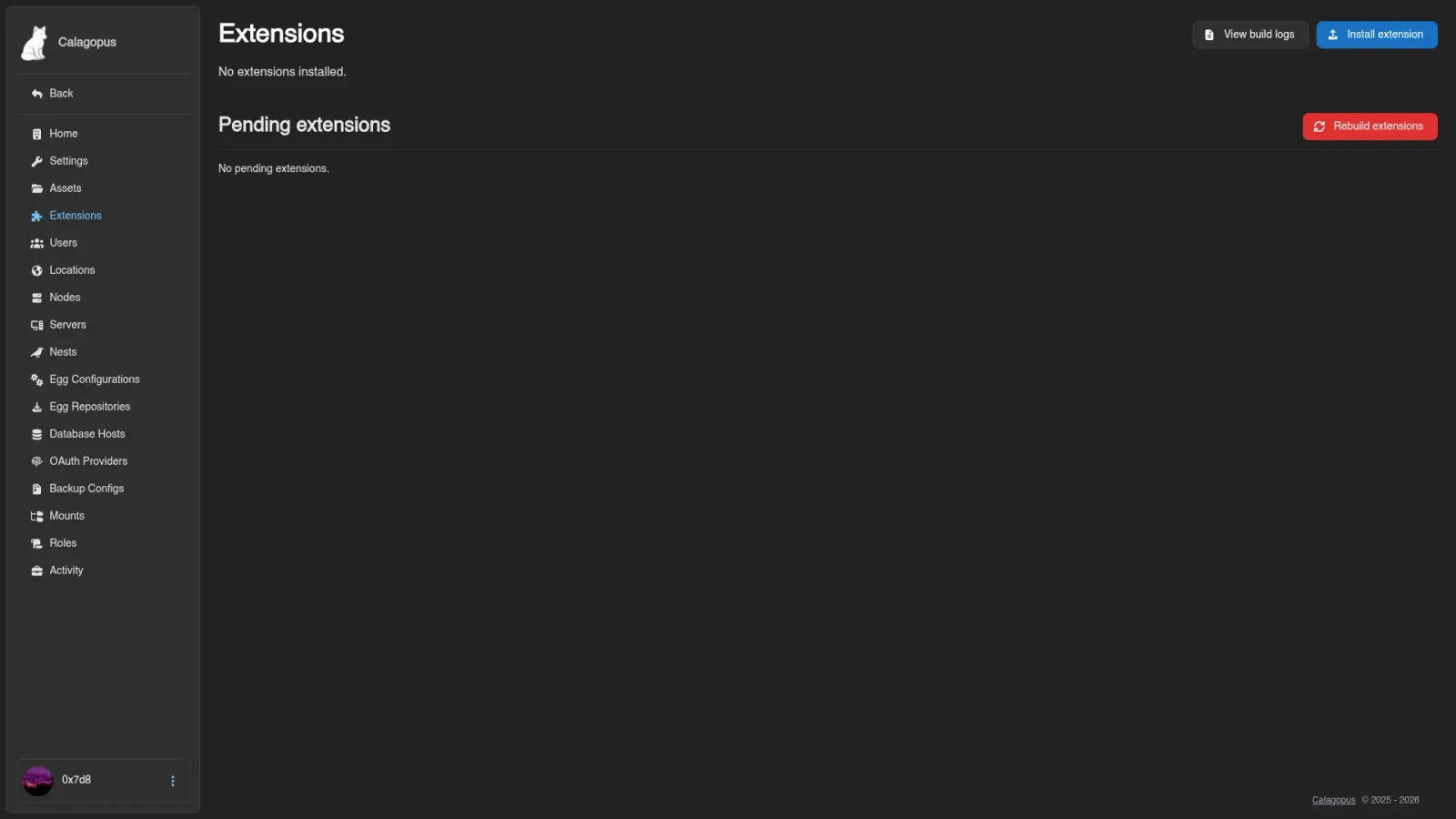
Option 2: Drop the file in directly and restart. Copy the .c7s.zip into the Panel's extensions/ data directory (with the default heavy compose stack, that's ./build/extensions relative to your compose file), then restart the container:
docker compose restart webThe Panel detects the new file on startup and installs it. Watch the progress in the admin UI from Option 1, or wait - it shouldn't take more than a minute or two, even for complex extensions.
Troubleshooting
/app/binaries is missing or is not a directory, mount it as a volume. You are on a heavy image without the four extra mounts. The supervisor checks /app/binaries, /app/translations, /app/extensions and /app/repo/database/extension-migrations, and names the first one it can't find. Add them as shown in Switching to the Heavy Image. When switching back to a stock image, removing the mounts from compose.yml is enough. The ./build directory on the host is leftover disk you can delete whenever you like.
The panel still reports the old version after docker compose pull. The heavy image caches the last successfully built binary under ./build/binaries and keeps running it. Clear the cache and recreate the stack:
docker compose down
rm -r ./build/binaries
docker compose up -d
If the dashboard keeps offering an update right after you installed it, look at the Extensions page first. The new version is in place, and the notice goes away once the extensions have finished compiling against it.
The build fails, or the browser shows a 504 while installing. The log says why. Open Admin → Extensions and use View build logs, which streams the log of the current or most recent build. On disk it is ./build/binaries/.state/builds/<build id>/build.log, and a copy of the last failing build is kept under ./build/binaries/.state/failed/. A Rust build that stops without an error line was killed by the kernel for running out of memory. Give the container more RAM (8 GB has been enough in reports so far), add swap, or build on a bigger machine and ship the image.
The build is stuck on "Compiling ..." for hours with an idle CPU. Press Cancel build on the Extensions page, then Retry build. If the container itself was killed mid-build, docker compose down followed by docker compose up -d restarts the build from the beginning. There is no lock file to clear by hand.
The last build failed, and the message names an extension. The message These extensions are not built again until they change, or until you retry the build explicitly means one extension no longer compiles against the current panel, often after a panel update that the extension doesn't support yet. Read the panel's release notes before updating, remove or update the named extension, then retry the build.
The frontend is broken after updating an extension, with useAuth must be used within a AuthProvider or a crash on the Extensions page. A broken extension took the frontend bundle with it. Stop the stack, delete that extension's archive from ./build/extensions, remove ./build/binaries, and start again with docker compose up -d --force-recreate. If you can't tell which one it is, remove all archives from ./build/extensions. Their data stays in the database, and you re-upload them one at a time.
declares panel version requirement >=1.0.0 which allows panel versions older than 1.1.0. The 1.1.0 extension API isn't compatible with older builds, so the panel refuses extensions that don't declare 1.1.0 or newer as their minimum. The extension's author needs to update it.
"Extension frontend missing" right after installing. Reload the page.
The extension builds and installs but does nothing. The [package] name in its Cargo.toml doesn't follow the dev_<author>_<name> identifier convention from Extension File Structure. Extensions that add server pages may also depend on an egg feature flag being enabled on the egg.
A binary or package install can't install extensions. Only the heavy Docker images build extensions. For a binary install, build the panel yourself with the extensions included, see the Development Environment guide.