
Hostinger Panel Installation
Hostinger offers Calagopus as a one-click application for its KVM VPS plans. Selecting it during VPS setup deploys the All-in-One (AIO) image, bundling the Panel and Wings in a single container, with a preconfigured setup and no manual Docker or shell work required.
Homelab-oriented setup, on a VPS
Even on a proper VPS, this is still a single-container AIO deployment, so the Panel and Wings compete for the same CPU and RAM as your game servers. This is fine for small deployments, but for larger production hosting, consider running Wings on a dedicated machine connected to a standalone Panel instead, see the main installation guide.
1. Order a VPS
Log in to hPanel and start ordering a new VPS. Pick a KVM plan sized for the number and size of game servers you plan to run, check the Minimum Requirements section in the Panel Overview as a starting point, and leave extra headroom for the OS, PostgreSQL, and Valkey, which the AIO image runs alongside the Panel and Wings.
2. Select Calagopus as your application
During the setup flow, when asked to choose an operating system, switch to the Marketplace (or Applications) tab instead and search for Calagopus. Selecting it as your template deploys the AIO image on top of the VPS instead of a bare OS.
Pick your data center location and complete the rest of the order.
3. Wait for provisioning
Hostinger provisions the VPS and deploys the container automatically, no compose files, encryption keys, or database setup needed on your end. You can follow progress from VPS → Overview in hPanel.
4. Access the Panel
Once the VPS shows as running, grab its IP address from hPanel and open it in your browser:
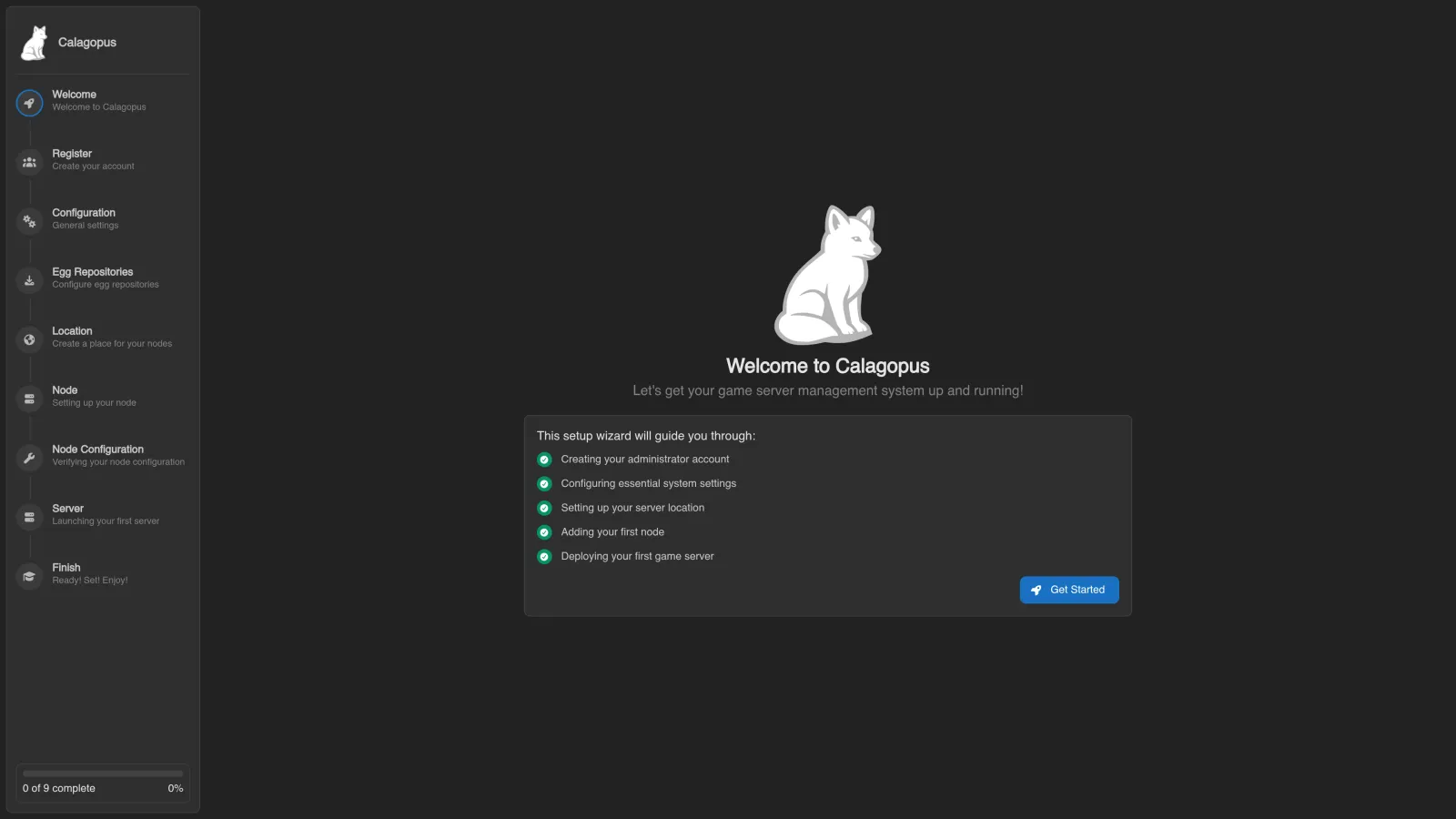
http://<vps-ip>You will see the OOBE (Out Of Box Experience) setup screen where you create your first admin account and complete initial configuration.
If you'd rather access the panel through a domain, point a domain's DNS at the VPS IP and configure it from hPanel.
Updating
Hostinger's application marketplace supports one-click updates. Check VPS → Overview in hPanel for available Calagopus updates and apply them from there.