
VS Code
The Calagopus extension lets you browse and edit your server's files and attach to its live console directly from your editor. Files are mounted as a workspace folder over a virtual calagopus:// filesystem, so multi-cursor editing, search, extensions, and the integrated terminal all work against your server like a local project.
Supported editors
The extension is published to both major registries, so it works in Visual Studio Code and the wider ecosystem of compatible editors:
- Visual Studio Code Marketplace - for Visual Studio Code.
- Open VSX Registry - for editors that cannot use the Microsoft marketplace, including VSCodium, code-server, Gitpod, Cursor, Windsurf, and most other VS Code forks.
INFO
Pick the registry that matches your editor. The extension is identical on both - only the distribution channel differs. Any editor that can install from Open VSX is supported.
The extension is open source - you can browse the code, file issues, or build it yourself from the calagopus/vscode-extension repository.
Requirements
- A Calagopus account with access to one or more servers.
- VS Code (or a compatible editor) version
1.120.0or newer.
Installation
- Open the Extensions view (
Ctrl/Cmd+Shift+X). - Search for Calagopus.
- Click Install on the extension published by
calagopus.
Alternatively, install it from the Marketplace page in your browser.

Connecting from the panel
The quickest way to get started is straight from your server's file manager. Open the Files tab for any server, then click the Connect dropdown in the toolbar and choose Connect via VS Code.

Your editor opens, mounts the server's files as a workspace folder, and attaches to the console automatically. The same Connect dropdown is available in the header while editing a file, which will open that exact file in your editor once the server is mounted.
INFO
The first time you connect to a panel, the extension signs you in through your browser - it provisions a scoped API key for you and stores it securely in your editor's secret storage, then reuses it on future connections. No copy-pasting keys required. See Authentication for the full flow.
Connecting from within the editor
You can also drive everything from the editor using the Command Palette (Ctrl/Cmd + Shift + P). The extension contributes the following commands, all under the Calagopus category:
| Command | Description |
|---|---|
Calagopus: Sign In | Authenticate with your Calagopus panel. |
Calagopus: Sign Out | Clear stored credentials for one or all panels. |
Calagopus: Update API Key Permissions | Re-approve the stored API key with the permissions the current version of the extension needs (see Updating key permissions). |
Calagopus: Open Server Files | Pick a server and mount its files as a workspace folder. |
Calagopus: Open Server Console | Pick a server and attach to its console. |
Calagopus: Server Power Action | Start, stop, restart, or kill the active server. |
Calagopus: Run Command Snippet... | Pick one of your saved snippets and send it to the server console. |
Calagopus: Create Command Snippet | Save a new command snippet (see Command snippets). |
Calagopus: Refresh Command Snippets | Reload the snippet list from the panel. |
Calagopus: Refresh File History | Reload the revision list for the active file. |
Calagopus: Revert File to Version on Disk | Discard the collaborative editing session's contents and reload the file from the server. |
Calagopus: Enable File Collaboration | Turn on real-time collaborative editing (see Real-time collaboration). |
Calagopus: Disable File Collaboration | Turn off real-time collaborative editing. |

INFO
A few more commands are contributed only where they make sense and are hidden from the palette: the revision actions on File History items, the run/edit/delete actions on Command Snippets items, and the archive and permission actions in the Explorer's right-click menu. They are covered in the sections below.
Features
Remote file editing
Once a server is mounted, its files appear as an ordinary workspace folder. You can edit, create, rename, move, and delete files and directories using native editor tooling - every change is written back to the server over the calagopus:// filesystem.
Searching files
When the editor's proposed search APIs are enabled, you can search across your server's files by name and content using the editor's built-in search. This relies on proposed APIs that are not available in every build; if search results do not appear, your editor likely has the proposed APIs disabled.
Archives & permissions
Right-clicking server files and folders in the Explorer adds Calagopus entries for the file operations you would otherwise run from the panel's file manager:
- Compress to Archive... - pick a format (
.tar.gz,.zip,.tar,.tar.xz,.tar.lz,.tar.bz2,.tar.lz4,.tar.zst, or.7z) and a name, then archive the selection. Select multiple entries to put them all in one archive - they must live in the same folder. - Extract Archive Here - unpack an archive into the folder it sits in. This entry only appears on files with a recognized archive extension, and you can select several archives at once.
- Change Permissions... - set the octal mode (for example
755) on the selection. When a folder is included, you are asked whether to apply it recursively to its contents.
Compression, extraction, and other long-running file operations report progress in a notification that you can cancel, which cancels the operation on the server. Operations someone else started on the same server show up too, marked started elsewhere, and the affected folders refresh in the Explorer once they finish.
Live console
Attach to your server's console as an integrated terminal. Output streams in real time and you can send commands straight from the terminal input, exactly as you would from the panel's console tab.
Besides Calagopus: Open Server Console, the extension registers a Calagopus Console terminal profile - pick it from the dropdown next to the terminal's + button to choose a mounted server and attach.

Command snippets
Command snippets are the commands you keep re-running on your servers, saved to your Calagopus account. When a server is mounted, a Command Snippets view appears in the Explorer sidebar listing the snippets that apply to it, a snippet is either scoped to a specific egg or available on every egg, and the view only shows the ones that match the mounted servers.
From the view you can:
- Run a snippet - it is sent to that server's console. If a console terminal for the server is already open it is focused and the command is sent right away; otherwise the extension opens one for you, and you run the snippet again once it has connected.
- Create a snippet from the view's
+button, or with Calagopus: Create Command Snippet. You give it a name, a command (pre-filled with the last command you typed in the console, if any), and a scope - either the egg of a mounted server or all eggs. - Edit or Delete an existing snippet from its inline actions.
With a Calagopus console terminal focused, Ctrl + Alt + S (Cmd + Alt + S on macOS) opens a quick pick of the applicable snippets and runs the one you choose. The same picker is available anywhere as Calagopus: Run Command Snippet....
INFO
Snippets live on your account, not in the workspace, so they follow you across editors and servers. Creating, editing, and deleting them requires the command-snippets permissions on the extension's API key - if the actions fail, run Calagopus: Update API Key Permissions.
Real-time collaboration
When more than one person opens the same server file, the extension keeps everyone's edits in sync live - you see each other's changes as they are typed, along with colored cursors and selections labeled with each participant's name. Editing is backed by a shared document (CRDT) synchronized through the panel, so concurrent edits merge cleanly without clobbering one another.
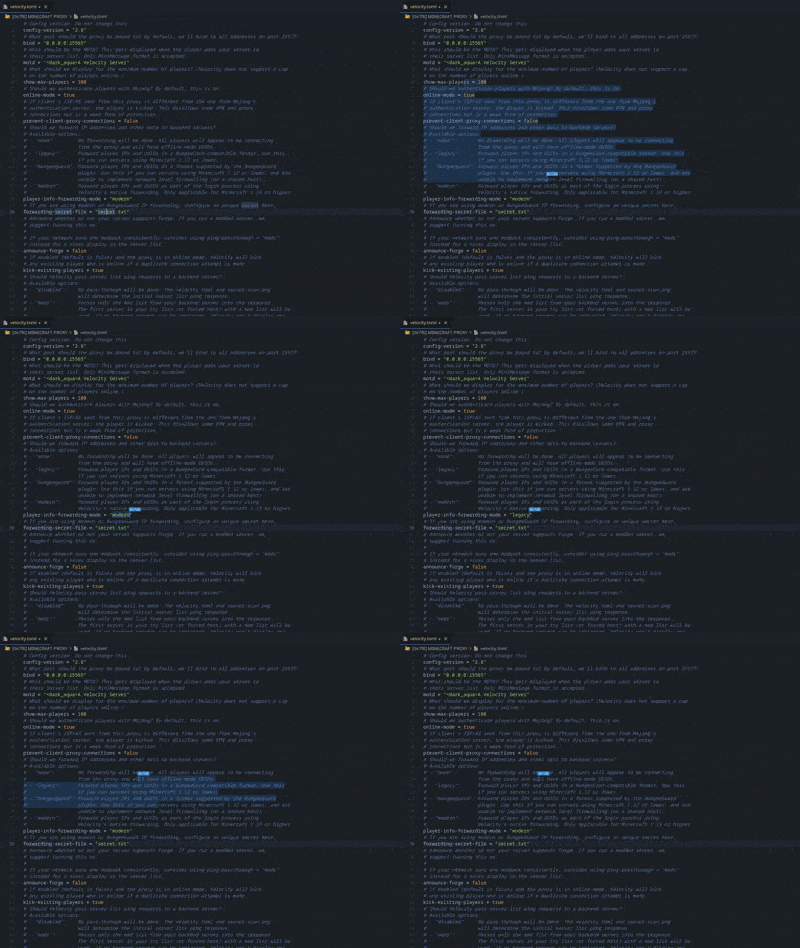
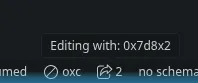
While others are editing a file with you, a presence indicator appears in the status bar showing how many people (including you) are in the file; hovering it lists the other participants by name. Files with unsaved collaborative changes are marked with a dot in the Explorer.
Saves are coordinated through the panel: when you save a collaborative file, the extension asks the panel to persist the shared document so every participant ends up with the same on-disk result.
When a file changes outside the editor
If a file you have open changes on the server behind the session's back - someone edits it over SFTP, or a process rewrites it - the extension notices, marks the file with a warning badge in the Explorer, and asks what to do:
- View Diff - compare the version on disk against the contents in your editor.
- Load Disk Version - throw away the session's contents and reload from disk. Since everyone in the session shares one document, this replaces the contents for all participants, so you are asked to confirm when others are editing with you.
- Keep Editor Version - save what is in the editor over the file on disk.
If the file was deleted on the server, keeping the editor version is the only option offered. You can also reload from disk at any time with Calagopus: Revert File to Version on Disk.
Collaboration is on by default. You can toggle it per editor with the Calagopus: Enable File Collaboration and Calagopus: Disable File Collaboration commands, or via the calagopus.collaboration.enabled setting:
{
  "calagopus.collaboration.enabled": false
}
File history
Every Calagopus server file keeps a history of revisions. When a server is mounted, a File History view appears in the Explorer sidebar and tracks whichever server file is active in the editor, listing its revisions newest-first. Each entry shows who made the change, how long ago, its size, and whether it is a full snapshot.
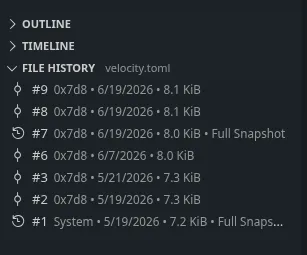
From a revision's inline actions (or by clicking it) you can:
- View Diff Against Current File - open a diff between the selected revision and the file as it is now.
- Compare to Previous Revision - diff the selected revision against the one immediately before it.
- Restore Revision into Editor - load the revision's contents back into the open editor (you still save to write it back to the server).

The list follows the active editor and refreshes as you work; use the refresh button in the view's title bar (or Calagopus: Refresh File History) to pull the newest revisions on demand.
Power actions & status bar
The current server's power state is shown in the status bar. Use the Calagopus: Server Power Action command (or the status bar item) to start, stop, restart, or kill the server without switching back to the panel.

Deep links
The extension registers a calagopus URI handler. This is the mechanism the panel's Connect via VS Code button uses, and you can build your own links to open a server (and optionally a specific file and the console) from anywhere:
vscode://calagopus.calagopus/open?origin=<panel-url>&server=<server-uuid>| Parameter | Required | Description |
|---|---|---|
origin | Yes | Panel base URL, e.g. https://panel.example.com. |
server | Yes | The server's UUID. |
console | No | When truthy (1/true), also attach to the server console. |
file | No | Path (relative to the server root) to open in the editor after mounting. |
apiKey | No | An API key for an ephemeral, non-persisted session (credentials are not saved). |
WARNING
A vscode:// link is the canonical scheme for Visual Studio Code. Some forks register a different scheme (for example, vscodium:// or codium://) - if a link does not open in your editor, click the settings icon in the top left of the file manager and change the VS Code URI scheme to match your editor's registered scheme.

Authentication
Sign-in is per panel and backed by your editor's secret storage, so your credentials never touch the workspace and persist securely between sessions. Connecting to a new panel for the first time signs you in; from then on the session is reused automatically.
Browser sign-in
Whenever you sign in without supplying a key - both from the panel's Connect button and via the Calagopus: Sign In command - the extension provisions an API key for you rather than asking you to paste one:
- It starts a short-lived local (loopback) HTTP server and opens the panel's API-key creation page in your browser, pre-filled with the key name, the permissions the extension needs, and a callback URL.
- You review and approve the key in the panel.
- The panel redirects back to the callback URL with the new key, which the extension stores in your editor's secret storage and uses from then on.
A progress notification is shown while this round-trip happens. If the callback never arrives (for example, in a locked-down browser), you can paste an API key into the same prompt manually as a fallback.
INFO
This flow works across editors - including VS Code forks that don't register a custom URI scheme - and is forwarded automatically in Remote and Codespaces environments, so the browser round-trip still reaches your editor.
Updating key permissions
The key the extension provisions is scoped to exactly what it needs - reading your servers, reading and writing files, creating archives, the console and power controls, and managing your command snippets. When a new version of the extension needs a permission your existing key does not have, features backed by it start failing.
Run Calagopus: Update API Key Permissions, pick the panel (if you are signed in to more than one), and the extension opens the panel's key page in your browser with the updated permission set pre-filled. Approve it there and the same key keeps working - you do not get a new key and nothing needs to be re-entered in your editor.
Signing out
To revoke access, run Calagopus: Sign Out. If you are signed in to more than one panel, you can sign out of a single panel or all of them at once. Signing out only clears the stored key from your editor; to fully revoke the key, delete it from your panel's Account → API Keys page.
INFO
Deep links that include an apiKey parameter open an ephemeral session - that key is used for the connection only and is never written to secret storage.
Troubleshooting
| Symptom | Fix |
|---|---|
| The deep link does not open my editor | Your editor may register a URI scheme other than vscode://. Click the settings icon in the top left of the file manager and change the VS Code URI scheme to match your editor's registered scheme (for example, vscodium:// or codium://). |
| File search returns no results | Search relies on proposed editor APIs that are not enabled in every build. File editing still works without them, only name/content search across server files is affected. |
| I don't see other people's cursors | Real-time collaboration must be enabled on both ends (it's on by default). Check that calagopus.collaboration.enabled is set to true, or run Calagopus: Enable File Collaboration. Presence and cursors only appear once more than one person has the same file open. |
| The File History view is empty | The File History view only appears when a server is mounted, and it tracks the file that's currently active in the editor, so open a server file to populate it. A file that has never been changed through the panel will not have any revisions yet. |
| The Command Snippets view is empty | The view only lists snippets that apply to a mounted server, so a snippet scoped to a specific egg is hidden unless a server running that egg is mounted. If you have no snippets yet, create one from the view's + button. If the view stays empty despite matching snippets existing in the panel, your API key is likely missing the command-snippets permissions; run Calagopus: Update API Key Permissions. |
| A file action fails with a permissions error | Archiving, extracting, changing permissions, and managing snippets each need their own permission on the extension's API key. Keys provisioned by an older version of the extension do not have the newer ones; run Calagopus: Update API Key Permissions and approve the updated set in your browser. |
| "Malformed open link" error | A deep link is missing the required origin or server parameter. Both must be present, and origin must be the full panel base URL (including https://). |