
Uninstalling Extensions
This page covers how to remove an extension from your Calagopus Panel - and what happens to its data when you do (it stays put).
If you only want to stop an extension from running for a while, you don't have to uninstall it: Disabling Extensions turns one off in place, with no rebuild and nothing removed.
Data is not removed when an extension is uninstalled
Uninstalling an extension removes its code, not its data. The settings the extension stored, any rows it wrote into core tables via model extensions, and any tables/columns its migrations created all stay in the database. The Panel deliberately leaves them alone, because:
- If you reinstall the same extension later (after troubleshooting, or to upgrade to a newer version), it picks up exactly where it left off - users don't lose their configuration, server data isn't wiped.
- If you've decided to permanently get rid of an extension, the data it left behind is yours to inspect, archive, or drop on your own terms.
There's an opt-in --remove-migrations flag on the dev-environment uninstall command that will roll back the extension's migrations during removal. It's not recommended. Migrations rolling back means dropping columns, dropping tables, deleting data. If you're confident you want it gone, run a manual database cleanup with a backup in hand instead - that way you know exactly what's getting deleted.
Requires the :heavy image or a development environment
Same as installing: the regular :latest and :nightly Docker images don't have the toolchain to recompile after an extension is removed. You need either the :heavy / :nightly-heavy Docker image variant, or a full local development environment.
Uninstall an Extension
Pick the matching tab for your environment:
Two ways to uninstall, same end result.
Option 1: Remove through the admin UI. Open the Panel's extension management page, find the extension you want to remove, and click Uninstall. The Panel handles the recompile and reload.
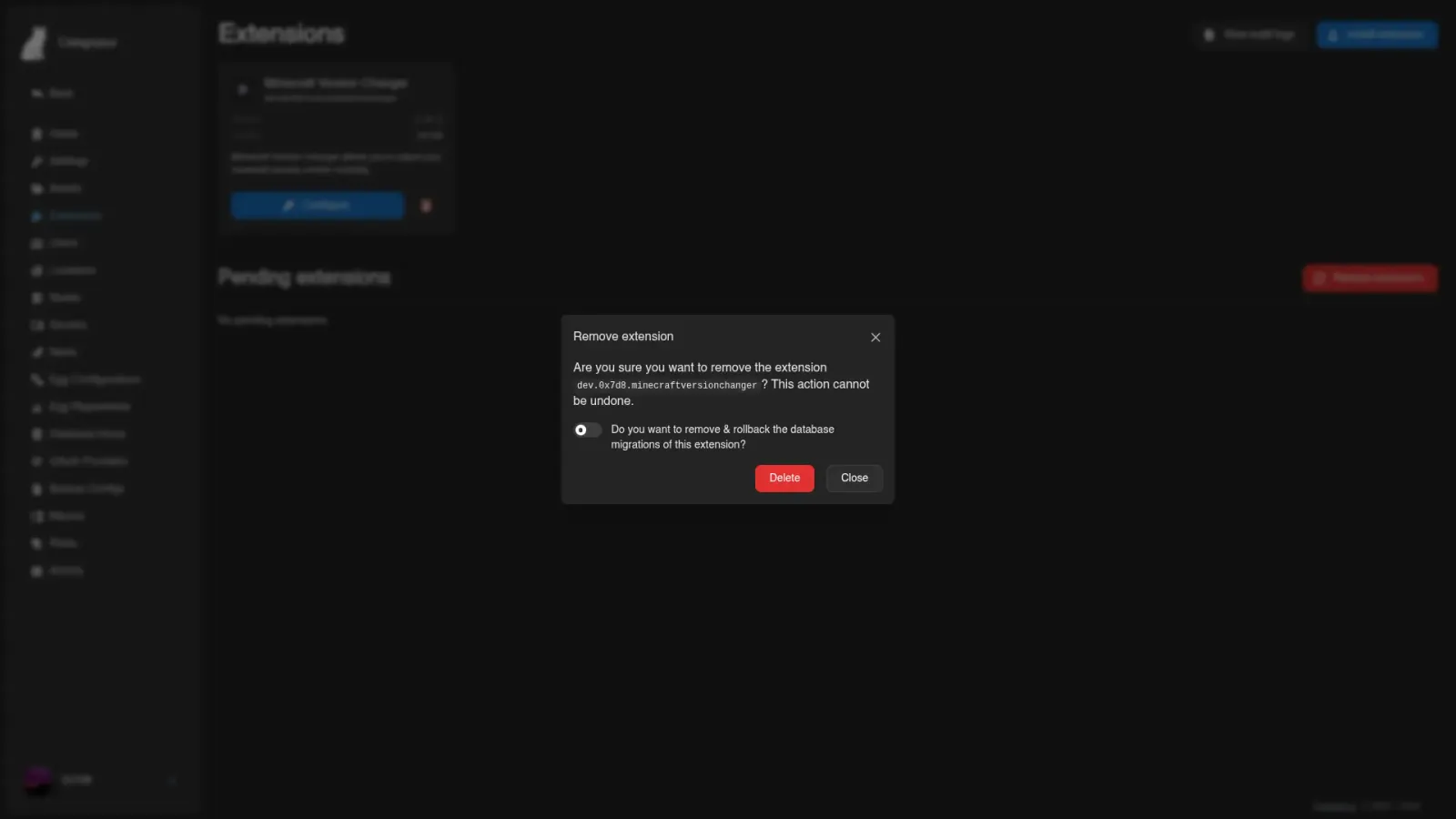
Option 2: Delete the file and restart. Remove the .c7s.zip from the Panel's extensions/ data directory (with the default heavy compose stack, that's ./build/extensions relative to your compose file), then restart the container:
docker compose restart webThe Panel notices the file is gone on startup and uninstalls accordingly.
After Uninstalling
The Panel's no longer running the extension's code, but the extension's data is still in the database. What you do next depends on why you uninstalled:
- Troubleshooting - reinstall the same
.c7s.zip, the extension picks back up with all its previous data intact. The Panel doesn't track "this extension was uninstalled and reinstalled" as a distinct state; it just sees the source is back and compiles it in. - Upgrading to a new version - no need to uninstall the old one first. On Docker, upload the new
.c7s.zipor overwrite the archive in./build/extensions; in the development environment runpanel-rs extensions update path/to/extension.c7s.zip, sinceextensions addrefuses a package that is already installed. The Panel handles the swap, and the extension's own migration scripts handle any schema changes between versions. - Permanent removal - the extension's columns and tables linger in your database. If you want them gone, write SQL to drop them manually after taking a backup. Look at the extension's
migrations/directory (in the original.c7s.zipif you still have it) to see exactly what got created.