
Dashboard
The Dashboard is what every user lands on after logging in. It covers your own account (password, email, two-factor, avatar), your servers, and account-level self-service like API keys, SSH keys, and security keys. It's separate from the Admin area, which is only visible to users with admin permissions and covers instance-wide management like nodes, locations, and other users.
| Page | Description |
|---|---|
| Servers | Your server list, server groups, and bulk power actions |
| Account | Password, email, two-factor authentication, and avatar |
| Security Keys | Passkeys and hardware security keys for login |
| API Keys | Personal access tokens for the API, with granular permissions |
| SSH Keys | Public keys used for SFTP and SSH access to Wings |
| Command Snippets | Shortcuts for commands you use often in the server console |
| OAuth Links | Linking third-party accounts for faster login |
| Sessions | Devices currently logged into your account |
| Keyboard Shortcuts | Rebindable shortcuts for navigating the panel |
| Activity | A log of everything that's happened on your account |
Navigating the Dashboard
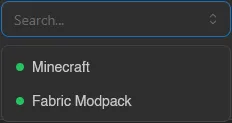
The sidebar lists every page above, plus Servers and Admin (if you have admin permissions) at the top, under the Quick actions trigger (see below). At the bottom sits a server switcher: click into it to search and jump straight to one of your servers. The profile box below it leads to your Account page.
Right-clicking any sidebar link offers two more ways to open it: Open in Virtual Window renders the page in a floating window inside the panel, so you can keep it next to whatever you're doing, and Open in Popup opens it in a separate browser window.
Searching Lists
The search box above a list, in the admin area and on your own pages alike, matches names and other text anywhere in the field, and also takes an ID: paste a full UUID, or at least its first 8 characters (the short ID in a server's URL), and the matching row comes up.
Quick Actions
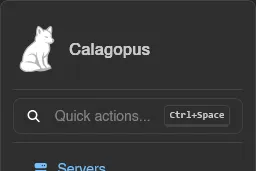
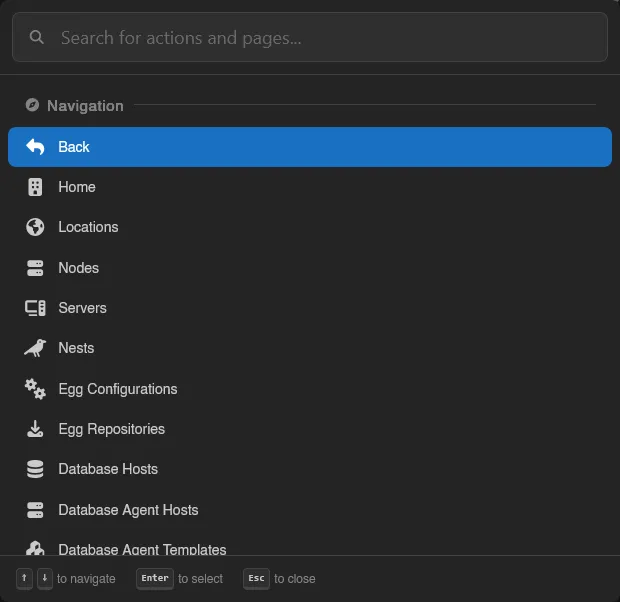
Quick actions... at the top of the sidebar, or Ctrl+Space anywhere (rebindable under Keyboard Shortcuts, and it works even while typing in an input), opens a command palette: type to filter actions and pages by any part of their name, use the arrow keys to navigate, Enter to select, Esc to close.
What it offers follows where you are:
- On the dashboard: your servers, to jump straight into one, plus every dashboard page.
- Inside a server: the server's pages plus Power actions matching its state and your permissions (Start while offline, Stop and Restart while running, Kill while stopping).
- In the admin area: Back, Home, and every admin page.
Whatever page you are on, its own tabs are listed too, under Page Navigation - the tabs of a node, an egg or your backups, without reaching for them.
A Logout action is available everywhere, under Account; it asks for confirmation before ending your session.
Prefixes
Typing one of four characters first switches the palette into a different mode. The palette shows these as hints along its footer, so you don't have to remember them.
| Prefix | Mode |
|---|---|
= | Evaluate a math expression, with the result shown as you type. Enter copies it. |
# | Search servers by name. In the admin area this searches every server on the panel, not just yours. |
@ | Search users. Admin area only, and only with user permissions. |
/ | Filter to pages only, showing each one's path. |
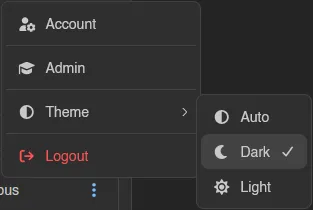
The three dots next to your name open a small menu to jump to your Account page, switch to the Admin area (admins only), pick a Theme, toggle Hide Addresses (see Preferences), reset your device overrides (see Settings Sync; the entry only appears when you have some), or log out. Auto follows your browser's theme, Dark and Light force one; the panel starts on Dark until you pick.
Settings Sync
Most preferences follow your account rather than your browser: change the console font size or your toast position on one machine and it is already set on the next one you log into. This covers the Preferences card, console and file-manager settings, the form-engine Advanced mode toggle, and your keyboard shortcut rebinds.
Every synced setting has a small icon next to its label that opens a scope menu:
| Option | What it does |
|---|---|
| Sync With Account | The default. The value lives on your account and applies everywhere. |
| Only This Device | Breaks the link and keeps a separate value on this device. The label then reads This Device. |
| Use the Account Value | Drops the device override and goes back to the account's value. |
| Save This Value to My Account | Pushes the current device value up as the new account value. |
A few settings are inherently per-device and never sync: the editor engine, line-overflow wrapping, the VS Code URI scheme, and the audio player's volume.
When you have any overrides, the profile menu at the bottom of the sidebar grows a Reset Device Overrides entry with a count, which clears them all at once and returns this device to your account's values.