
Server
Clicking a server on the Servers page opens the server view, where everything about that one server lives. Each tab only appears if you have the matching permission on that server, and admins can reshape the tab set per egg via route configurations: hiding pages, grouping them under dividers, or adding external links.
Above every tab, the panel surfaces server-wide state:
- Dismissible per-server announcements.
- Status banners while the server is transferring (with progress, ETA, and an admin-only Cancel), suspended, restoring a backup, installing (cancellable with the
settings.cancel-installpermission), under node maintenance, or pending a restart. - A websocket banner with a reconnect countdown if the live connection drops.
Eggs whose install script reports its progress show a progress bar and a label in the installing banner instead of a plain "installing" message. While a transfer, restore, or installation is running, the same progress also sits in a toast in the corner, so it stays in view on every tab of the server.
When the Server Is Blocked
Some states replace the whole server view rather than sitting above it, and two of them need you to acknowledge the failure before you get back in.
Installation failed. If the administrator has enabled Allow Acknowledging Installation Failure, an Acknowledge Failure button appears, needing the settings.cancel-install permission: "By acknowledging this installation failure, you are confirming that you are aware of the failed installation and have taken any necessary steps to resolve the issue. This will allow you to regain control over the server." With the setting off, only an admin can clear it. Where you can read installation logs, a View Installation Logs link sits next to the button.
Backup restore failed. "This server failed to restore a backup and cannot be accessed until acknowledged. Its files may be incomplete." Acknowledging needs the backups.restore permission and unlocks the server again: check the files before trusting them, since a half-restored backup leaves the server in an unknown state.
Suspension, node maintenance and an in-progress transfer block the view the same way, but those clear on their own; there's nothing to acknowledge.
| Page | Description |
|---|---|
| Console | Live terminal, power controls, resource stats, and graphs |
| Files | Browse, edit, and manage the server's files, plus SFTP access |
| Databases | Classic and managed databases for the server |
| Schedules | Automated action steps with triggers and conditions |
| Subusers | Give other users scoped access to the server |
| Backups | Server backups, with groups and automatic retention |
| Network | Allocations, firewall rules, and private connections to other servers |
| Startup | Startup command, Docker image, and egg variables |
| Mounts | Toggle extra directories mounted into the server |
| Devices | Attach host devices from the Devices tab under Mounts |
| Settings | Rename, reinstall, auto-kill, auto-start, and timezone |
| Activity | A log of everything that's happened on the server |
Server Header
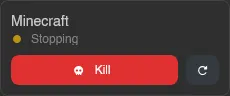
The sidebar stays the same on every tab. Above it, the Quick actions palette (Ctrl+Space) carries the server's pages and its state-aware power actions. At the top, a status card shows the server's name, its current state (Running, Starting, Stopping, Offline, or a special status like installing or transferring), and its uptime while running.
Below that sit quick power buttons: Start while the server is offline, Stop while it runs, and a restart button. While the server is stopping, the button becomes Kill, with the same force-stop confirmation as on the Console.
Above the tabs, Servers takes you back to the dashboard.
INFO
Admins also see an Admin link and a View in Admin Area link, the latter jumping straight to this server in the Admin area.
At the bottom, a server switcher shows the current server's name; click it to search your servers and switch to another one without going back to the dashboard, landing on the same page you were on. The # search in Quick actions does the same, and picking the server you are already on takes you back to its console. The profile box below doubles as a search box, just like on the Dashboard.