
Database Agent Templates
Templates are the blueprints for managed databases: each one defines the Docker images an instance can run, its environment, volumes, and resource limits. When a user creates a managed database, they pick from your templates, grouped by database type.
INFO
Setting up Templates has ready-to-import example files for PostgreSQL, MariaDB/MySQL, MongoDB, and Redis, plus a full field reference. Importing a preset and adapting it beats writing one from scratch.
The list at /admin/database-agent-templates shows each template's ID, Name, Type, and Created date. Use the search box to filter.

Import and Create
Import accepts a .json, .yml, or .yaml template file; you can also just drag files onto the page. Create opens a blank form instead. Both need the database-agent-templates.create permission.
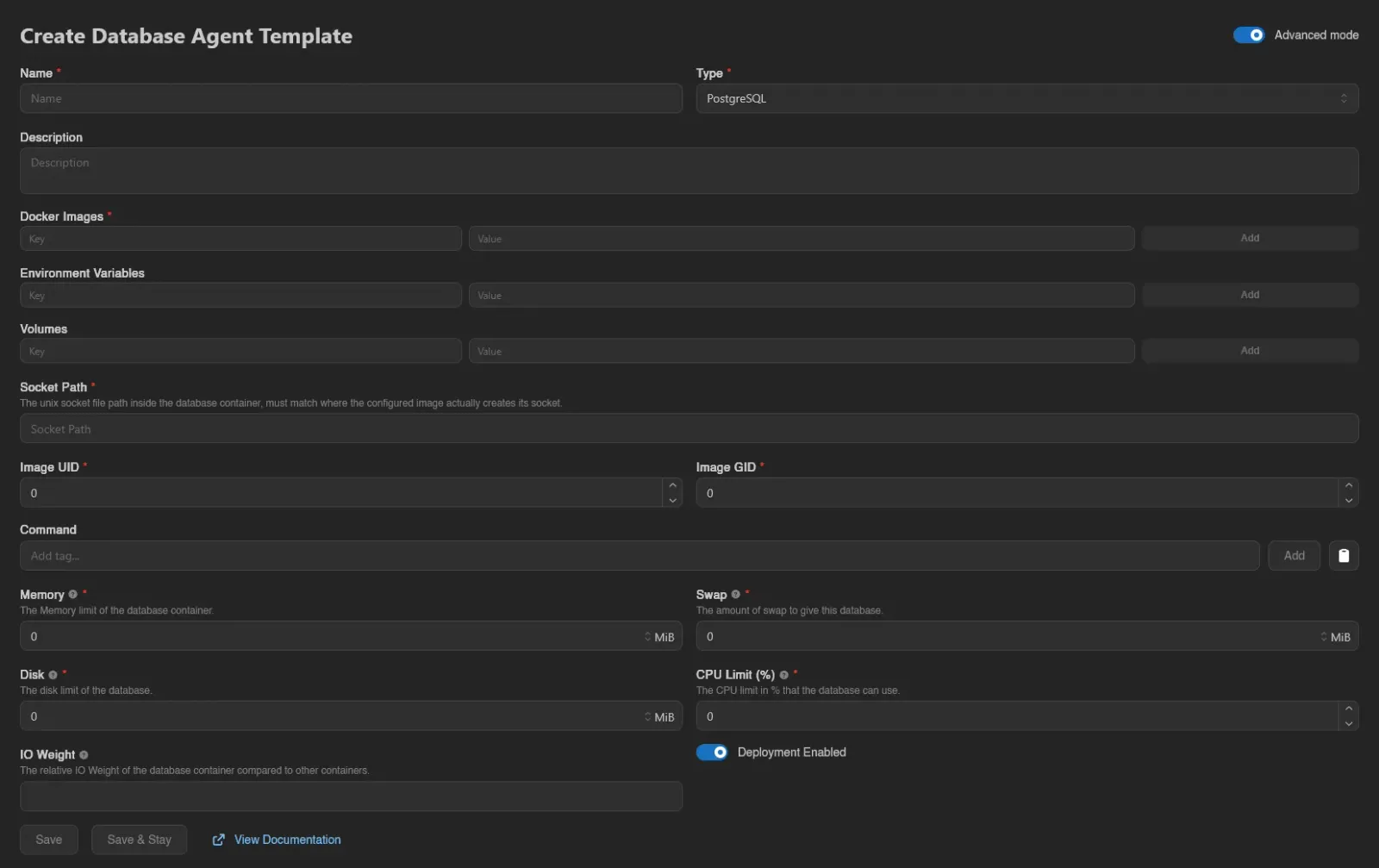
The form's fields, briefly (see the field reference for the details that matter when building your own):
| Field | Description |
|---|---|
| Name, Description | What users see when picking a template. |
| Type | PostgreSQL, MariaDB, MongoDB, or Redis. Locked after creation. |
| Docker Images | Display name to image mappings. With more than one entry, users choose an image when creating an instance. |
| Environment Variables | Passed into the database container. |
| Volumes | Additional volume mounts. |
| Socket Path | The unix socket file path inside the database container; must match where the configured image actually creates its socket. |
| Image UID / Image GID | The user and group the container runs as. |
| Memory, Swap, Disk, CPU Limit (%) | Resource limits every instance created from this template gets (0 means no limit, -1 for swap). |
| Deployment Enabled | Whether users can create new instances from this template. On by default; templates with it off stay usable by existing instances but disappear from the create dialog. |
Command and IO Weight only appear with the Advanced toggle enabled.
Versions and Updating Instances
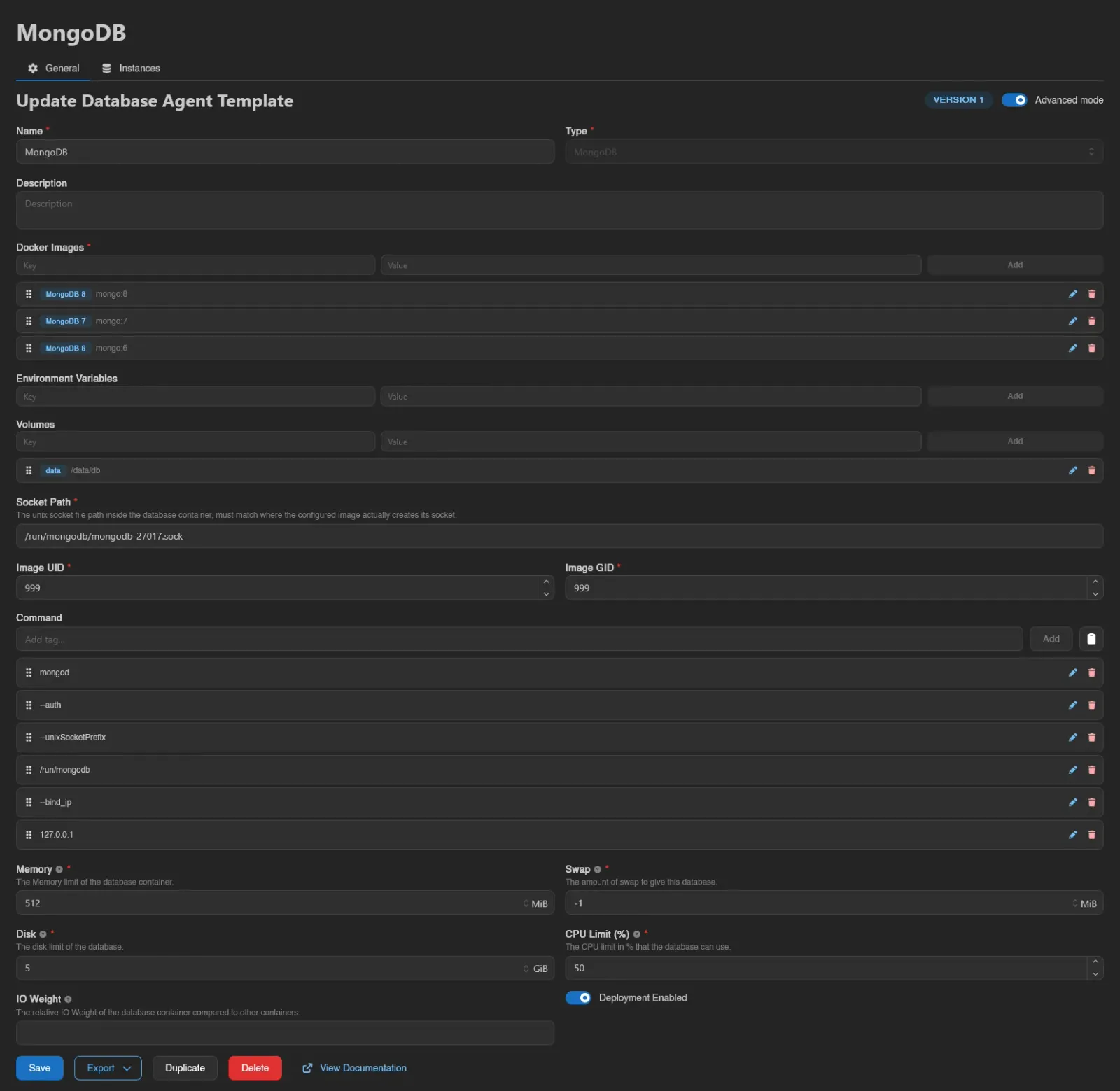
Each template carries a version, shown as a badge on its General tab; saving a change to the template's runtime configuration bumps it. Instances remember the version they were created or last updated from, so after a change they show up as Outdated.
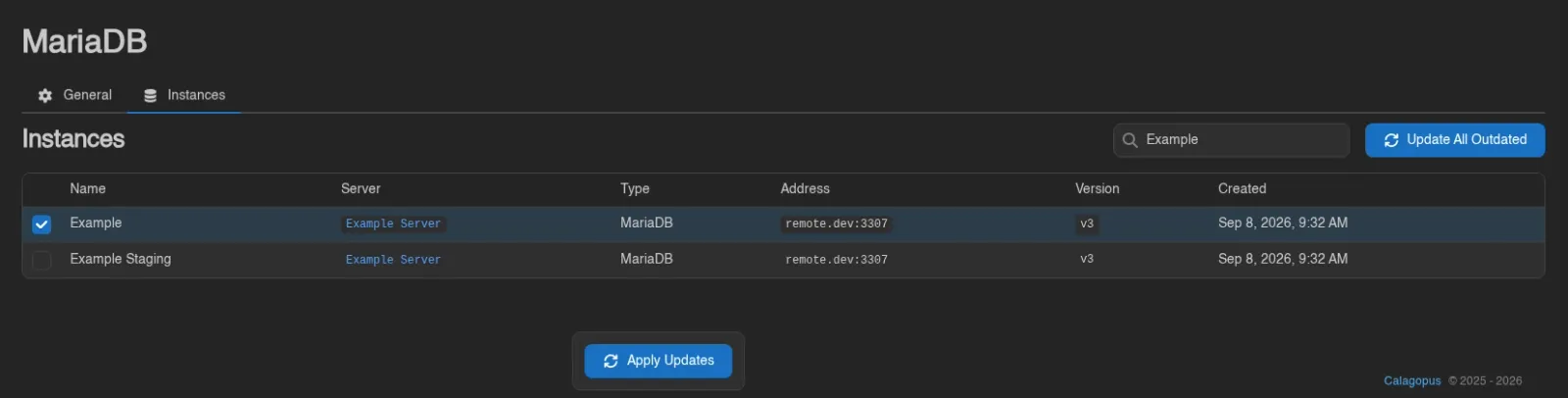
The Instances tab lists every instance using the template: Name, Server, Type, Address, Version, and Created, with an Outdated badge where an update is pending. Select instances (drag, Ctrl/Cmd-click, or Ctrl/Cmd+A) and hit Apply Updates, or use Update All Outdated for everything at once, including instances not shown by the current search.

WARNING
Applying updates restarts the affected databases to pick up the new configuration. Locked instances and instances on hosts in maintenance mode are skipped. Users can also apply a pending update themselves from the instance page.
Export, Duplicate, and Delete
On a template's General tab: Export downloads the template as JSON or as YAML, in the same format Import accepts, which makes it easy to move templates between panels. Duplicate creates a copy under a New Name, and Delete removes the template after confirmation.
INFO
The buttons on these pages follow the database-agent-templates.* admin permission keys (create, read, update, delete). See the Permissions Reference.