
Database Hosts
A database host is an external MySQL, PostgreSQL, or MongoDB server the panel connects to with a privileged account. Once a host is registered and attached to a node or location, users can create classic databases on it themselves from their server's Databases page, each with isolated credentials.
INFO
This page covers the panel side. Preparing the database server itself, creating the privileged account, and allowing remote access is covered in Setting up Database Hosts, with dedicated guides for MySQL (MariaDB), PostgreSQL, and MongoDB. Do that first.
The list at /admin/database-hosts shows each host's ID, Name, Type, and Created date. Click a host's ID to open it, and use the search box to filter.

Creating a Database Host
Click Create in the top right.
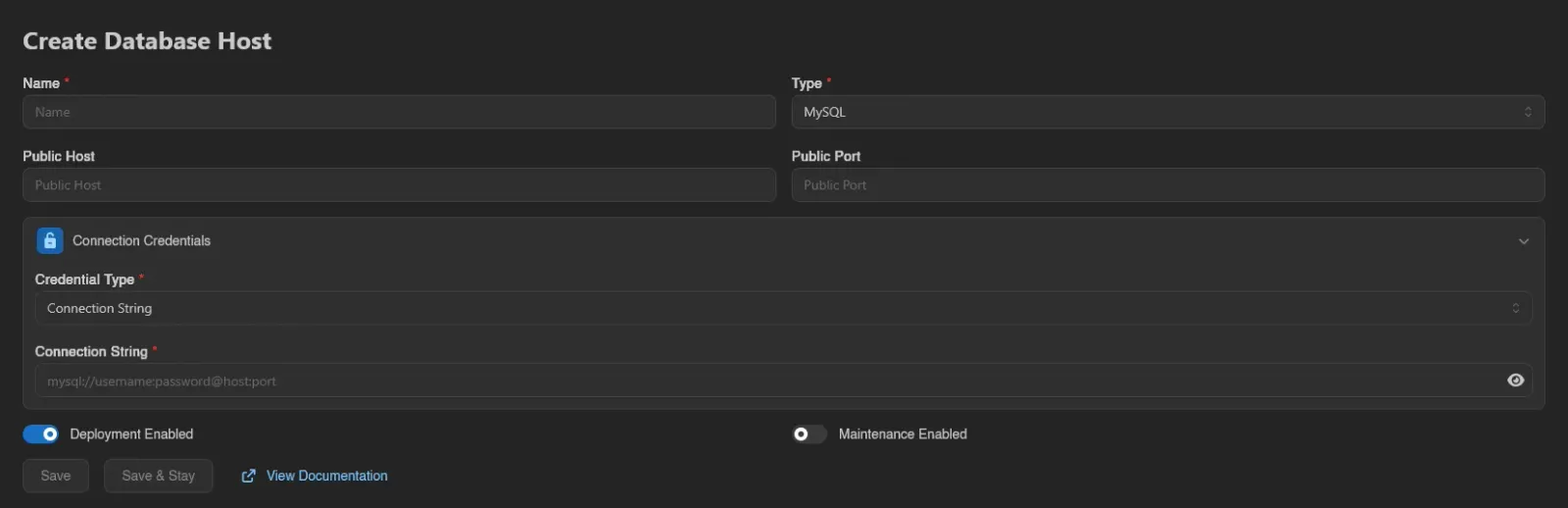
| Field | Description |
|---|---|
| Name | Display name for the host. |
| Type | MySQL, PostgreSQL, or MongoDB. Locked after creation. |
| Public Host / Public Port | Optional. If set, users see this address in their database connection details instead of the address from the credentials. Useful when users reach the database through a different address than the panel does. |
| Connection Credentials | How the panel connects. Pick a Credential Type: Connection String (a single URL like mysql://username:password@host:port) or Details with separate Username, Password, Host, and Port fields. |
| Deployment Enabled | Whether new databases may be placed on this host. On by default. |
| Maintenance Enabled | Puts the host into maintenance mode, see below. Off by default. |

Save creates the host and returns to the list; Save & Stay keeps you on the form. View Documentation links to the setup guides mentioned above.
Making a Host Available
Registering a host is not enough on its own: users are only offered hosts that have Deployment Enabled turned on and that are attached to their server's node or to that node's location. Attach a host from a node's or location's Database Hosts tab with the Add button, which lets you search for and pick a registered host.
Editing and Testing
Opening a host lands on its General tab, the same form as creating one, plus two extra buttons: Test Connection verifies the panel can actually reach and authenticate against the database server, and Delete removes the host.
The Connection Credentials section starts collapsed when editing; leave it collapsed to keep the stored credentials, or expand it to replace them.
Databases
The Databases tab lists every database that servers have created on this host: Name, Server (linked to the server's admin page), Type, Address, Username, Size, and Created. Use the search box to filter; right-click a row to Delete a database.

Maintenance Mode
While Maintenance Enabled is on, database operations against the host are rejected: users cannot create, delete, or recreate databases on it, rotate their passwords, fetch database sizes, or use the Data Explorer. Use it while you work on the underlying database server.
Deleting a Host
Deleting asks for confirmation and offers a force switch (Do you want to execute this deletion forcefully?). Force deletion removes all databases on the host from the panel, but the data on the database server itself may not be fully cleaned up, leaving orphaned data behind. The same force option exists when deleting a single database from the Databases tab, where it additionally ignores the database lock and the host's maintenance state.
INFO
The buttons on these pages follow the database-hosts.* admin permission keys (create, read, update, delete, test). See the Permissions Reference.