
Servers
Servers under Infrastructure lists every server on the panel, no matter who owns it. The table shows each server's ID, Status, Name, Node, Owner, Allocation, and Created date; the node and owner link to their own admin pages, and clicking a row opens the server view.

Next to Create sits Find by External ID: enter the external identifier (for example one set by your billing system), hit Search, and a Server Found card shows the matching server's name, owner, and node with a View Server button. If nothing matches, you get "No server found with that external ID."
Bulk Actions
Selecting servers in the list opens an action bar at the bottom of the page that applies one operation to the whole selection. Select with the row checkboxes, or by dragging a box across the rows.
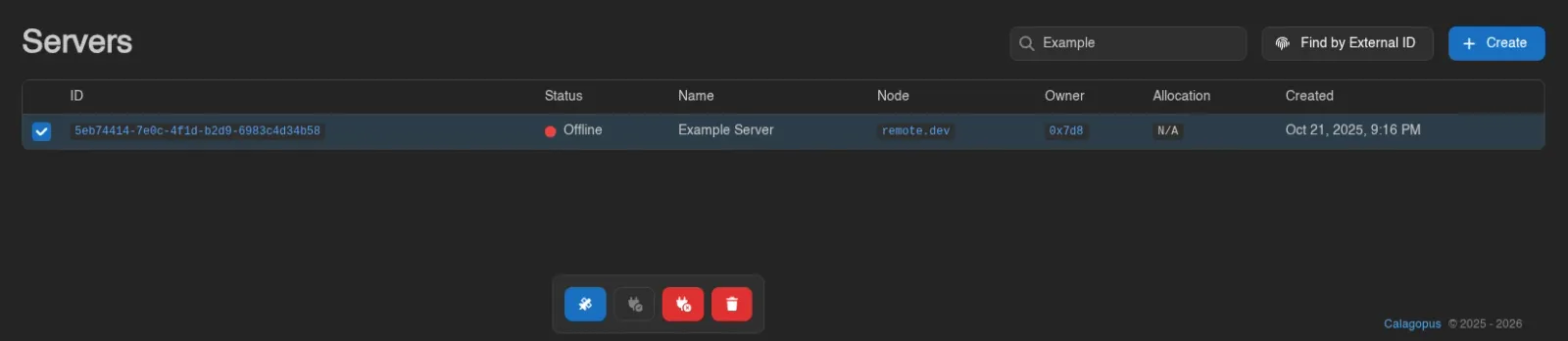
| Action | Effect | Needs |
|---|---|---|
| Clear State | Clears the stored installation/transfer state, the same as Clear State on a single server | servers.update |
| Unsuspend | Lifts suspension | servers.update |
| Suspend | Suspends the servers, stopping them and cutting off their owners | servers.update |
| Delete | Permanently deletes the servers and everything on them | servers.delete |
Each action asks for confirmation first, and Delete spells out that it cannot be undone. Only the actions your role permits appear.
The Delete confirmation carries the same two switches as a single server deletion, both off by default: Force, which removes the servers from the panel even when their nodes cannot be reached (with a warning that their files and databases may be left behind), and "Do you want to delete backups of these servers?". Whatever you pick applies to every selected server.
Servers the action would not change are skipped rather than pushed through, so suspending a selection that already contains suspended servers only touches the rest, and the toast reports both counts ("Successfully suspended 3 servers. 2 servers skipped."). If nothing in the selection would change, the panel says so and does nothing.
Servers are processed independently, so a bulk action can partly succeed; the toast then reports how many succeeded and how many failed.
Creating a Server
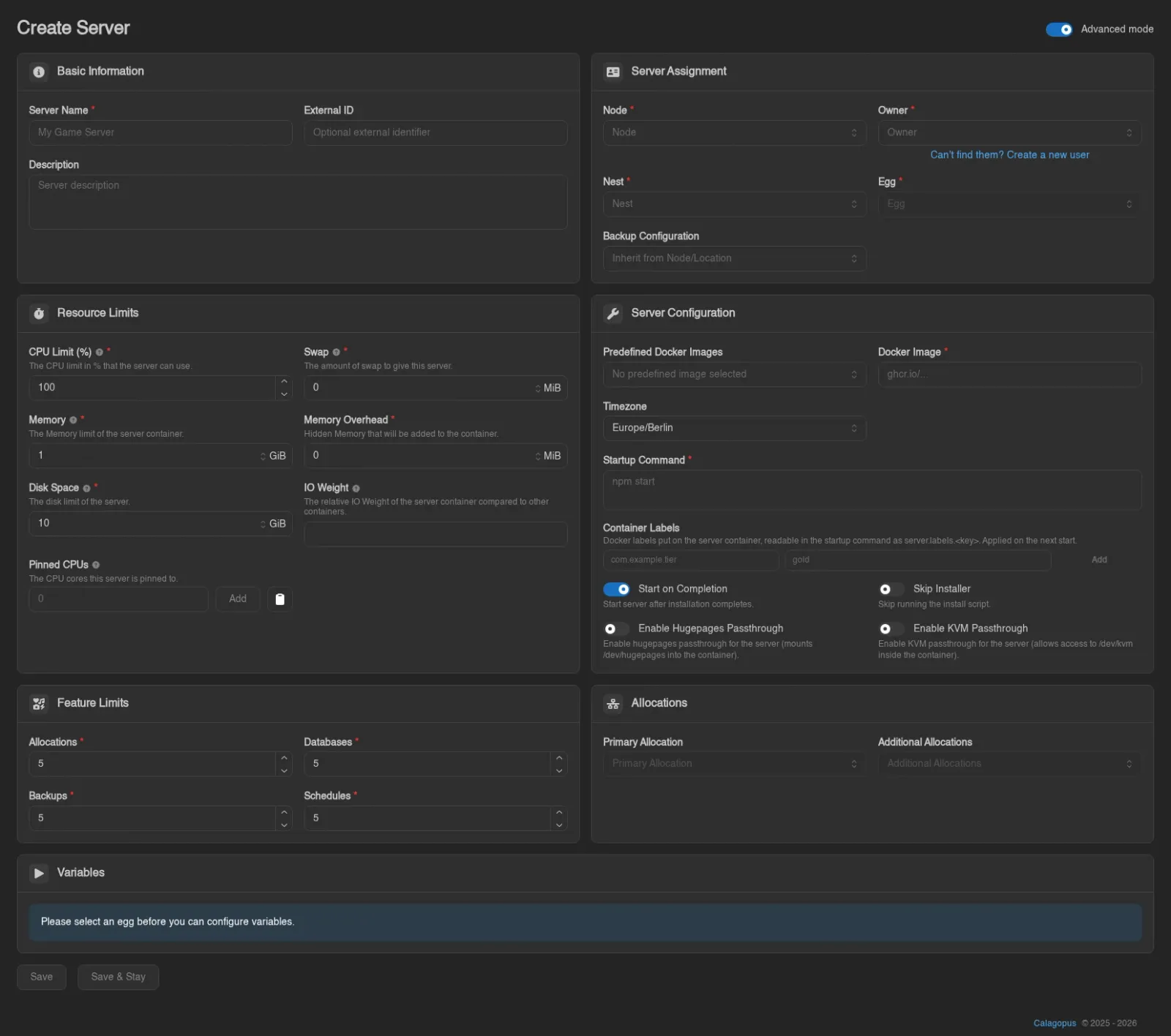
Click Create (or go to /admin/servers/new). The form is a set of cards; an Advanced mode toggle in the top right reveals the fields marked advanced below and is remembered across admin forms.
Basic Information
Server Name (required), an optional External ID for linking external systems, and an optional Description.
Server Assignment
| Field | Notes |
|---|---|
| Node | Required. Where the server will be deployed. |
| Owner | Required. The user who owns the server. The dropdown searches by username and email, and each entry shows both. If nobody matches, a Can't find them? Create a new user link opens a create-user modal inline and selects the new account as the owner (needs users.create). |
| Nest | Required. Selecting one unlocks the egg dropdown. |
| Egg | Required. Determines images, startup commands, and variables. |
| Backup Configuration | Optional; defaults to "Inherit from Node/Location". |
All five are searchable dropdowns. Picking an egg immediately prefills the Docker image and startup command from the egg's defaults. Backup configurations are covered in the backup configurations guide.
Resource Limits
Size fields take a value plus a unit (B through PiB).
| Field | Meaning |
|---|---|
| CPU Limit (%) | 1 thread = 100%. 0 sets no limit. |
| Memory | Memory limit of the server container. 0 sets no limit. |
| Disk Space | "This is a soft-limit unless the disk limiter is configured on Wings.", see system.disk_limiter_mode. 0 sets no limit. |
| Swap (advanced) | Amount of swap. -1 sets no limit. |
| Memory Overhead (advanced) | "Hidden Memory that will be added to the container.", extra headroom the owner doesn't see. |
| IO Weight (advanced) | Relative IO weight compared to other containers, 0 to 1000. May not work on all systems. |
| Pinned CPUs (advanced) | CPU cores the server is pinned to, by index (e.g. 0, 1, 2). Empty allows all cores. |
Server Configuration
| Field | Meaning |
|---|---|
| Docker Image | Required. Pick from the egg's predefined images. |
| Timezone | Timezone inside the container; System uses the node's own. |
| Predefined Startup Commands | Only shown when the egg defines named startup commands; picking one fills the field below, Custom lets you write your own. |
| Startup Command | Required. What actually runs in the container. |
| Start on Completion | "Start server after installation completes." On by default. |
| Skip Installer | "Skip running the install script." Useful when restoring files by other means. |
| Container Labels (advanced) | Docker labels put on the server's container, as key/value pairs. See below. |
| Enable Hugepages Passthrough (advanced) | Mounts /dev/hugepages into the container. |
| Enable KVM Passthrough (advanced) | Allows access to /dev/kvm inside the container. |
Container labels are for tooling outside the panel that reads Docker labels, such as a monitoring agent or a reverse proxy that routes by label (com.example.tier = gold). They are applied the next time the container is created, which is the next start; changing them does not mark the server as needing a restart, so restart it yourself. An egg's configuration file replacements can read one as {{server.labels.<key>}} (a missing key resolves to an empty string). The startup command cannot: its {{...}} placeholders only see the server's environment variables. A server takes at most 64 labels, keys and values are capped at 255 characters and cannot contain control characters, and Service and ContainerType are refused because Wings sets those itself. The server's Overview tab lists the labels as key=value badges.
Feature Limits
How many Allocations, Databases, Backups, and Schedules the server may have; each defaults to 5. The backup cap counts server and database backups together. These are the caps the owner runs into on the client-side Network, Databases, Backups, and Schedules pages.
Allocations
Once a node is selected, choose a Primary Allocation and any Additional Allocations from that node's free pool (see setting up allocations for creating them). You can create a server without one; the panel asks "No Primary Allocation Assigned" and you confirm with Create Anyway.
Variables
Until a nest and egg are chosen this card just says "Please select an egg before you can configure variables." After that, the egg's variables appear with their defaults prefilled. As an admin you can edit every variable here, including ones the owner can't change on their Startup page.
Finish with Save (returns to the list) or Save & Stay.
Server View
Clicking a server opens its admin view. Tabs appear based on your admin permissions:
| Tab | Requires |
|---|---|
| Overview | - |
| General | - |
| Allocations | servers.allocations |
| Variables | servers.variables |
| Mounts | servers.mounts |
| Backups | nodes.backups |
| Databases | database-hosts.read |
| Logs | servers.read |
| Management | - (individual actions gated below) |
| View in Client Area | servers.read |
Overview
Read-only summary cards. Status badges at the top flag special states: Suspended, Transferring, Installing, Install Failed, and Restoring Backup.
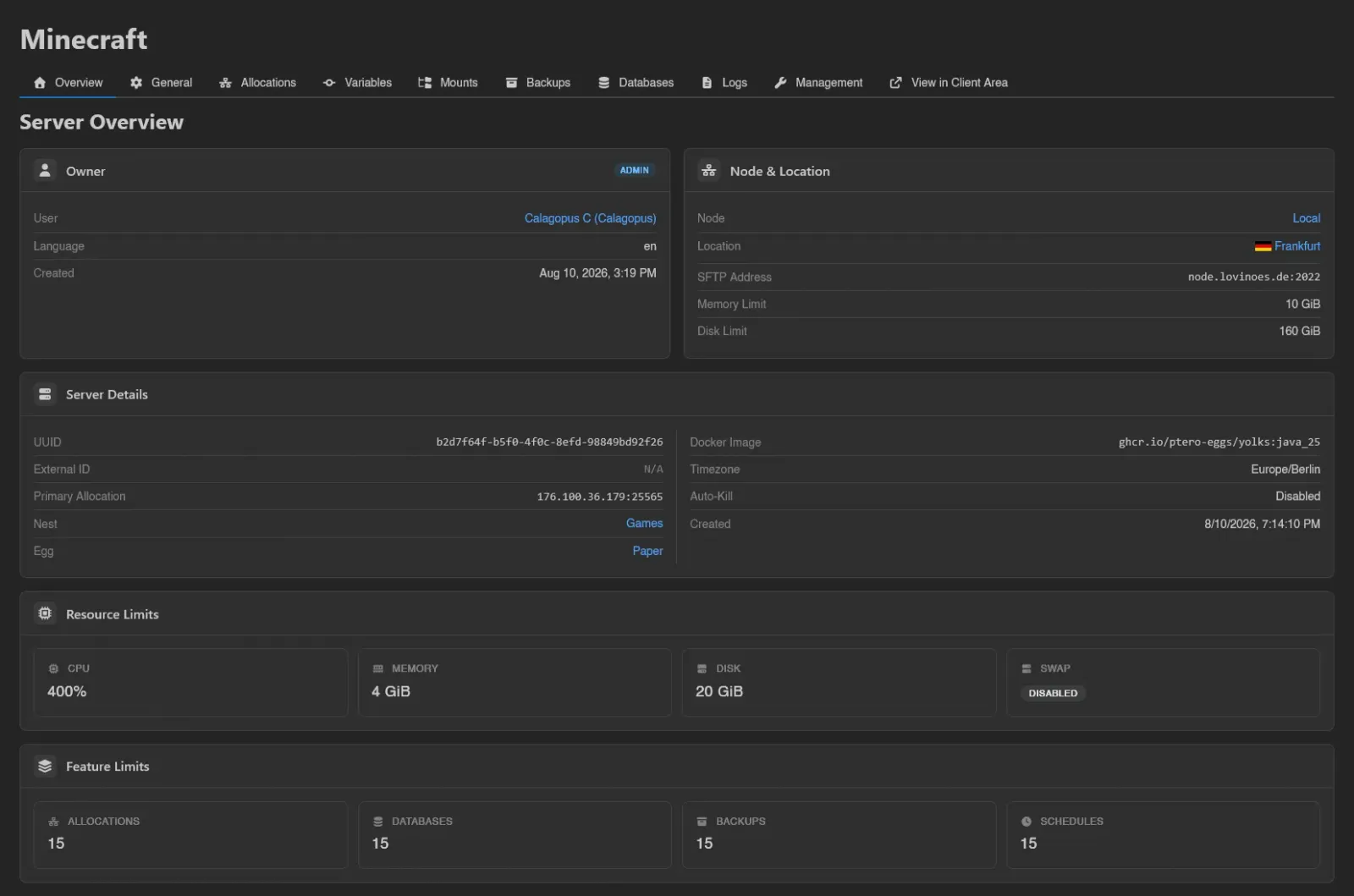
- Owner: user (with an Admin badge where applicable), language, and account creation date.
- Node & Location: node, location, SFTP address, and the node's own memory and disk limits.
- Server Details: UUID, external ID, primary allocation, nest, egg, Docker image, timezone, auto-kill setting, and creation date.
- Resource Limits: CPU, memory, disk, and swap tiles.
0shows as Unlimited (swap:-1is Unlimited,0is Disabled). - Feature Limits: the allocation, database, backup, and schedule caps.
General
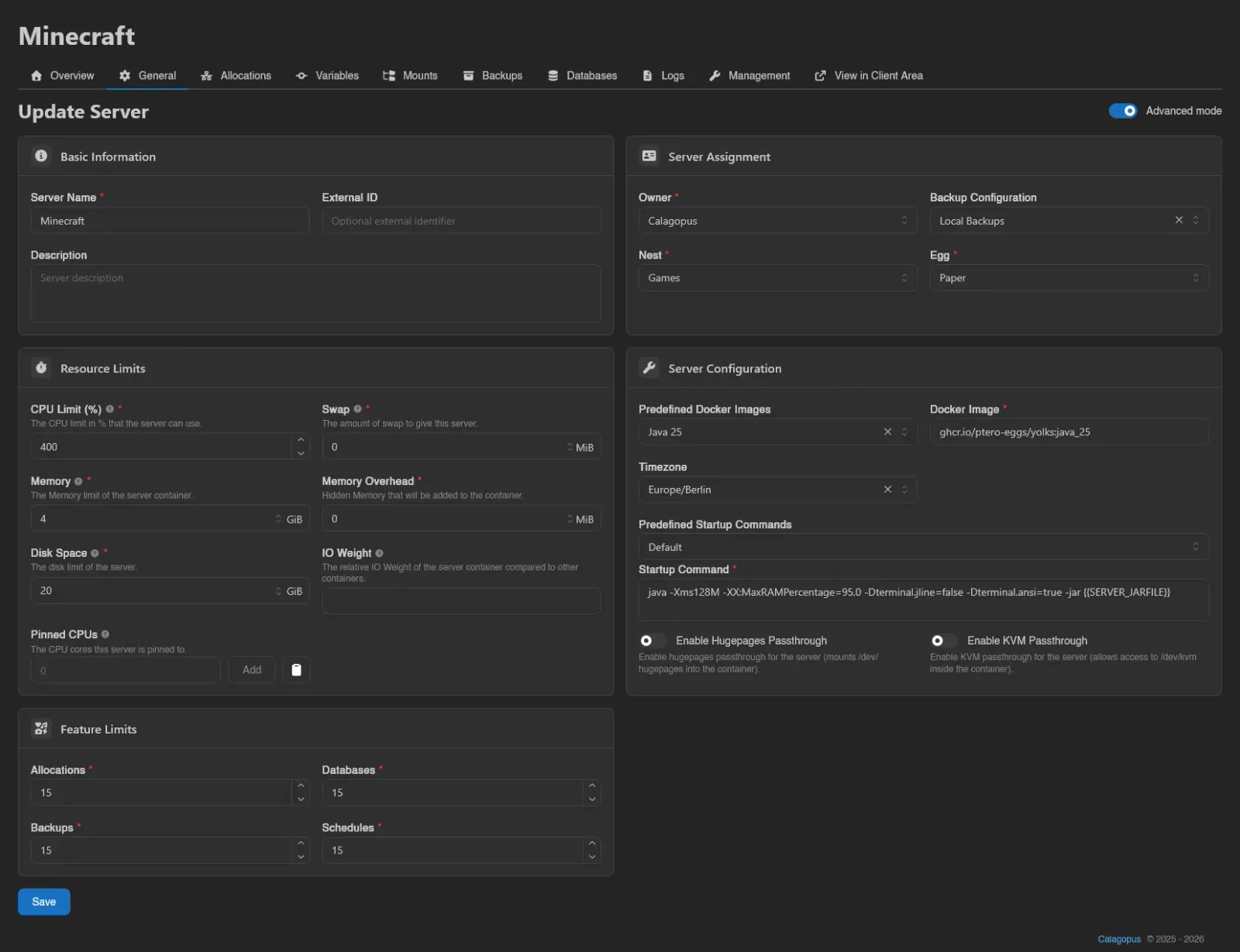
The Update Server form: the same cards as creating a server minus node, allocations, and variables (those have their own tabs). Two differences: the Docker image is a free-text field with a separate Predefined Docker Images dropdown above it, so you can set an image the egg doesn't list, and the install-time switches (Start on Completion, Skip Installer) are gone.
Changing the egg re-prefills the image and startup command. A suspended server shows a "This server is suspended." alert here.
Changing the Owner hands the server to another user.
Allocations
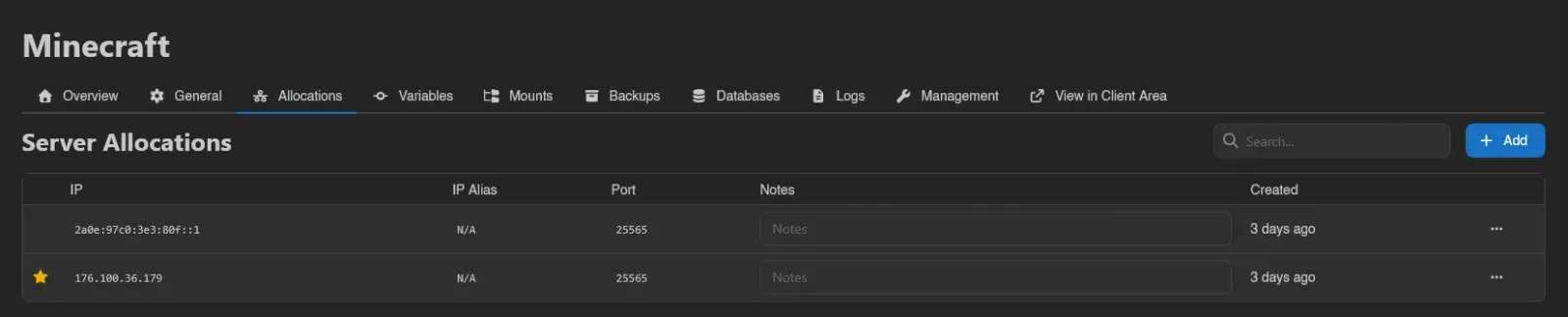
The server's allocations: primary marker, IP, IP Alias, Port, Notes, and Created. Notes are edited inline in the table and save automatically. Add opens a modal to attach free allocations from the server's node (multi-select). Right-click a row for Set Primary / Unset Primary and Remove. The owner-facing equivalent is the Network page.
Variables
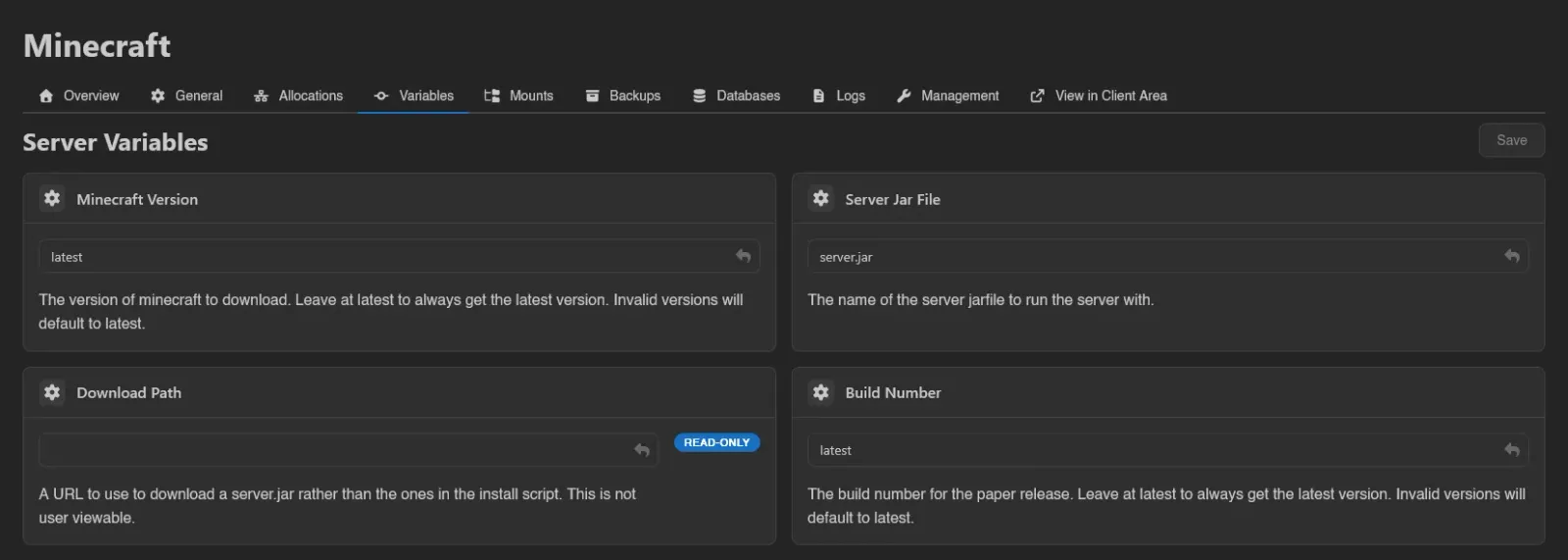
The same variable grid as the client Startup page, but every variable is editable regardless of its user-editable flag; variables users can't touch just carry a Read-Only badge here. Edit values and hit Save (Ctrl+S also works).
Mounts
Mounts attached to this server: ID, Name, Source, Target, and Added. Add attaches one of the mounts available to this server from the admin Mounts area; right-click for Remove. The owner sees and toggles these on their Mounts page.

Devices
Attach or detach host devices for this server (requires servers.devices). The available list includes devices assigned to both its node and egg. Admins can attach devices even when User Attachable is off. Restart the server after changing attachments.
Backups
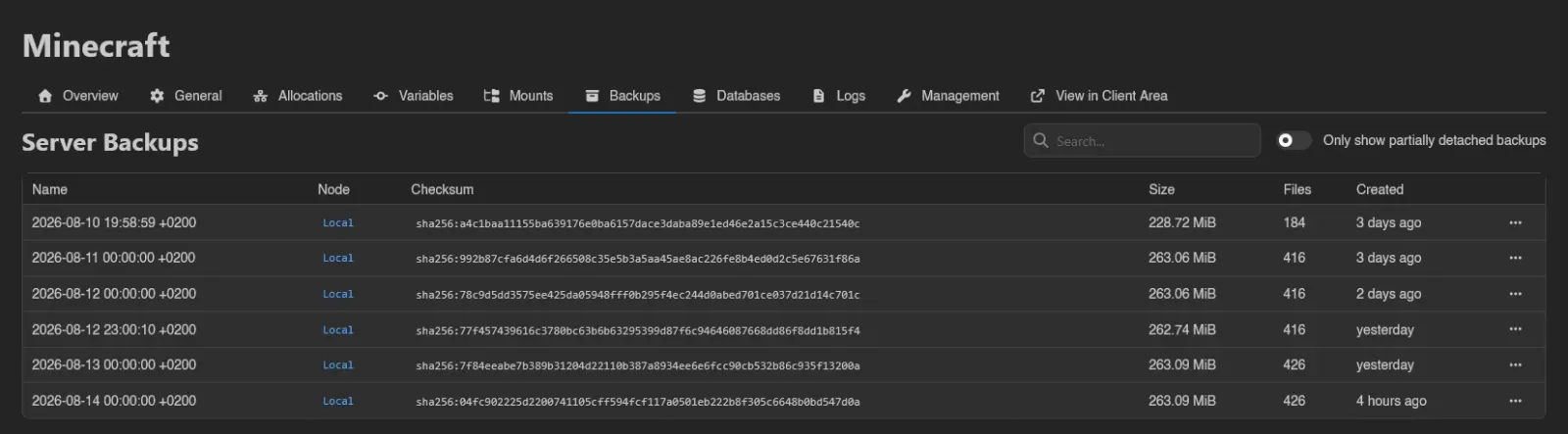
All backups of this server: Name, Kind, Source, Node, Checksum, Size, Files, Retention, and Created, with failed backups flagged.
- Kind separates the server's file archives from dumps of its database instances.
- Source names either the server files or the instance a dump came from.
- Retention is filled in for backups that belong to a backup group or were taken by a system backup policy: a badge for the rule keeping the backup longest and the time the panel expects to delete it.
- Restore and export to files are offered for file backups only.
- A warning icon appears when a backup lives on a different node than the server; those aren't viewable from the client API.
- The Only show partially detached backups switch filters to exactly those, and also decides which failed backups the button below clears.
Right-click a completed backup for Download (with a format submenu for streaming backups), Restore, Export to Files, View Metadata (raw JSON), and Delete. The owner-facing side is the Backups page.
When there are failed backups, a Delete Failed button appears above the table (requires nodes.backups), showing how many it would remove. It asks for confirmation, keeps locked backups and any whose configuration is in maintenance, and runs in the background. A Force switch removes them even when the configuration is missing or the remote storage is unreachable, at the risk of leaving orphaned files behind.
Databases
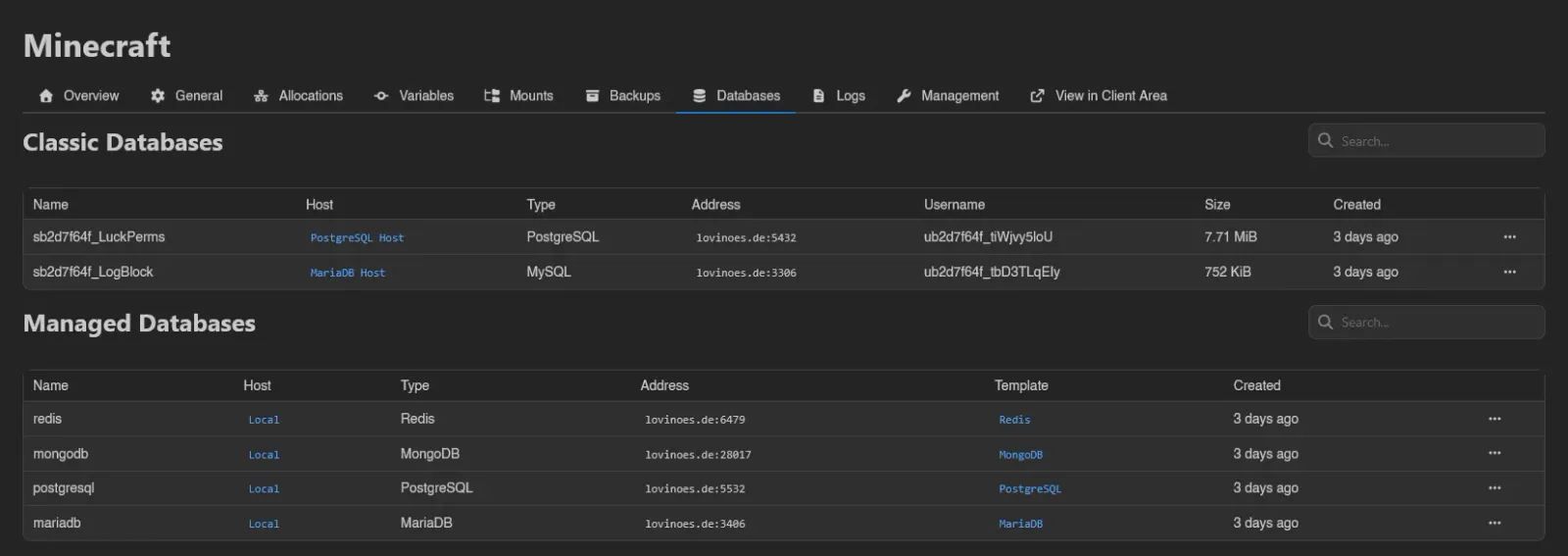
Two tables. Classic Databases lists databases on database hosts (name, host, type, address, username, size, created; right-click to Delete). Managed Databases lists instances provisioned through the Database Agent, shown when you have database-agent-hosts.read. The client view is the Databases page.
Logs
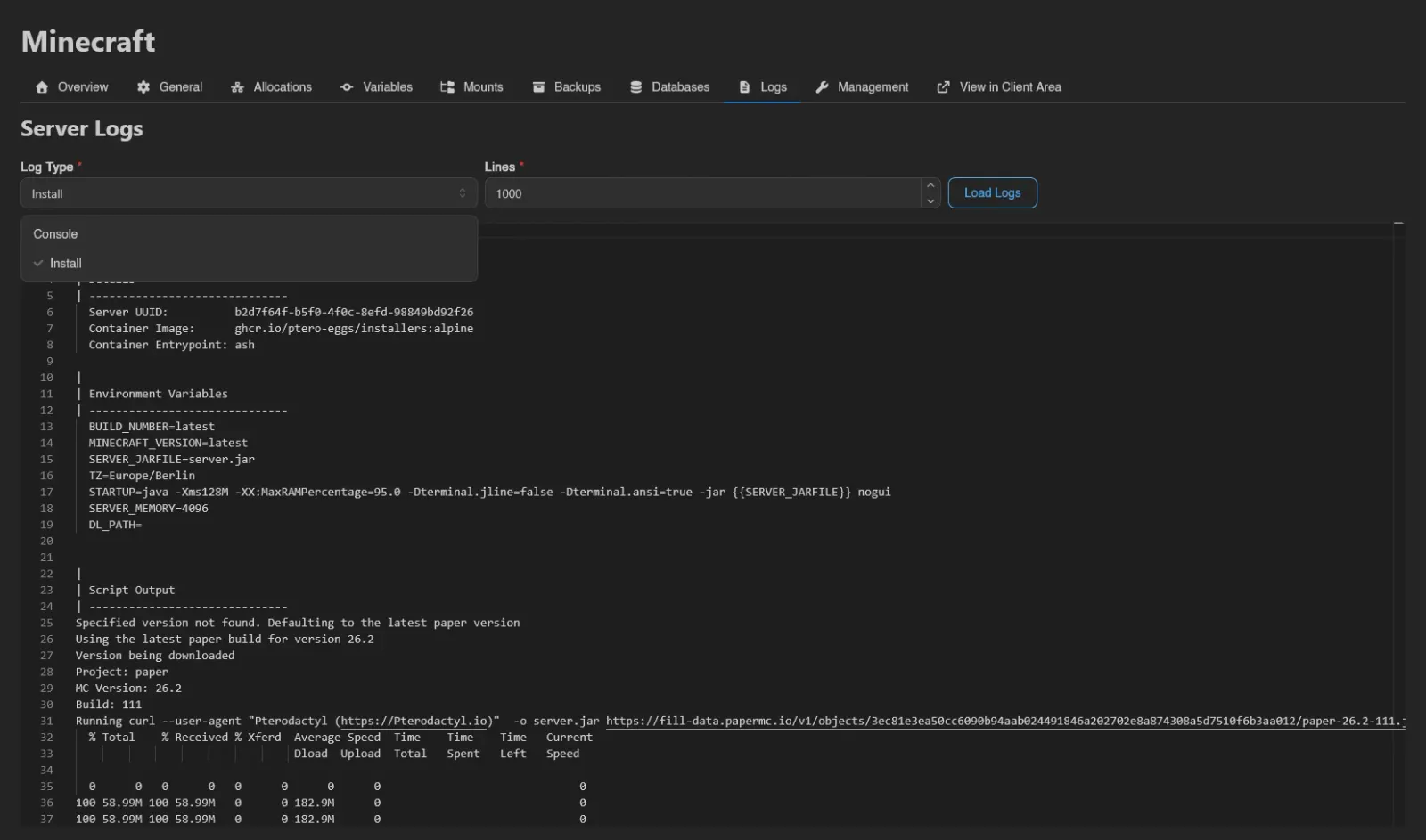
Fetch the server's recent Console or Install logs: pick the Log Type, how many Lines (default 1000), and hit Load Logs. Output opens in a read-only viewer with ANSI colors stripped. Handy for diagnosing a failed install without leaving the admin area.
Management
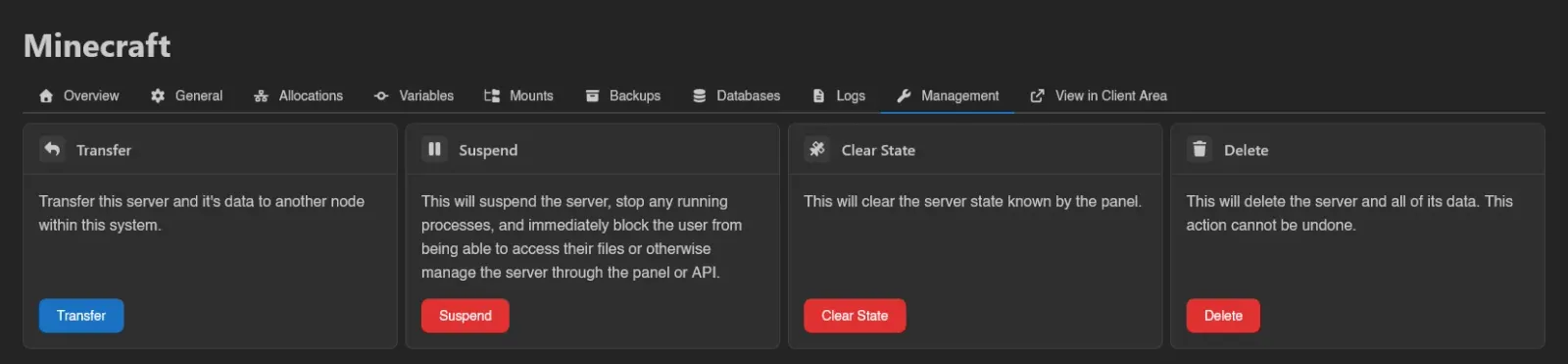
Action cards, each gated by its own permission and confirmed in a modal.
Transfer
Moves the server and its data to another node (requires servers.transfer and nodes.read). The modal asks for:
- Node (required; the current node is excluded, and the All-In-One node is not a valid target)
- Primary Allocation and Additional Allocations on the target node
- Backups to transfer, plus a Delete source backups switch to remove the transferred copies from the source node afterwards
- Archive Format (
.taror.itaf, plain or compressed as.gz,.xz,.lz,.bz2,.lz4, or.zst), Compression Level (Best Speed, Good Speed, Good Compression, or Best Compression; disabled for uncompressed.tarand.itaf), and Multiplex Channels (0 to 16 extra HTTP connections for split archives)
WARNING
Backups you don't select stay on the source node and become partially detached once the transfer completes. They remain visible on the Backups tab (filter with the partially detached switch), but not from the client API.
Confirming shows "Server transfer started." and drops you into the server's client view. While the transfer runs, the server carries a Transferring badge on its Overview.
Suspend / Unsuspend
Requires servers.update. The card shows Suspend or Unsuspend depending on the current state.
WARNING
Suspending stops any running processes and immediately blocks the user from accessing files or otherwise managing the server through the panel or API. The server cannot start again until you unsuspend it.
Clear State
Requires servers.update. Resets the server status known by the panel, clearing "any known pending transfers and status failures". The confirmation warns to make sure it is safe before doing this, use it for servers stuck in a state like transferring or install failed, not as a routine action.
Delete
Requires servers.delete. The modal has a force switch ("Do you want to execute this deletion forcefully?"), a "Do you want to delete backups of this server?" switch, and requires typing the server's name to enable Delete.
DANGER
Deleting a server removes it and all of its data, and cannot be undone. "Force deletion skips the normal shutdown sequence. The server files on the node may not be fully cleaned up, leaving orphaned data behind.", so only force it when a normal delete fails (for example, the node is unreachable).
View in Client Area
The last sidebar item jumps to the server's regular client view, the same one the owner uses. The client view links back here with View in Admin Area, so you can hop between the two.