Setting up a Reverse Proxy
This guide walks through putting a reverse proxy in front of the Calagopus Panel running in Docker. A reverse proxy lets the Panel's internal web server (default port 8000) be served securely over the standard HTTP/HTTPS ports (80/443), instead of exposing port 8000 directly.
WARNING
Make sure the Panel is already installed and running before continuing. A misconfigured proxy can make the Panel completely inaccessible until fixed.
Before You Begin
There are two things the Panel needs to know about once it's sitting behind a proxy: which IP the proxy is forwarding from, and which IP it should forward to.
WARNING
This guide assumes you already have Let's Encrypt certificates for your domain see Generating SSL Certificates if you haven't yet. Replace every <domain> placeholder below with your actual domain name.
1. Trust the proxy's IP
Without this, the Panel will log the reverse proxy's IP as the client IP for every request, instead of the real visitor's IP. Set APP_TRUSTED_PROXIES to the proxy's IP (commonly your Docker bridge gateway, e.g. 172.18.0.1):
services:
  panel:
    environment:
      APP_TRUSTED_PROXIES="172.18.0.1"
2. Find the Panel container's IP
This is the address your proxy config below forwards traffic to. It depends on your Docker network setup and can vary between systems, so detect it directly rather than assuming 172.18.0.1:
docker inspect -f '{{range .NetworkSettings.Networks}}{{.IPAddress}}{{end}}' $(docker ps --format '{{.Image}} {{.ID}}' | awk '$1 ~ /^ghcr\.io\/calagopus\/panel/ {print $2}')Use whatever IP this outputs (e.g. 172.18.0.1) everywhere the configs below reference the Panel's address.
Proxy Servers
Pick whichever you're already running, or whichever you'd prefer for a new setup:
WARNING
Before applying the config below, add this map block to your main nginx.conf, inside the http {} context (not inside any server {} block). It makes sure Connection: upgrade is only sent for WebSocket requests rather than all requests. Without it, multipart uploads and other normal HTTP traffic can break.
map $http_upgrade $connection_upgrade {
    default upgrade;
    ''      "";
}
Create /etc/nginx/sites-available/calagopus.conf (or /etc/nginx/conf.d/calagopus.conf on RHEL-based systems):
server {
    listen 80;
    listen [::]:80;
    server_name <domain>;
    return 301 https://$server_name$request_uri;
}

server {
    listen 443 ssl http2;
    listen [::]:443 ssl http2;
    server_name <domain>;

    access_log /var/log/nginx/calagopus.app-access.log;
    error_log  /var/log/nginx/calagopus.app-error.log error;

    sendfile off;
    # Maximum size for uploads and multipart requests
    # (e.g. 100M for allowing 100 MB uploads)
    client_max_body_size 100M;

    ssl_certificate     /etc/letsencrypt/live/<domain>/fullchain.pem;
    ssl_certificate_key /etc/letsencrypt/live/<domain>/privkey.pem;
    ssl_protocols       TLSv1.2 TLSv1.3;
    ssl_ciphers         HIGH:!aNULL:!MD5;
    ssl_prefer_server_ciphers on;
    ssl_session_cache   shared:SSL:30m;
    ssl_session_timeout 10m;
    ssl_session_tickets on;

    # See https://hstspreload.org/ before uncommenting the line below.
    # add_header Strict-Transport-Security "max-age=15768000; preload;";
    add_header X-XSS-Protection          "1; mode=block";
    add_header X-Robots-Tag              "noindex, nofollow" always;
    add_header Permissions-Policy        "camera=(), microphone=(), geolocation=(), fullscreen=(self), clipboard-read=(self)" always;
    add_header Referrer-Policy           "same-origin";

    location / {
        proxy_http_version 1.1;
        proxy_set_header Upgrade          $http_upgrade;
        proxy_set_header Connection       $connection_upgrade;
        proxy_set_header Host             $host;
        proxy_set_header X-Real-IP        $remote_addr;
        proxy_set_header X-Forwarded-For  $proxy_add_x_forwarded_for;
        proxy_set_header X-Forwarded-Proto $scheme;
        proxy_redirect off;
        proxy_buffering on;
        proxy_request_buffering on;
        # Make sure this IP matches your Panel container's IP address
        proxy_pass http://172.18.0.1:8000;
        proxy_pass_header Content-Security-Policy;
    }

    location ~ /\.ht {
        deny all;
    }
}server {
listen 80;
listen [::]:80;
server_name <domain>;
access_log /var/log/nginx/calagopus.app-access.log;
error_log /var/log/nginx/calagopus.app-error.log error;
sendfile off;
# Maximum size for uploads and multipart requests
# (e.g. 100M for allowing 100 MB uploads)
client_max_body_size 100M;
add_header X-XSS-Protection "1; mode=block";
add_header X-Robots-Tag "noindex, nofollow" always;
add_header Permissions-Policy "camera=(), microphone=(), geolocation=(), fullscreen=(self), clipboard-read=(self)" always;
add_header Referrer-Policy "same-origin";
location / {
proxy_http_version 1.1;
proxy_set_header Upgrade $http_upgrade;
proxy_set_header Connection $connection_upgrade;
proxy_set_header Host $host;
proxy_set_header X-Real-IP $remote_addr;
proxy_set_header X-Forwarded-For $proxy_add_x_forwarded_for;
proxy_set_header X-Forwarded-Proto $scheme;
proxy_redirect off;
proxy_buffering on;
proxy_request_buffering on;
# Make sure this IP matches your Panel container's IP address
proxy_pass http://172.18.0.1:8000;
proxy_pass_header Content-Security-Policy;
}
location ~ /\.ht {
deny all;
}
}Enabling the Configuration
Once your config file is in place, enable it and reload the relevant service:
# On RHEL-based systems, placing the file in /etc/nginx/conf.d/ is enough.
sudo ln -s /etc/nginx/sites-available/calagopus.conf /etc/nginx/sites-enabled/calagopus.conf
sudo systemctl restart nginx# You do not need to run any of these commands on RHEL-based systems.
sudo a2enmod rewrite headers proxy proxy_http proxy_wstunnel ssl http2
sudo a2ensite calagopus.conf
sudo systemctl restart apache2# You do not need to run any of these commands on RHEL-based systems.
sudo a2enmod rewrite headers proxy proxy_http proxy_wstunnel
sudo a2ensite calagopus.conf
sudo systemctl restart apache2systemctl restart caddyVerify Access
Visit https://<domain> in your browser. You should land on the Panel's login page, served through your chosen proxy.
Set the Server URL
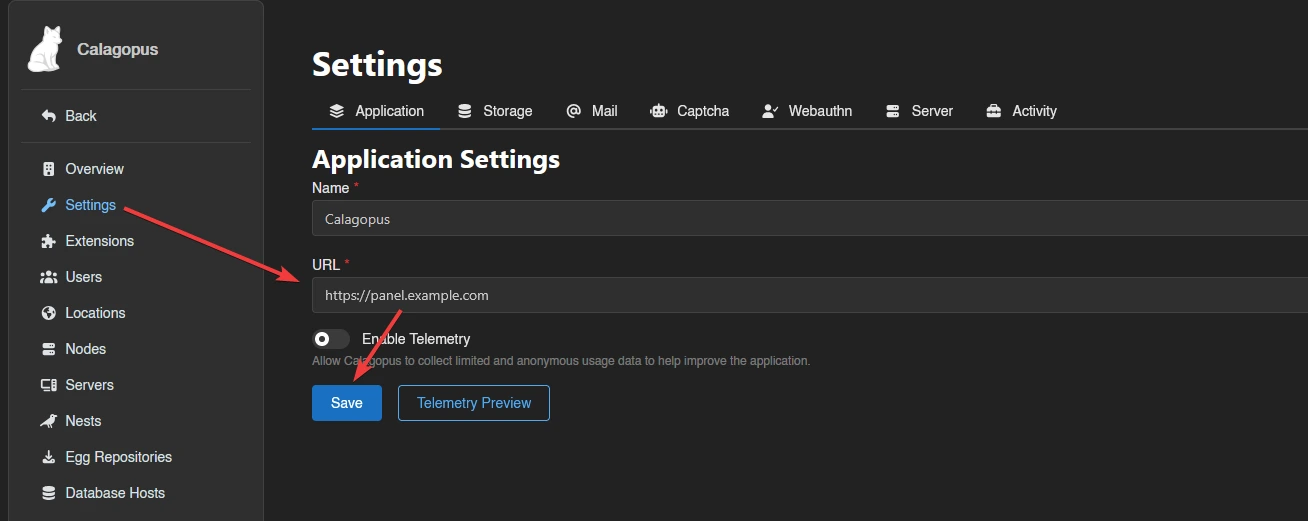
Once access is confirmed, go to the Panel's Admin page, set the server URL to https://<domain>, and save. This URL is what the Panel uses for generated links, API calls, and Wings node connections. It needs to match what you just set up.