
Mounting UI
So far the docs have covered the backend side - routes, permissions, settings, activity. But none of that is any use unless the Panel's UI actually shows something to a user. This page is about the frontend entry point: how your extension gets React components onto actual pages in the Panel.
Two things do the work:
- The
Extensionclass you export fromsrc/index.ts, which declares a couple of default mount points (the admin extension card, the admin extension configuration page). - The
ExtensionRegistry, accessed viactx.extensionRegistryinside yourinitialize()method, which lets you push components into existing Panel pages and add entirely new routes to the sidebar.
Together these cover the big four: "add a summary to the admin extension card", "let the admin configure your extension", "drop a widget into an existing page", and "add a whole new page". Which is most of what most extensions need.
The Extension Class
Every extension's frontend entry point is a class extending Extension, whose instance you default-export:
import { Extension, ExtensionContext } from 'shared';
import MyConfigurationPage from './ConfigurationPage.tsx';
import MyCardSummary from './CardSummary.tsx';

class MyExtension extends Extension {
  public cardConfigurationPage: React.FC | null = MyConfigurationPage;
  public cardComponent: React.FC | null = MyCardSummary;
  public cardIcon: React.ReactNode = <FontAwesomeIcon icon={faRocket} />;

  public initialize(ctx: ExtensionContext): void {
    // register additional UI through ctx.extensionRegistry - see below
  }
}

export default new MyExtension();
Three fields on the class map directly to admin-panel surfaces:
cardComponent- a React component rendered inside your extension's card in the admin panel's extension list. Good for a quick at-a-glance summary: "42 items installed", "last sync 2 minutes ago", a small health indicator. Keep it compact, it's sharing space with other extensions. Set tonullif you don't need it.cardConfigurationPage- a React component shown when an admin clicks the Configure button on your extension's card. It's mounted at/admin/extensions/<your-package-identifier>automatically - you don't need to register a route for it. Set tonullif your extension has nothing to configure. The Configure button is only enabled while the extension is enabled and has a backend part, and the page itself sits behind theextensions.*admin permissions.cardIcon- a React node that overrides the icon shown next to your extension's name in the admin extension list (defaults to a generic puzzle-piece). Pass any element - a<FontAwesomeIcon />, an<img>, an inline SVG - and it's dropped into the row's icon slot as-is; the surrounding styled container is kept, so you're swapping just the glyph. Leave itnullto keep the default puzzle piece.
INFO
Configuration pages are already wrapped for you. The route shell that mounts your cardConfigurationPage at /admin/extensions/<id> provides the admin layout, navigation, and title bar - your component just returns its content (a <div>, a <Stack>, whatever). This is the only exception. Every other route you add needs to wrap its own content (see Container Wrappers below).
The initialize() method runs once when the Panel loads your extension, and receives a ctx: ExtensionContext that exposes the registry. Any UI beyond the two class fields gets added here.
Slotting Into Existing Pages
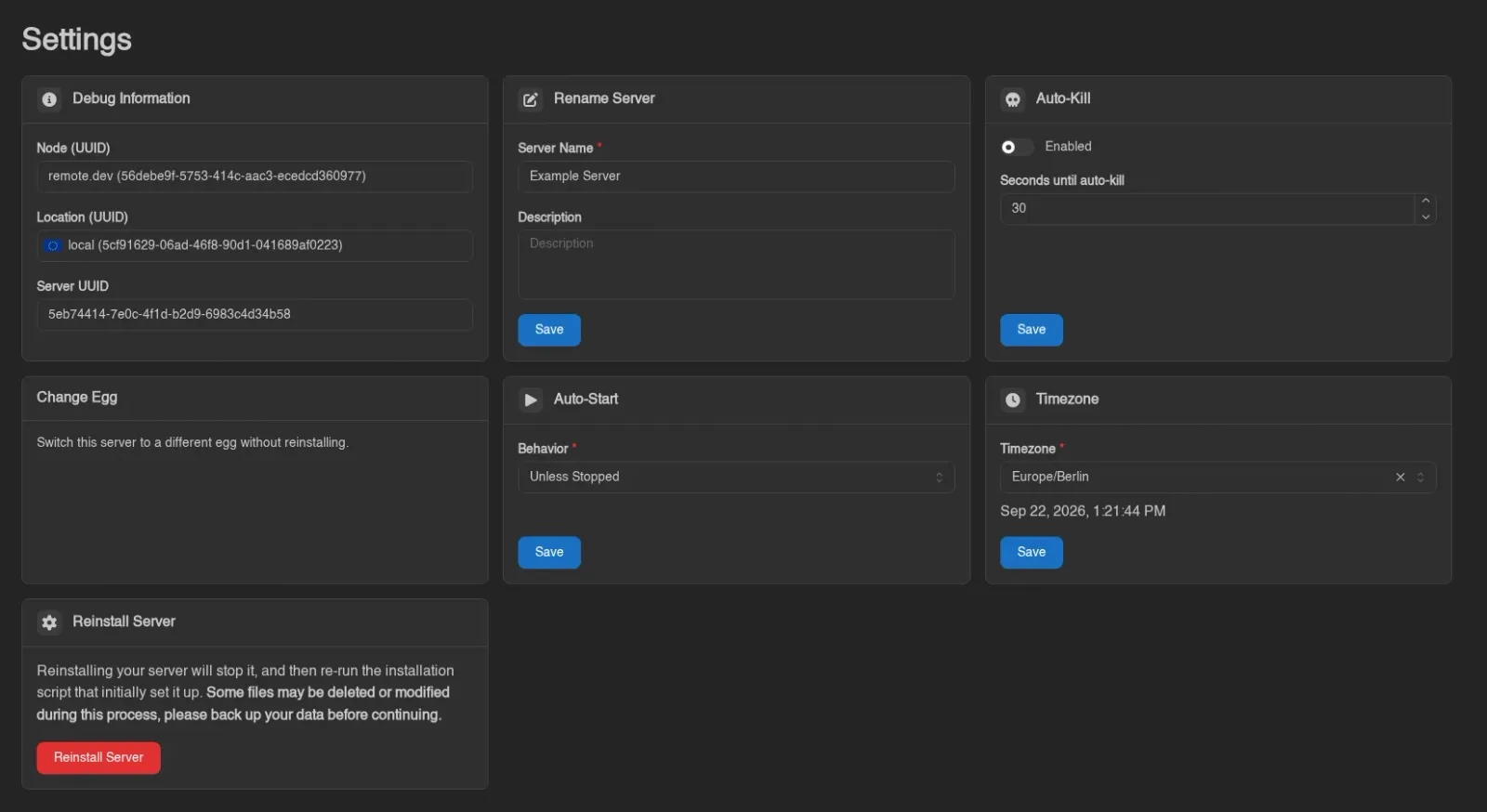
The Panel's built-in pages expose named slot points where extensions can inject components. As an example, the Egg Changer extension uses this to drop a card onto the server settings page:
public initialize(ctx: ExtensionContext): void {
  ctx.extensionRegistry.pages.server.settings.enterSettingContainers((containers) =>
    containers.appendComponent(EggChangerContainer),
  );
}
Walking this left to right: ctx.extensionRegistry.pages is the tree of built-in pages with slot points. .server.settings navigates to the server settings page. .enterSettingContainers(...) enters the "setting containers" slot on that page, handing you a container object whose methods control what gets added and where.
Each slot has two methods for adding components:
appendComponent(Component)- adds to the end of the slotprependComponent(Component)- adds to the beginning of the slot
The component you pass takes no props - it's a self-contained feature card that reads whatever state it needs from Panel stores (see Reading Panel State below).
That is the shape of a plain component list. A few slots are containers instead (the file manager's container and editorContainer, for example) and expose prependComponent, prependContentComponent, appendContentComponent and addPropsInterceptor; the File Manager page walks through one.
Ordering Between Entries
Append and prepend get you to the ends. If you need to land between existing entries, the slot points use Tailwind's order- utility classes on each entry to control visual position. Stock entries count up by 10 starting at order-10, so order-10, order-20, order-30, and so on - leaving plenty of gaps for extensions to slot in at order-15 or order-25 without having to renumber anything.
Since the exact numbers depend on what's already there in the version of the Panel you're targeting, inspect the page in DevTools to find the existing orders: right-click an entry next to where you want to land, inspect, and look for the order-<n> class on the wrapper. Then set your own component's outer element to an order that falls in the right gap:
export default function MyServerSettingsCard() {
  return (
    <TitleCard title='...' className='order-25'>
      {/* ... */}
    </TitleCard>
  );
}
This is a slightly manual process but it's flexible and it avoids the common "ordering API where nobody agrees on priorities" mess. On a slot whose stock entries carry order- classes, an entry without one has CSS order 0 and lands first, whatever appendComponent suggests, so on those pages pick a number. The card in the screenshot above uses order-25, which is why it sits after Rename Server and before Auto-Start.
Action Bars, Schedules, and Devices
Selection action bars have their own slots. Register a component before or after the built-in actions:
ctx.extensionRegistry.pages.server.schedules.enterActionBar((bar) =>
  bar.appendComponent(MyScheduleAction),
);
MyScheduleAction is your React component. These slots use ComponentListRegistry with no selection props: registration does not hand your component the selected rows, a clear-selection callback, or the page's refresh function. The slot renders with the action bar when the user selects rows.
Registry under pages | Action-bar slot |
|---|---|
dashboard.apiKeys, dashboard.sshKeys, dashboard.oauthLinks, dashboard.commandSnippets | enterActionBar(...) |
server.backups, server.databases, server.databases.instances | enterActionBar(...) |
server.mounts, server.devices, server.network, server.schedules, server.subusers | enterActionBar(...) |
Each supports prependComponent and appendComponent. server.schedules and server.devices also expose enterContainer(...) for their page wrappers. Schedules do not expose a per-schedule context-menu registry.
server.mounts.enterSubNavigation(...) extends the navigation shared by Mounts and Devices. Admin device pages are under pages.admin.devices: the list exposes enterContainer, and view exposes subNavigation, eggs, nodes, and servers. Egg/node assignment tabs have enterSubContainer and enterContextMenu; the servers tab has enterSubContainer. The device tabs of admin nodes and servers are under pages.admin.nodes.view.devices and pages.admin.servers.view.devices.
Full Slot-Point Surface
The page tree under ctx.extensionRegistry.pages is large and evolves as the Panel grows new slot points. Rather than enumerate it here (and go stale immediately), see the typedocs: ExtensionRegistry. Look for pages.* and follow the types to find the container method you need.
Adding New Routes
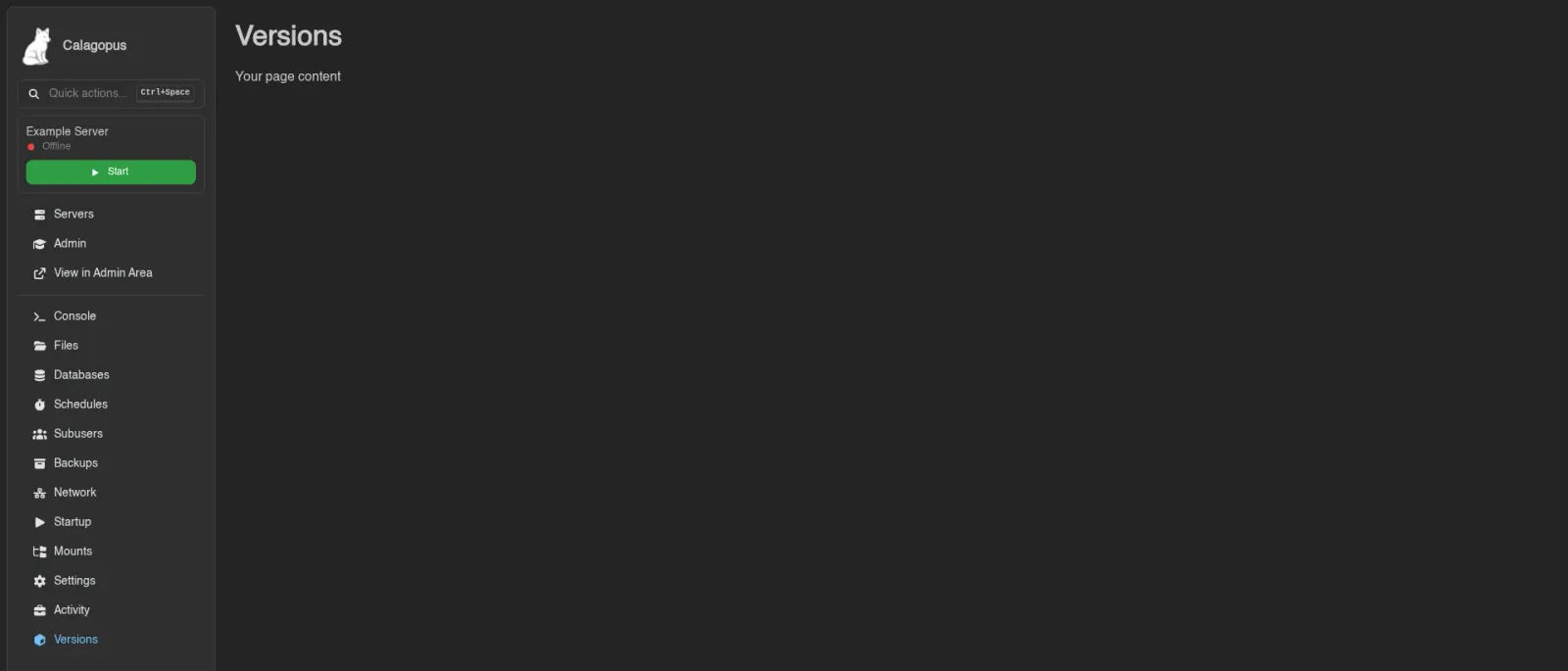
When slotting into an existing page isn't enough - you have a whole new feature that deserves its own sidebar entry and URL - use the route registry. The Minecraft version changer extension does this to add a "Versions" tab to every server:
import { faCube } from '@fortawesome/free-solid-svg-icons';

public initialize(ctx: ExtensionContext): void {
  ctx.extensionRegistry.enterRoutes((routes) =>
    routes.addServerRoute({
      name: () => getExtTranslations().t('pages.server.versions.title', {}),
      icon: faCube,
      path: '/minecraft/versions',
      element: MinecraftVersionsPage,
    }),
  );
}
enterRoutes(...) gives you a RouteRegistry with one add*Route method per route type. The route types correspond 1:1 with the Panel's major navigation scopes:
| Method | Definition type | Where it appears | Has name/icon? | Has permission? |
|---|---|---|---|---|
addGlobalRoute | GlobalRouteDefinition | Top-level, no layout | No | No |
addAuthenticationRoute | GlobalRouteDefinition | Inside the auth flow | No | No |
addAccountRoute | RouteDefinition | User's account area | Yes | No |
addAdminRoute | AdminRouteDefinition | Admin panel sidebar | Yes | Yes |
addServerRoute | ServerRouteDefinition | Per-server sidebar (like "Console", "Files", etc.) | Yes | Yes |
Route Definition Fields
The definition types form a small hierarchy, each level adding fields. These are the fields you'll actually fill in:
Always (GlobalRouteDefinition and everything that extends it):
path: string- the URL relative to the route type's base. A path of/minecraft/versionspassed toaddServerRoutebecomes something like/server/<uuid>/minecraft/versionsin the actual URL. Leading slash required.element: FC- the React component to render when the route matches. Remember it needs to wrap itself in the appropriate container (see Container Wrappers below).exact?: boolean- highlights the sidebar entry only on an exact URL match (it becomes theNavLinkendprop). It does not change which URLs the route matches. Leave unset unless you know you need it.filter?: () => boolean- called at render time; if it returnsfalsethe route is skipped as though it wasn't registered. Useful for feature flags ("only show this route if the extension's setting is enabled") or environment checks. The route tree re-evaluates it on every render, but the sidebar lists are memoised and only re-run it when the route list, the admin's route order or the language changes, so keep it cheap and don't expect a flag that flips at runtime to move the sidebar entry straight away.
WARNING
filter is not for egg route filtering, The Panel already has such system built-in via Egg Configurations. Use filter for extension-specific conditions only.
Additionally for named routes (RouteDefinition - account, admin, server):
name: string | (() => string) | undefined- the label shown in the sidebar. A plain string works for untranslated labels. For translated labels, pass a function that returns the translated string - this way the label re-evaluates when the user switches language.undefinedis valid if for some reason you want a route with no sidebar entry (though in that case you probably wantaddGlobalRouteinstead).icon?: IconDefinition- a FontAwesome icon definition (e.g.faCubefrom@fortawesome/free-solid-svg-icons). Optional, but sidebar entries look noticeably worse without one - include one unless you're specifically going for a text-only look.activeMatches?: string[]- extra paths that also highlight this sidebar entry, for sub-pages of yours that live under a different URL.
Additionally for permissioned routes (AdminRouteDefinition, ServerRouteDefinition):
permission?: string | string[] | null- the permission node(s) required to see this route. A single string requires that permission; an array passes if the user holds any of them, so use it for "this page is reachable through more than one grant", not to require a combination. Routes whose permission check fails are hidden from the sidebar and inaccessible via direct URL. This is the frontend counterpart tohas_server_permissionon the backend - see Permissions for how permission nodes map to what the user can do.nullor omitted means no permission required (which is the right default for most user-facing features; reach forpermissionwhen you have something gated).
Additionally for admin routes (AdminRouteDefinition):
category?: string- the admin sidebar is grouped into labelled categories, in this order: System, Infrastructure, Users & Access, Nests & Eggs, Databases, Storage. Setcategoryto one of the built-in category keys ('infrastructure','eggs','databases','storage','access','system') to place your route under that heading. An unknown or omittedcategoryputs the route in an unlabelled group at the bottom of the sidebar, below the built-in categories.
A More Complete Example
Putting a few of these together - a server route with a translated name, an icon, gated on a permission, and hidden while the user has switched the feature off:
import { z } from 'zod';
import { getUserSetting } from '@/lib/userSettings.ts';

ctx.extensionRegistry.enterRoutes((routes) =>
  routes.addServerRoute({
    name: () => getExtTranslations().t('pages.server.myfeature.title', {}),
    icon: faCube,
    path: '/my-feature',
    element: MyFeaturePage,
    permission: 'settings.my-feature',
    filter: () => getUserSetting('dev.example.myfeature::enabled', z.boolean(), true),
  }),
);
filter takes no arguments and runs outside React, so hooks are out, and so is the current server: useServerStore is a context-scoped store with no getState(), and the route list is built without a server in hand. Reach for module-level reads instead - getGlobalStore() from @/stores/global.ts for Panel settings and permissions, or getUserSetting from @/lib/userSettings.ts for a per-user flag like the one above (see User Settings). Showing a route only on certain eggs is what Egg Configurations are for, not filter.
Container Wrappers
Unlike configuration pages, route components don't get page chrome for free. Your element is rendered inside the layout for its route type, but inside that layout you still need to wrap your content in the right content container, which handles the title, header, and other per-page chrome. Importing from @/elements/containers/:
| Route type | Wrapper | Notes |
|---|---|---|
addGlobalRoute, addAuthenticationRoute | ContentContainer | Minimal - sets the browser tab title, renders children directly |
addAccountRoute | AccountContentContainer | Full account page chrome |
addAdminRoute (top-level) | AdminContentContainer | Full admin page chrome |
addAdminRoute (under a tabbed page with SubNavigation) | AdminSubContentContainer | For admin pages that live as a tab underneath a parent page |
addServerRoute | ServerContentContainer | Full server page chrome |
The non-minimal containers all take the same core props - title (required - the page header), plus optionals like subtitle, search / setSearch (wires up a search input in the header), contentRight (a ReactNode rendered on the right of the header, for buttons), hideTitleComponent and titleOrder. All but AdminSubContentContainer also take fullscreen. A typical server page looks like this:
import ServerContentContainer from '@/elements/containers/ServerContentContainer.tsx';

export default function MyServerPage() {
  const { t: tExt } = useExtTranslations();

  return (
    <ServerContentContainer title={tExt('pages.server.myfeature.title', {})}>
      {/* your page content */}
    </ServerContentContainer>
  );
}
Note that these containers have a registry prop. You don't need it. It's used by the stock Panel to register its own slot points inside pages, not by extensions - ignore it.
Ordering Routes
Admins can reorder the account sidebar (from the admin user settings) and the server sidebar (per egg configuration). That order is the source of truth. If an admin has set a custom order, that wins. The admin sidebar has no custom order: it follows the static category order, then registration order within a category. You generally don't need to think about where your route lands - it'll appear somewhere sensible by default, and admins will move it if they want.
If you really do want to influence the default ordering (before an admin customizes it), use an interceptor - see the next section. But most of the time: just addServerRoute(...) and let the admin panel handle placement.
Interceptors
Alongside each add*Route method there's a matching add*RouteInterceptor. Interceptors receive the full array of routes of their type (including routes registered by core and by other extensions) and can mutate it. They run after all extensions have registered, so the array you see is the final list before the Panel renders it:
public initialize(ctx: ExtensionContext): void {
  ctx.extensionRegistry.enterRoutes((routes) =>
    routes.addServerRouteInterceptor((items) => {
      // reorder, or replace a stock page's element with your own
    }),
  );
}
Two legitimate uses:
Changing default route order. Move entries around to land in a specific spot. For account and server routes this is the default order only - if an admin has set a custom order, their ordering wins and your reordering is discarded (the custom order is applied by path, so an element you replaced stays replaced). Admin routes have no custom order, so there the order your interceptor leaves is what renders.
Replacing a stock page entirely. Find the route you want to replace by its path, swap its
elementfor your own component. This lets an extension take over a built-in page - useful when you want to offer a different UX for an existing Panel feature.
WARNING
Interceptors are a sharp tool. They run against every route of that type, including routes from core and routes from other extensions that registered before you. A buggy interceptor can break functionality the user didn't even know came from your extension, and replacing a stock page's element means you now own the responsibility of keeping that page working as the Panel evolves.
Use interceptors sparingly, keep their mutations narrowly scoped (filter to the one route you care about by path, don't iterate over everything), and prefer the simple add*Route methods for anything you can express that way.
The same interceptor pattern exists for every route type - addGlobalRouteInterceptor, addAccountRouteInterceptor, addAdminRouteInterceptor, addAuthenticationRouteInterceptor.
Reading Panel State
Components you slot into existing pages (and pages you register as new routes) usually need to know which server or user the current page is about. The Panel exposes this through Zustand stores, which your components import directly:
import { useServerStore } from '@/stores/server.ts';
import { useGlobalStore } from '@/stores/global.ts';useServerStore- the currently-viewed server (on server pages). Exposesserver,updateServer, and related state. It is scoped to the server router through React context, so it only works inside server pages and has no module-levelgetState().useGlobalStore- app-wide state: the Panel settings (including the available languages), the current user's permissions, announcements and the server time offset. Outside React,getGlobalStore()from the same module returns a snapshot.
The logged-in user is not in either store. It comes from useAuth() in @/providers/AuthProvider.tsx.
Subscribe with a selector to avoid re-rendering when unrelated fields change:
const uuid = useServerStore((state) => state.server.uuid);
const egg = useServerStore((state) => state.server.egg);
Or destructure if you need multiple fields and don't mind the extra re-renders:
const { server, updateServer } = useServerStore();This is standard Zustand - if you haven't used it before, the Zustand docs are short and cover everything.
The Rest of the Registry
This page covered the two patterns you'll actually use in most extensions - slotting components into existing pages, and adding new routes. The ExtensionRegistry surface is considerably larger than this, and designed to let extensions do almost anything with the UI. Rather than enumerate it (and go stale every time it grows), the authoritative reference is the typedocs:
Start there when you need something beyond what's shown on this page. Most slot points and registries follow the same enter*() / add*() shape as the two patterns above, so once you've used one, the rest are mostly discoverable.