
Users
Users under Users & Access lists every account on the panel. Each row shows the user's avatar, ID, Username, Role, and Created date; the ID opens the user view and the role links to its page under Roles.
Two icons next to the username tell you the account's state at a glance: a crown marks admins, and a lock shows whether two-factor authentication is enabled (green closed lock) or not (red open lock).

Next to Create (requires users.create) sits Find by External ID (requires users.read): enter the external identifier, for example one set by your billing system, hit Search, and a User Found card shows the matching username, email, and role with a View User button. If nothing matches, you get "No user found with that external ID."
Creating a User
Click Create (or go to /admin/users/new) and fill in the form:
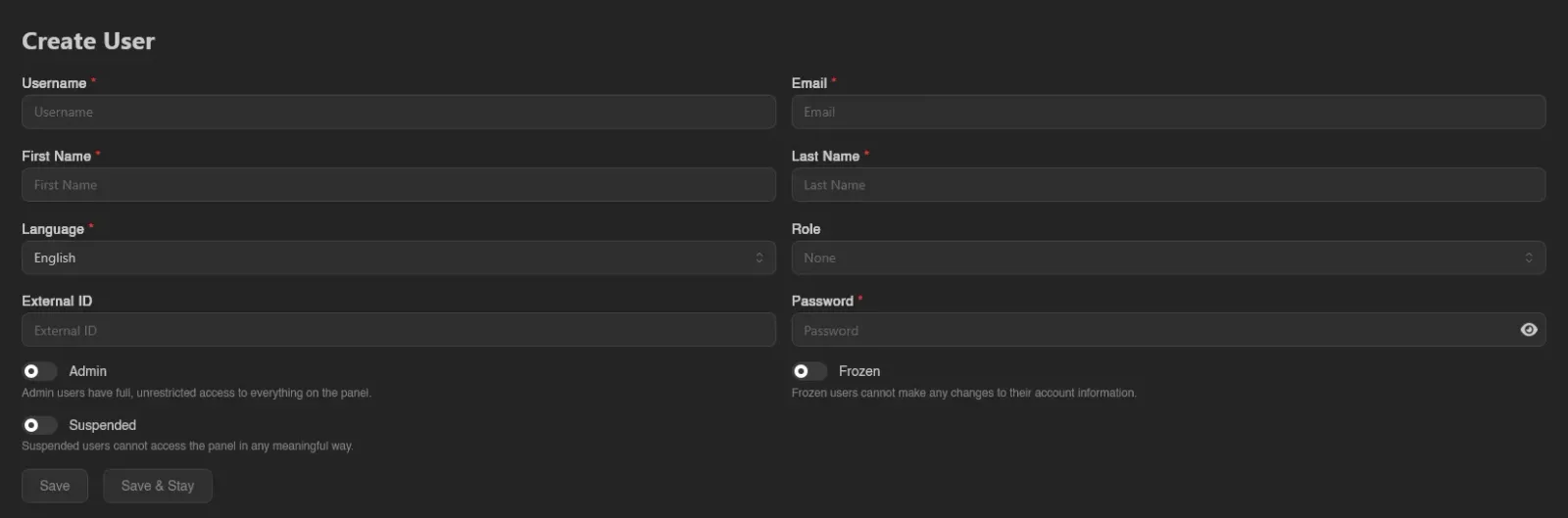
| Field | Notes |
|---|---|
| Username | Required. |
| Required. | |
| First Name / Last Name | Optional. |
| Language | Required. The user's panel language. |
| Role | Optional; only shown to root admins. See Roles. |
| External ID | Optional identifier for linking external systems. |
| Password | Required when creating. When updating, leave it empty to keep the current one. |
| Admin | Only shown to root admins. "Admin users have full, unrestricted access to everything on the panel." Saving with this on asks for confirmation first ("Are you sure you want to grant name admin access?"). |
| Frozen | "Frozen users cannot make any changes to their account information." |
| Suspended | "Suspended users cannot access the panel in any meaningful way." |
Finish with Save (returns to the list) or Save & Stay.
INFO
Role-based admins are limited here: only root admins (accounts with the Admin toggle) can assign roles, grant Admin, or change another user's email and password, and a role-based admin cannot save changes to a root admin at all.
User View
Clicking a user opens their view. Tabs appear based on your admin permissions:
| Tab | Requires |
|---|---|
| General | - |
| Servers | servers.read |
| OAuth Links | users.oauth-links |
| Activity | users.activity |
General
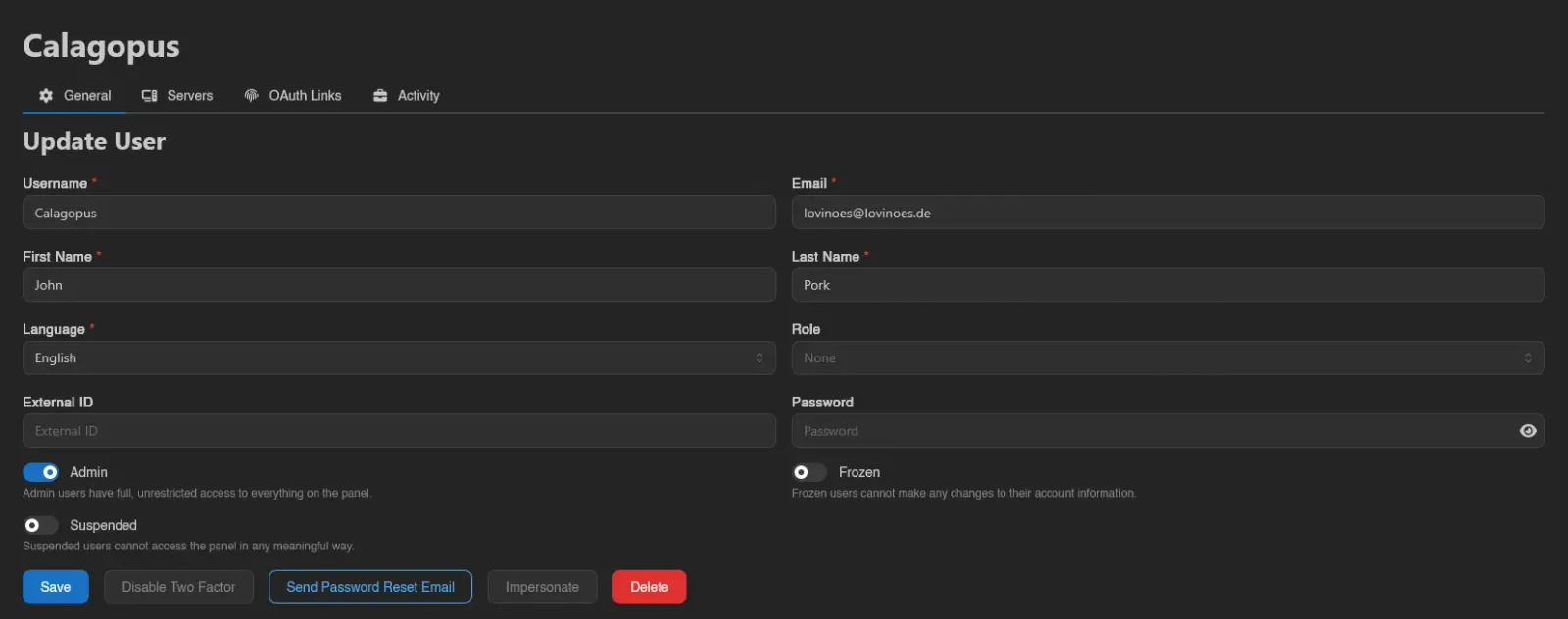
The Update User form, the same fields as creating a user, followed by a row of admin actions:
| Button | Requires | What it does |
|---|---|---|
| Disable Two Factor | users.disable-two-factor | Clears the user's authenticator app and email two-factor, along with their recovery codes, after a confirmation. Only enabled when the user actually has one of those on. It does not remove their security keys. |
| Send Password Reset Email | users.email | Emails the user a password reset link after a confirmation. |
| Verify Email | users.email | Marks the user's email address as verified without them having to open the emailed link. Disabled once the address is already verified. |
| Impersonate | users.impersonate | Switches your session to this user, see below. |
| Delete | users.delete | Deletes the user after a confirmation. |
Servers
Every server the user has access to, with the same columns as the admin Servers list. The Only show users' owned servers switch narrows the list to servers they own, hiding ones where they're only a subuser.

OAuth Links
The user's connections to OAuth providers: ID, OAuth Provider, Identifier, Last Used, and Created. Add (shown with oauth-providers.read, since it lists providers; the write itself falls under this tab's users.oauth-links) opens a modal where you pick the provider and enter the user's Identifier at that provider; right-click a row to Remove a link. The user-facing side of this list is their OAuth Links page.

Activity
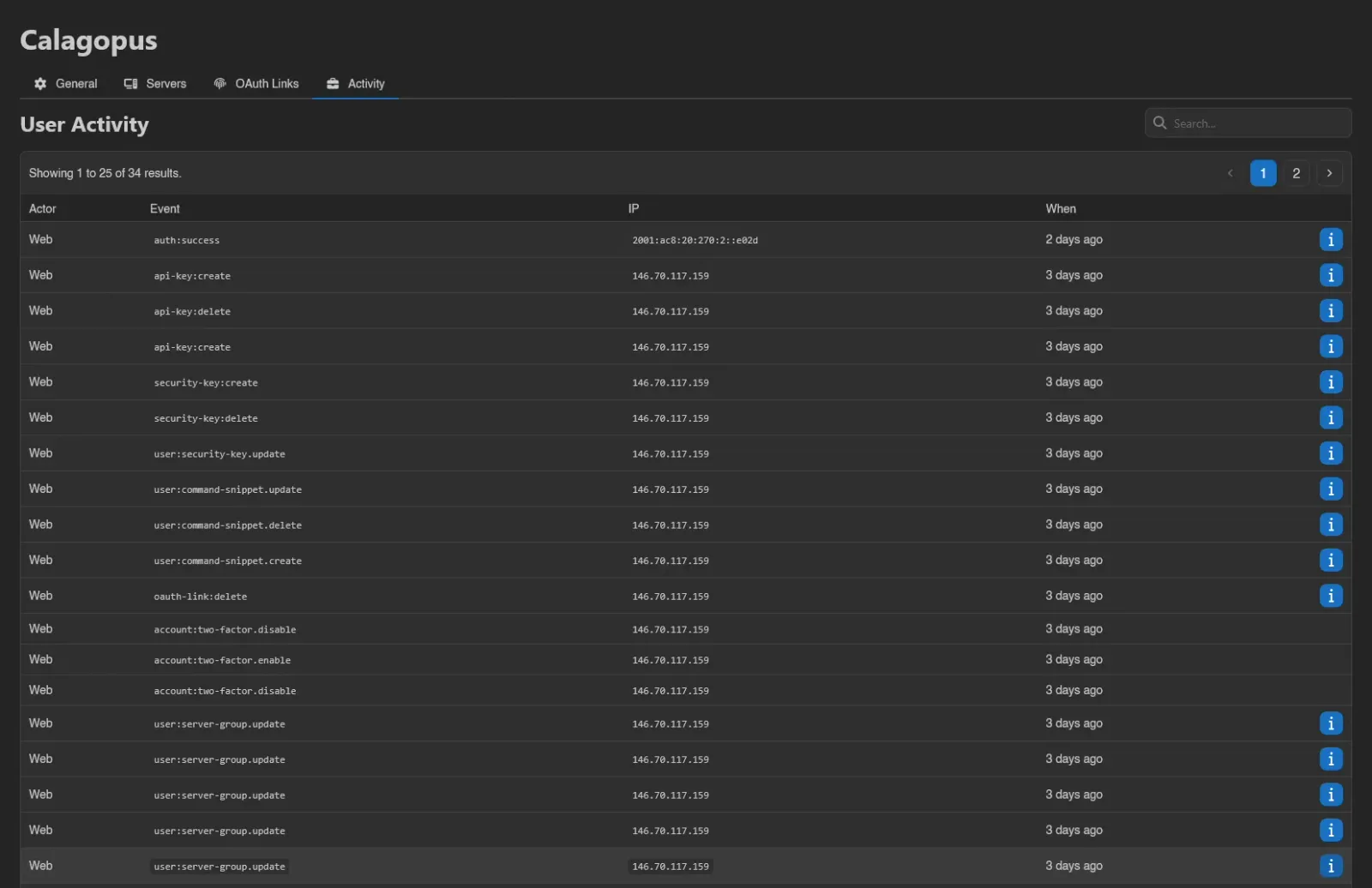
The user's account audit log, the same one they see on their own Activity page: source (Web or API), Event, IP, and When, with an info button for entries carrying extra metadata. For the panel-wide admin log, see Activity.
Impersonation
Impersonate on the General tab logs you in as the user and drops you on their dashboard, useful for reproducing exactly what they see. A banner stays at the top the whole time: "You are currently impersonating a user. Please be aware that your actions may affect the impersonated user's account." While impersonating, the sidebar account menu shows Stop Impersonating in place of Logout; use it to return to your own session.
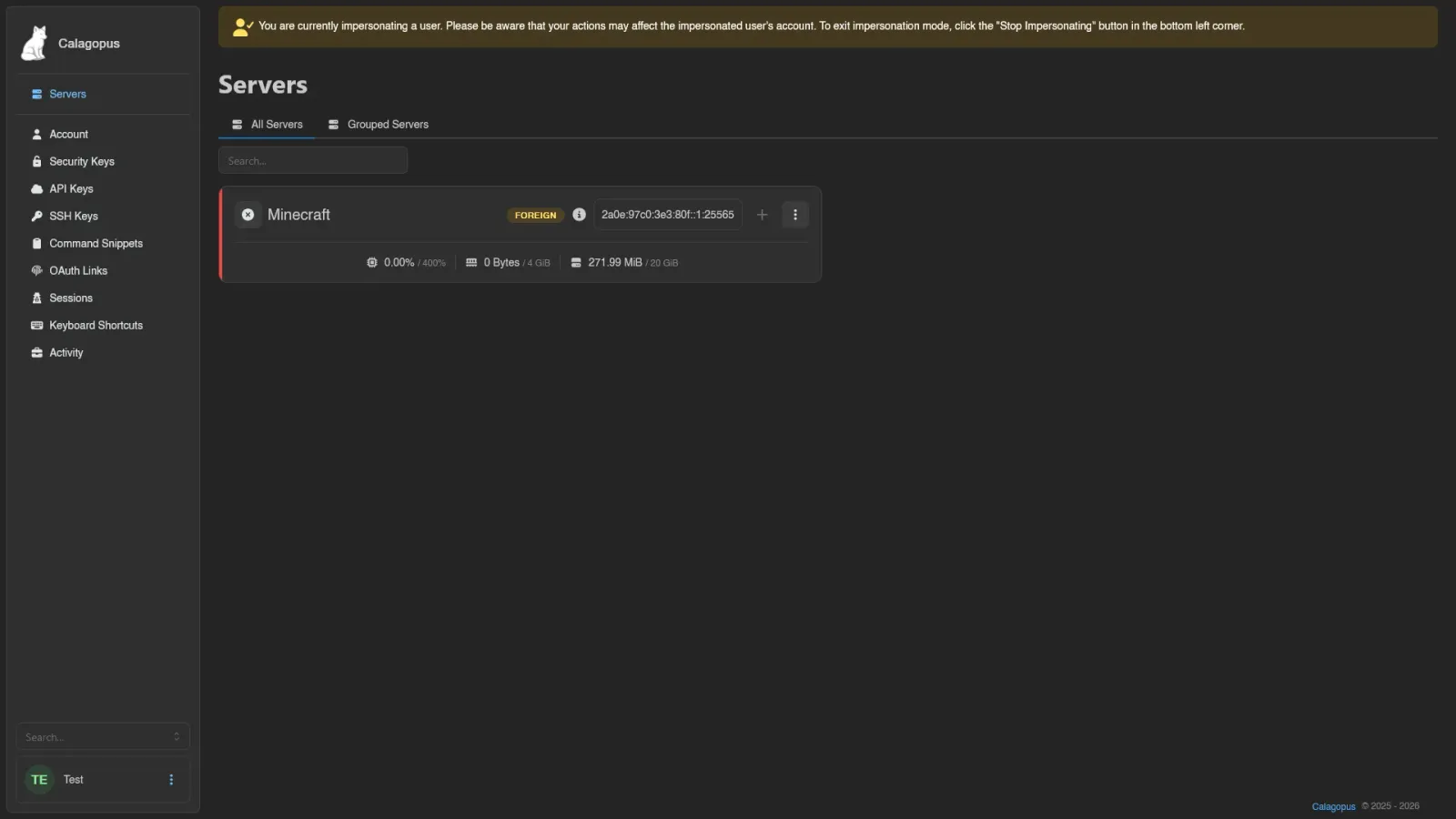
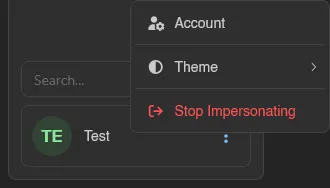
Everything you do while impersonating is written to the activity logs with an "Impersonated by ..." marker next to the actor, so the audit trail always shows who really acted.
WARNING
You cannot impersonate yourself. Root admins can impersonate anyone, including other root admins; role-based admins cannot impersonate root admins, and can only impersonate users whose role permissions are a subset of their own.