
Files
The Files tab is a full file manager for your server: browse and sort, upload and download, edit with a code editor, pack and unpack archives, and roll files back to earlier revisions. Everything is gated by the files.* permissions, see the Permissions Reference.
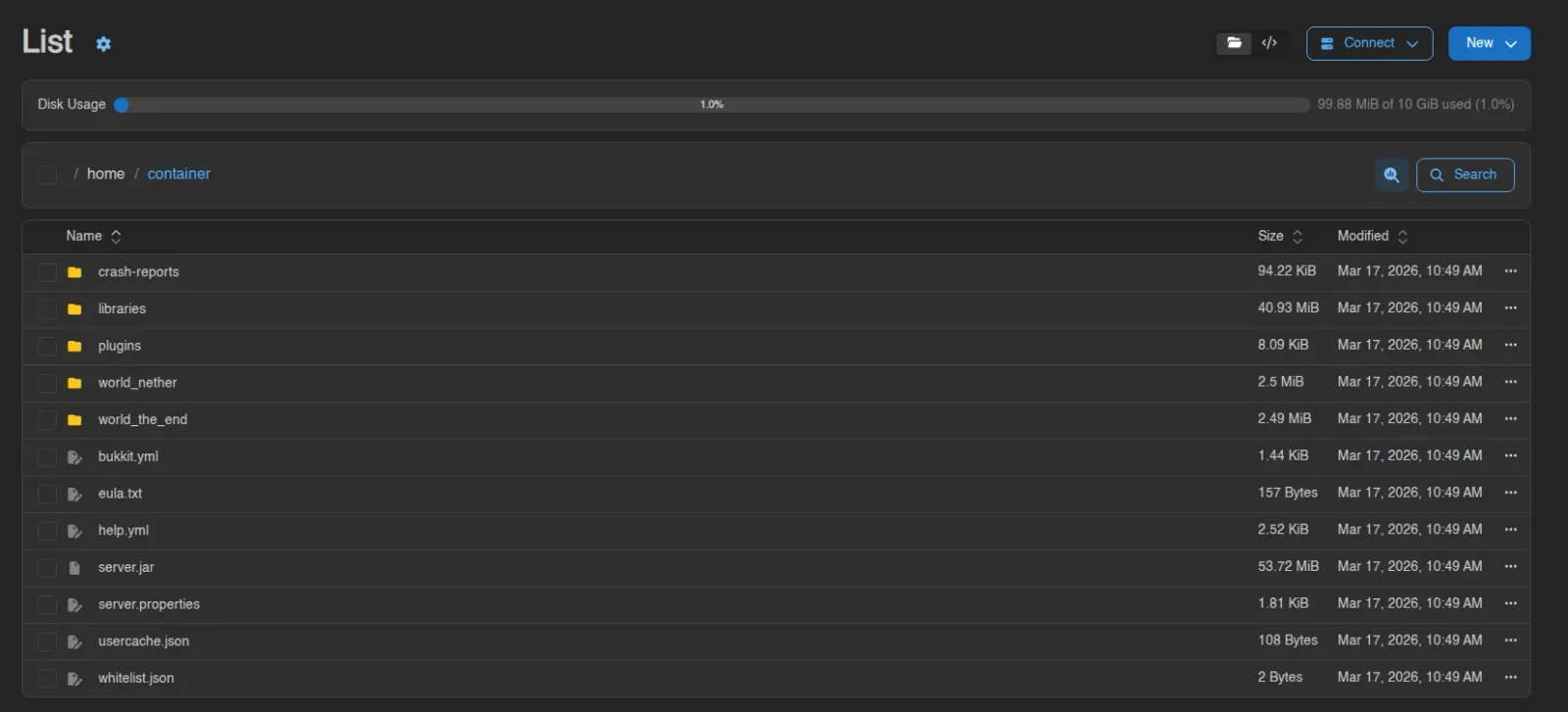
The file manager has two views, and the page title tells you which one you are in. List is the table above, and Tree swaps it for a sidebar file tree next to an editor pane, for working across several files at once. The pair of buttons in the top right switches between them, as do the Switch to List View and Switch to Tree View quick actions. Your choice is remembered per browser.
The List View
Files are listed with Name, Size, and Modified columns; click a column header to sort, click again to flip the direction. Single-click selects a row, double-click opens it, and typing a few letters jumps to the first matching entry. Inside a subdirectory, the top row takes you back up one level.
The breadcrumb bar above the table always starts at home / container and every segment is clickable. It also holds the select-all checkbox, a directory-size analyzer, and the Search button.
The gear next to the page title opens the file manager settings:
| Setting | Effect |
|---|---|
| Click once to open file or folder | Single-click opens entries instead of selecting them. |
| Always overwrite existing files | Skips upload conflict choices and defaults file-copy operations to overwriting existing files. Off by default. |
| Show physical size instead of logical size | The Size column shows actual disk usage rather than file length. |
| VS Code URI Scheme | Which editor the via VS Code connect option launches (vscode by default, e.g. vscodium or cursor for forks). |
Connect
The Connect menu offers two ways to work on your files outside the browser:
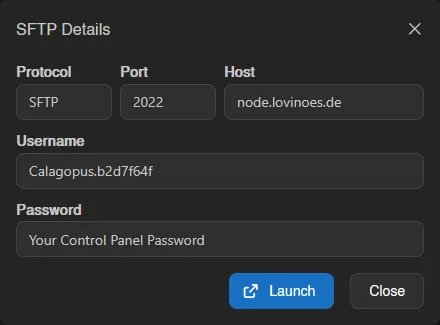
- via SFTP opens the SFTP Details modal with the connection info: Protocol, Host, Port, Username (your panel username plus the server's short ID, like
user.1a2b3c4d), and a Password field that just reads "Your Control Panel Password". If your password cannot open that connection, a warning replaces the field and you need an SSH Key. That applies when the account has no password, when you have turned Password Login off, and when an admin has turned it off for the whole panel. Every field except the password copies on click, and Launch opens ansftp://link for clients registered to handle it. Holding Shift while clicking via SFTP skips the modal and launches directly. Requires thefiles.sftppermission. - via VS Code mounts the server as a workspace folder in your editor. See the VS Code integration for setup and everything it can do.
New
The New menu (shown when you can write to the current directory and hold files.create) creates content in the directory you are browsing:
| Option | What it does |
|---|---|
| File from Editor | Opens an empty code editor; Create asks for a file name. |
| Directory | Creates a new directory. |
| Symlink | Creates a symbolic link. You give it a Symlink Name and a Symlink Target, "relative to the directory the symlink is created in", and the modal previews both resolved paths before you commit. |
| File from Pull | Downloads a file from a URL directly onto the server, see Pulling from a URL. |
| File from Upload | Uploads files from your device. |
| Directory from Upload | Uploads an entire folder, keeping its structure. |
Disk Usage
Below the toolbar, a Disk Usage bar shows how much of the server's disk limit is in use, for example 271.86 MiB of 20 GiB used (1.3%). It turns yellow at 80% and red at 95%, and is hidden on servers with unlimited disk.
Search
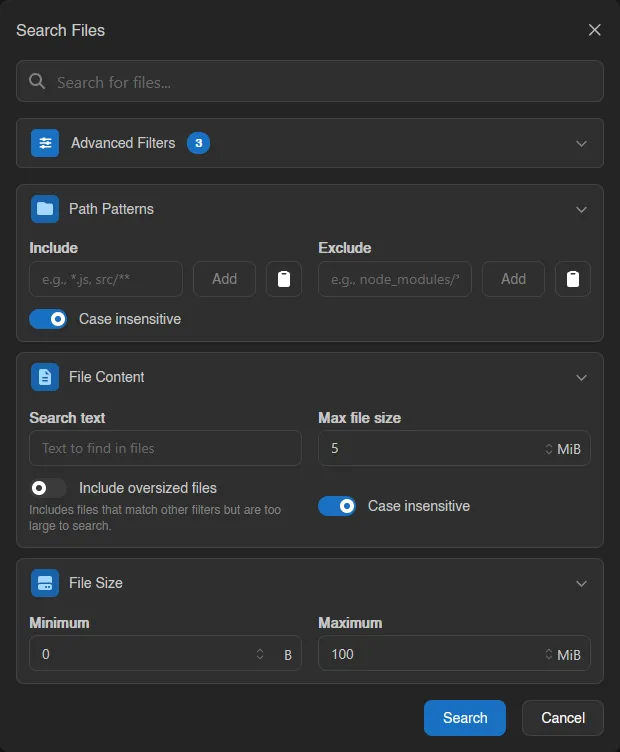
Search (or Ctrl+K) opens the Search Files modal, which remembers your last query when reopened. The plain text box matches file names anywhere below the current directory. Advanced Filters adds three optional sections:
| Filter | Fields |
|---|---|
| Path Patterns | Include and Exclude glob patterns (*.js, node_modules/**), plus a Case insensitive toggle. |
| File Content | Deep search: Search text looked for inside files, a Max file size per file, Include oversized files (list files that match the other filters but are too large to scan), and Case insensitive. |
| File Size | Minimum and Maximum file size. |
Results replace the listing, with a banner summarizing the query and active filters; close the banner to return to normal browsing. The content-search size cap is limited by a panel-wide maximum under Settings > Server, and the File Content section only appears on filesystems where the daemon supports fast content scanning.
Result Previews
Every search result carries an inline preview you can expand and collapse per file, in both the list and the tree view.
With a File Content search running, the preview shows the matching lines themselves, with a line of context either side and the match highlighted, headed by the line range ("Lines 41-43"). Without a content filter, it shows the first few lines of the file instead, so you still get a sense of what you matched. Archives never get a preview.
Previews are capped: at most six lines are shown per file, and More matches not shown appears when a file matched more times than fit.
Some results show a short status instead of content:
| Status | Meaning |
|---|---|
| Content permission required | You have files.read but not files.read-content, so the panel may list matching files but not show what is inside them. |
| Match found, preview unavailable | The file matched, but the node returned no context for it, usually because it is larger than the node's preview limit. |
| Preview unavailable | The file's contents could not be read back. |
| Empty file | The file matched the name or size filters and has no content. |
A search that actually returns previews is recorded in the activity log as a server:file.read-content entry naming the directory searched, the files that matched, and a truncated copy of the query. A search by a user who only holds files.read never reaches file contents and so records nothing.
INFO
How much the node will read for previews is capped by api.file_search_context in the Wings configuration, separately from the Max file size on the search itself. A file over the node's budget still counts as a match; it just comes back without preview content.
Analyzing Disk Usage
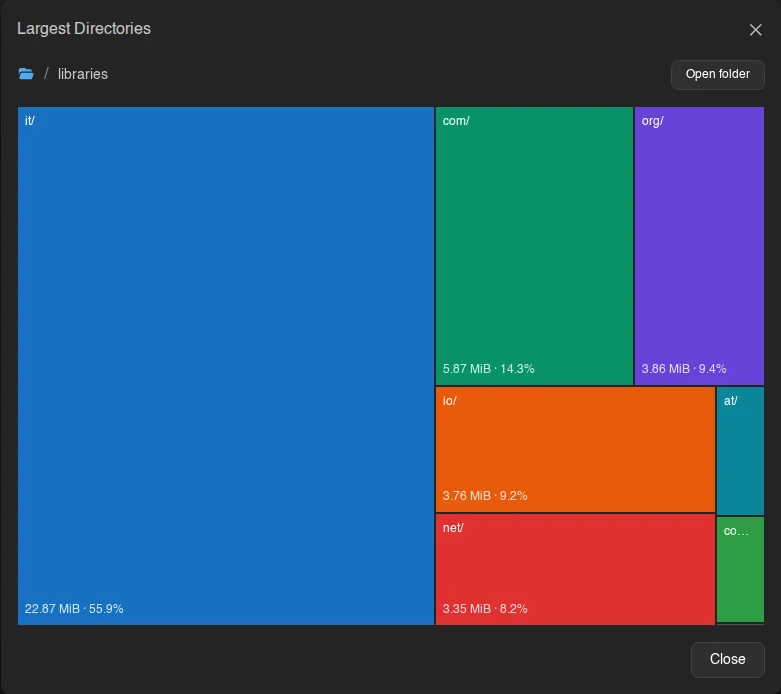
The chart icon next to Search ("Analyze directory sizes") opens Largest Directories, a treemap of which directories eat your disk. Click a directory in the map to zoom into its contents; use the breadcrumbs to step back. Open Folder opens the selected directory in the file manager. The map also accounts for files, grouped smaller folders, and inaccessible space, so hidden content still contributes to disk usage without exposing its names.
Browsing Backups
Backups can be browsed read-only through the same file manager; the breadcrumb root switches to backups / <backup name> and an Exit Backup button brings you back to the live filesystem. Actions that modify files are hidden while browsing a backup.
Selecting Files and Mass Actions
Use the row checkboxes, Ctrl-click to toggle, Shift-click for a range, drag a selection box across rows, or the breadcrumb checkbox / Ctrl+A for everything. As soon as anything is selected, an action bar appears with quick buttons for download (as a .zip), remote copy, copy, archive, rename, move, and delete.
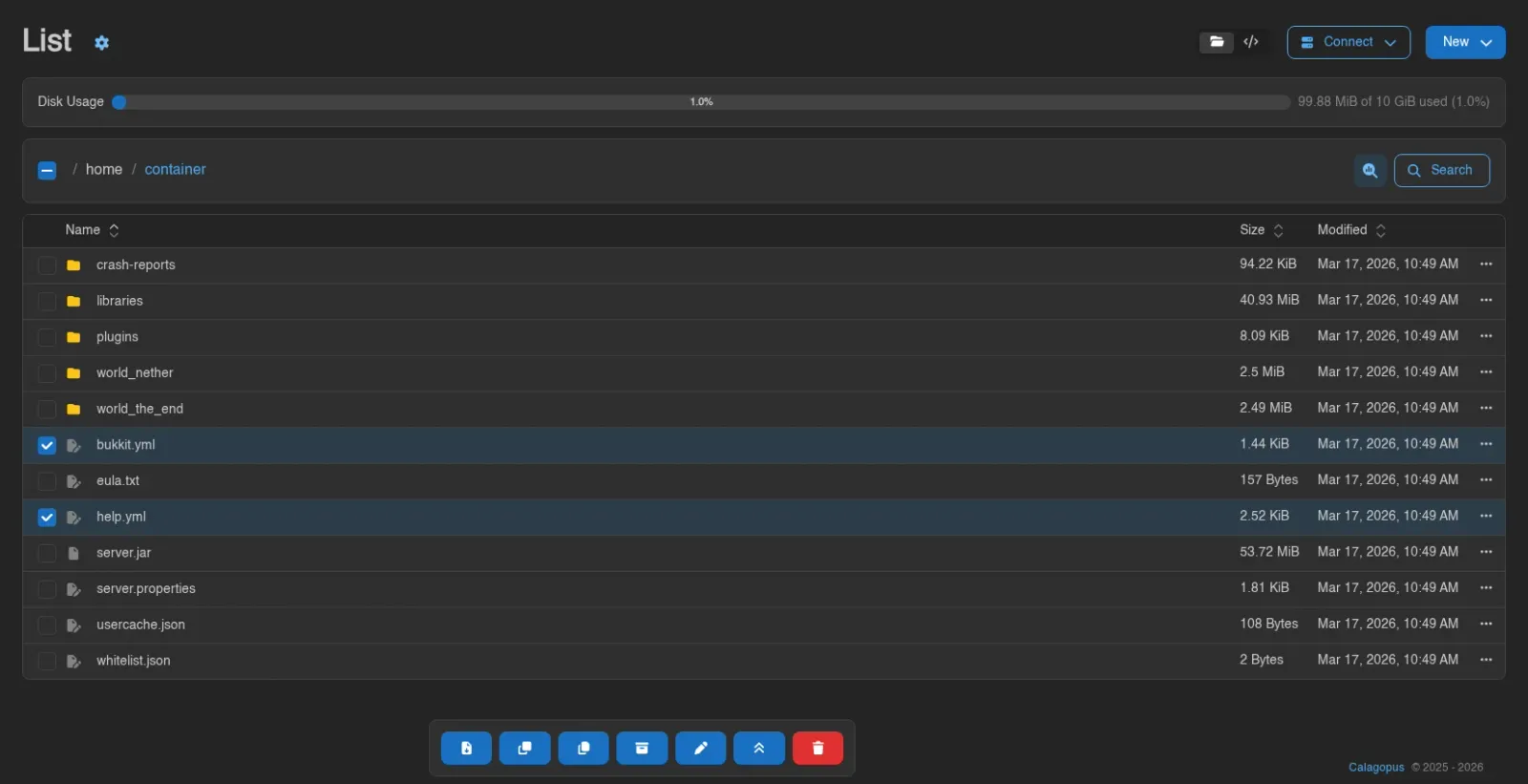
Right-clicking a selected row opens the mass action menu:
| Item | What it does |
|---|---|
| Download | Bundles the selection into an archive; pick the format from Download as (.tar, .tar.gz, .tar.xz, .tar.lz, .tar.bz2, .tar.lz4, .tar.zst, .zip). |
| Remote Copy | Copies the selection to another server, see Remote Copy. |
| Copy | Marks the selection for copying. |
| Archive | Packs the selection into an archive on the server. |
| Rename | Opens the batch Rename Files modal. |
| Move | Marks the selection for moving. |
| Delete | Deletes the selection after confirmation. |
Copy and Move work like cut and paste: the marked files stay highlighted while you navigate to the target directory, then the action bar offers Copy ... here or Move ... here (or Ctrl+V), with a cancel button to back out.
If names collide while copying, a Resolve Copy Conflicts modal lists each clash with the source and destination details and lets you Skip, Overwrite, or Rename each file individually, or Skip all / Overwrite all at once.
Drag rows onto a directory row or a breadcrumb segment to move them; dragging any selected row drags the whole selection.
Per-File Actions
Right-click a row (or use its menu button) for the single-file context menu below. Middle-clicking a row opens it in a new browser tab straight away, and that includes the parent-directory row and the entries of the tree view:
| Item | What it does |
|---|---|
| Open | Opens the file or directory, the same as clicking it. Its submenu offers Open in Virtual Window (a floating window inside the panel, so you can keep browsing next to it), Open in Popup (a separate 1280x800 browser window), and Open in New Tab. On touch devices the menu shows Open in New Tab alone. |
| Rename | Renames the file. |
| Copy | Copies it; in read-only directories you pick a destination instead. |
| Remote Copy | Copies it to another server. |
| Move | Marks it for moving, same paste-style flow as mass move. |
| Symlink | Creates a symlink pointing at this entry, with the target pre-filled. |
| Archive / Extract | Packs the entry into an archive; for archive files the item becomes Extract instead. |
| Download | Downloads the file directly; for directories, pick an archive format from the Download as submenu. |
| More > Details | Shows Path, Mode, Logical Size, Physical Size, MIME Type, Last Modified At, and Created At. |
| More > Fingerprint | Computes a checksum: MD5, CRC32, SHA-1, SHA-224, SHA-256, SHA-384, SHA-512, or CurseForge. |
| More > Permissions | Unix permissions editor, see below. |
| Delete | Deletes the file after confirmation. Deletion is permanent. |
Permissions (chmod)
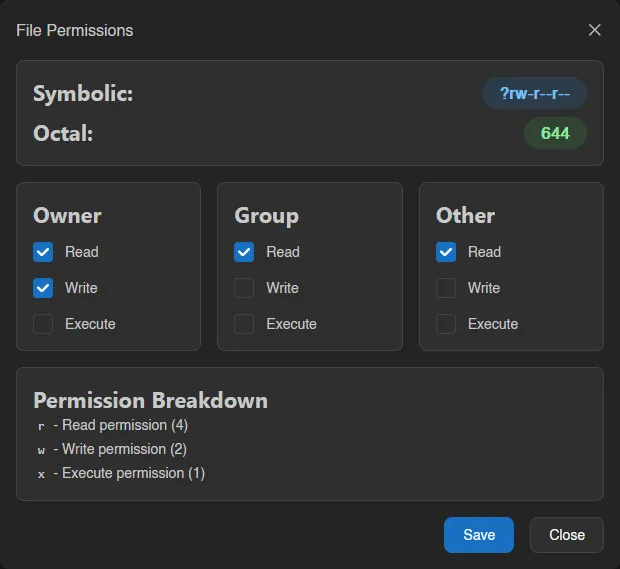
File Permissions shows the current mode as both Symbolic (-rw-r--r--) and Octal (644), with Read/Write/Execute checkboxes for Owner, Group, and Other and a breakdown of what each bit means.
For directories, a switch applies the change recursively to everything inside. Changes can be undone straight from the confirmation toast.
Renaming
A single Rename is a simple name prompt (also F2), undoable from the toast.
Renaming a selection opens Rename Files, a batch tool:
| Field | What it does |
|---|---|
| Find / Replace with | Text or, with Case sensitive on, a regular expression with $1 group references. Replace all occurrences controls whether every match or just the first is replaced. |
| Apply to | Which part of the name the find/replace runs against: Name, Extension, or Full name. |
| Prefix / Suffix | Text added before or after the result. |
| Case conversion | Forces the result to a case. |
| Automatic numbering | A {n} token in the name, with Start at, Step, and Minimum digits controls. |
A live preview shows every resulting name and flags conflicts before anything is renamed.
Remote Copy
Remote Copy Files sends files to a different server you have access to: pick the target Server, browse to a destination directory, and optionally give a single file a new name. You need files.create on the destination server.
Archives
Archive opens Create Archive with an optional Archive Name (a timestamped name is generated if you leave it empty) and a Format: .tar, .tar.gz, .tar.xz, .tar.lz, .tar.bz2, .tar.lz4, .tar.zst, .zip, or .7z.
Extract unpacks an archive into any directory you pick in the browser. .zip, .7z, and .ddup archives can also be browsed in place, double-click one to navigate into it like a directory (where the filesystem supports it).
Both run in the background; progress appears next to the toolbar, where operations (compressing, extracting, pulling, copying) can be cancelled individually or all at once via Cancel all operations.
Uploading
Drag files from your device anywhere onto the page and a Drop files here to upload overlay appears; drop to start. Alternatively use New > File from Upload or Directory from Upload. Upload progress lives in a popover next to the toolbar, where uploads can be paused, resumed, and cancelled.
Uploads keep going when you leave the page, and a progress toast follows you around the panel until they finish, one per destination, reading "Uploading 3 files to server...". Its Show files button takes you back to the directory being uploaded into, and its close button cancels every upload still heading there.
INFO
The maximum size per uploaded file is set by the Wings option api.upload_limit (default 100 MiB). For anything bigger, use SFTP.
Upload Conflicts
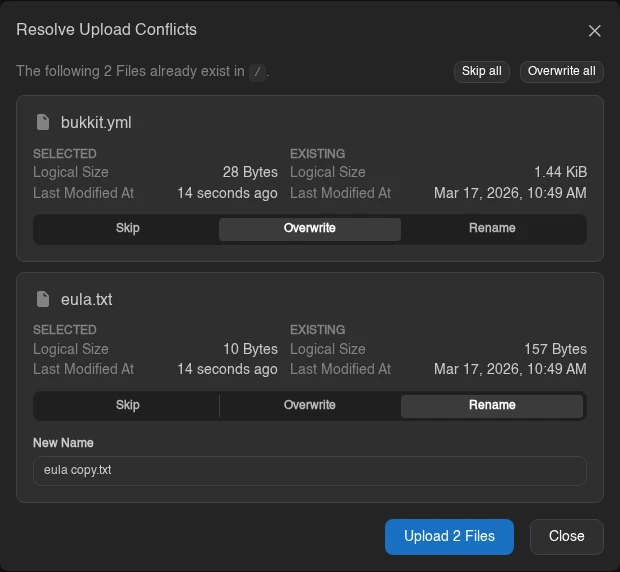
With Always overwrite existing files off, the panel checks whether the names you are uploading already exist in the target directory before sending anything. If matching names exist, a Resolve Upload Conflicts modal lists them next to the existing entries, and you pick one of three actions per item:
| Action | Effect |
|---|---|
| Skip | Leaves the existing entry alone and drops that item from the upload. The default for every row. |
| Overwrite | Replaces the existing file. For a folder the option is called Merge: its files are written into the existing directory, overwriting any with the same name, and everything else in it stays. |
| Rename | Uploads under a different name, prefilled as name copy.ext. The name cannot be empty or contain /. |
Skip all and Overwrite all set every row at once. Files without a conflict are uploaded either way, and the modal says how many. The upload button stays disabled while every row is on Skip, so Close is how you back out, and it skips every conflicting item. Folders are compared by their top-level name only, and an upload of more than 1000 loose files skips the check for those files. If the check itself fails, the panel warns "Could not check for existing files; uploading anyway." and uploads everything as before.
Enable Always overwrite existing files in the file-manager settings to skip this dialog and overwrite matching files automatically.
Shared Upload State
An upload in flight is staged as a .upload-part file next to its destination, and only gets its real name once every byte has arrived. A half-finished file therefore never sits in the listing looking complete.
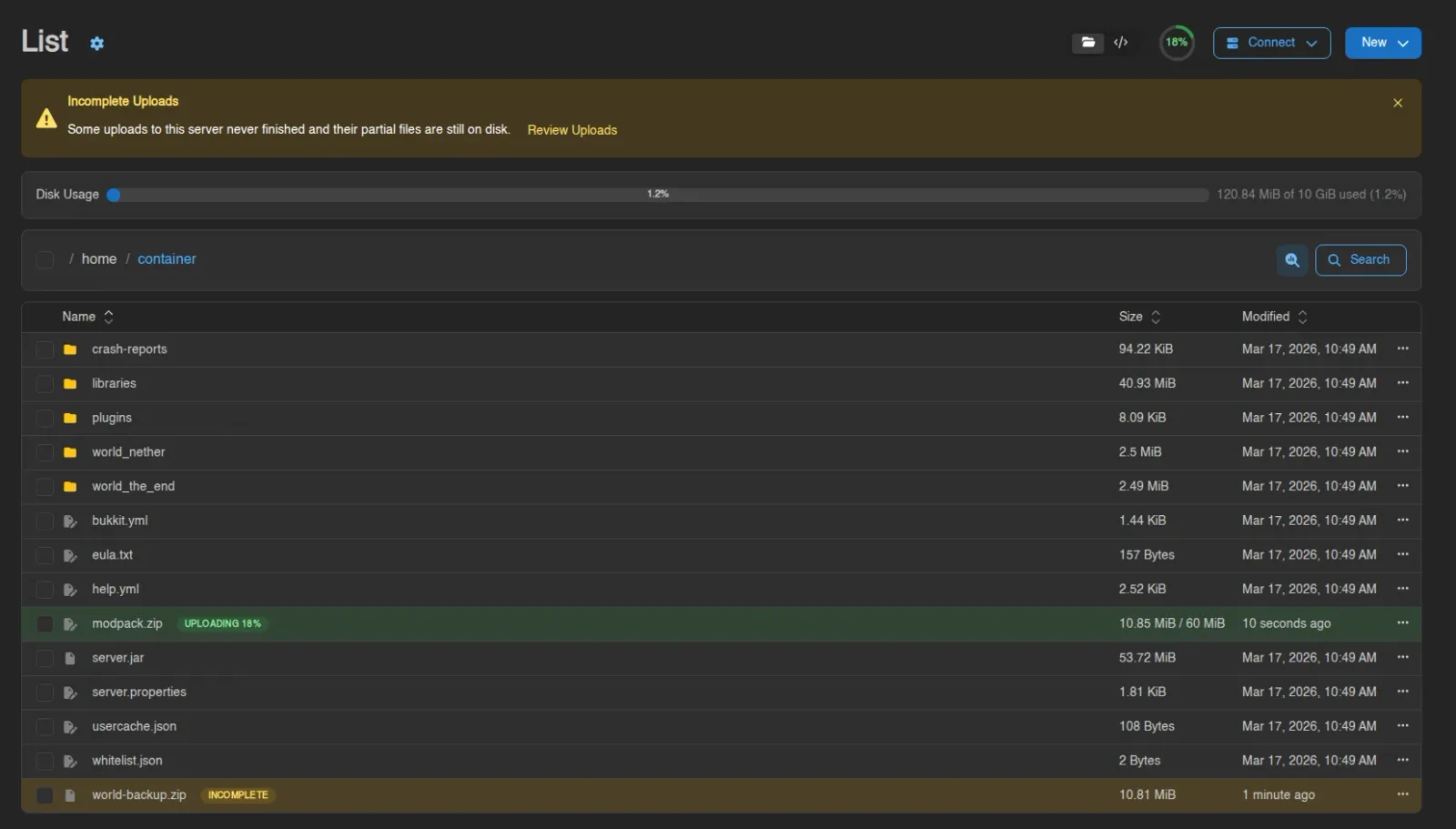
Uploads are not private to the tab that started them. Wings tracks each one and pushes its progress to everyone watching the server, so the same row updates for your other sessions and for anyone else with access to the file. The listing shows the name the file will end up with, never the .upload-part suffix, and replaces the size column with progress while the upload runs:
| Row state | What you see |
|---|---|
| Uploading | Green row with an Uploading 42% badge, and 137.2 MiB / 320 MiB in place of the size. |
| Incomplete | Yellow row with an Incomplete badge. The upload has stopped without finishing. |
| Someone else's | The same badges, plus by <user> next to them. Your own uploads are not attributed. |
Seeing an upload needs the files.read permission, and a subuser whose ignored files hide the destination does not see the upload either - the deny rule is matched against the name the file will end up with, so a partial cannot be used to peek at a path that is otherwise hidden.
Incomplete Uploads
An upload that goes 30 seconds without progress is treated as incomplete. Its badge turns yellow, and a dismissible Incomplete Uploads banner appears above the listing:
Some uploads to this server never finished and their partial files are still on disk.
Review Uploads on the banner, or the Review Incomplete Uploads entry in the quick actions palette (Ctrl+Space), opens a modal listing every partial file and how far it got. Dismissing the banner hides it for that server until you open the panel in a new tab; the quick action stays available as long as something is unfinished.
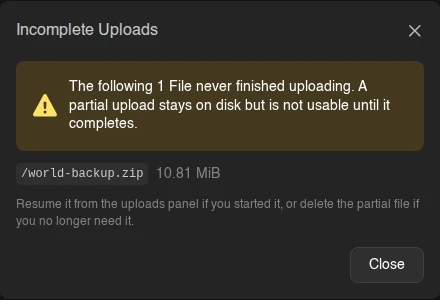
How to clear one depends on where it came from:
| Partial file | How to deal with it |
|---|---|
| Yours, still in this session | Right-click the row for Pause, Resume, and Cancel, or use the upload popover next to the toolbar. Cancelling deletes the partial file from the node for you. |
| Yours, after a page reload | The browser no longer holds the file's contents, so the row offers Re-select file to resume. Pick the same file again and it carries on from where it stopped. |
| Someone else's, or left by a wings restart | Delete the partial file from the listing. Restart leftovers are listed without an owner or a total size and cannot be resumed at all. |
INFO
Only uploads larger than 95 MiB are sent in chunks, and only those can be paused and resumed. Anything smaller goes up in a single request, so Cancel is the only action offered on the row.
The 30-second threshold only decides when the panel calls an upload incomplete. Wings keeps tracking an abandoned partial for 24 hours before it drops the record, and the .upload-part file itself stays on disk until something deletes it. Nothing reclaims that space on its own, so a server that repeatedly loses connections mid-upload is worth checking.
WARNING
Staging appends .upload-part to the name, so a file whose name is longer than 243 bytes cannot be uploaded through the file manager at all - wings rejects it with file name too long. Use SFTP for those, or shorten the name.
Pulling from a URL
New > File from Pull makes the server download a file itself, no round trip through your browser. Enter the File URL and hit Query to fetch the file's name and size in advance, adjust the File Name if needed, then Pull. The download runs on the node and shows up in the background operations progress.
The Editor
Openable files launch a code editor at /files/edit with syntax highlighting and search. Save or Ctrl+S writes the file back; leaving with unsaved changes prompts you first. The gear next to the title holds the editor settings:
| Setting | Effect |
|---|---|
| Editor Engine | Monaco or Pierre. Monaco is the full desktop editor; Pierre is lighter and built for touch. Touch devices default to Pierre, everything else to Monaco. |
| Show File Minimap | Toggles the code overview strip on the right. Monaco only. |
| Wrap Line Overflow | Wraps long lines instead of scrolling horizontally. |
| Editor Font Size | Font size, 6 to 72. |
| VS Code URI Scheme | Same setting as in the list view; the editor's Connect menu can hand the open file straight to your editor. |
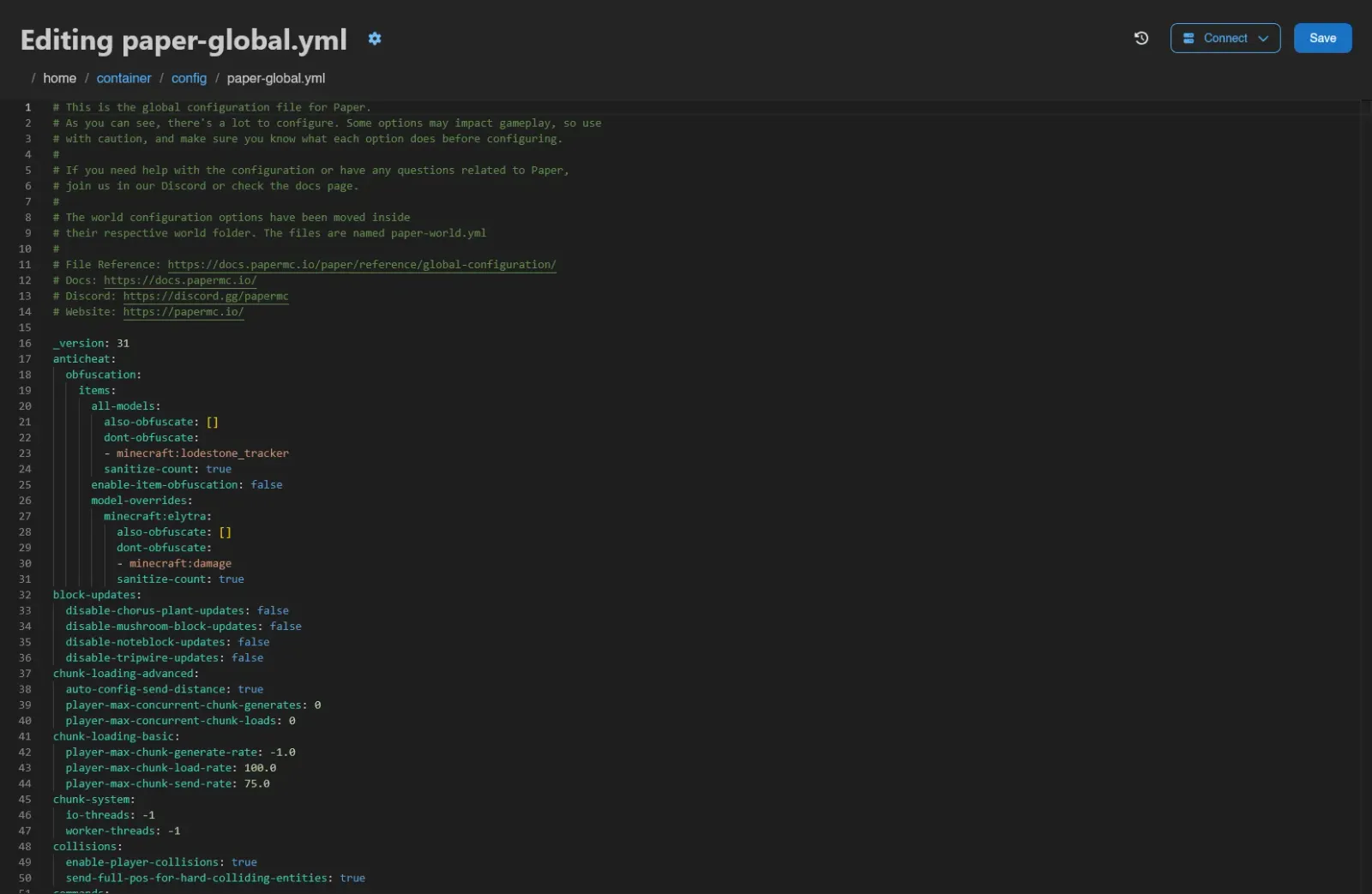
While you type, the editor keeps a local draft in your browser (for up to three days). If you come back to a file with an abandoned draft, a Restore Draft modal offers to Restore or Discard it, and warns if the file changed on the server in the meantime. A revert button next to the title discards your unsaved changes and reloads the file from disk.
Files above the panel-wide view-size limit (Settings > Server) show a warning instead of opening; images open in a zoomable viewer (its own gear has a Smoothen Image (Anti-Aliasing) toggle, turn it off to inspect pixel art), and audio files open in a player with a waveform, 15-second skips, and playback speed control.
SQLite Databases
SQLite files (.db, .db3, .sqlite, .sqlite3) don't open in the editor: they open the same data explorer the panel uses for managed databases, at /files/sqlite - browsing rows, inspecting and editing the schema, and a raw query console. This requires the files.query-raw permission, which grants full read and write access to the file's contents; changing rows or structure additionally needs files.update.
File History
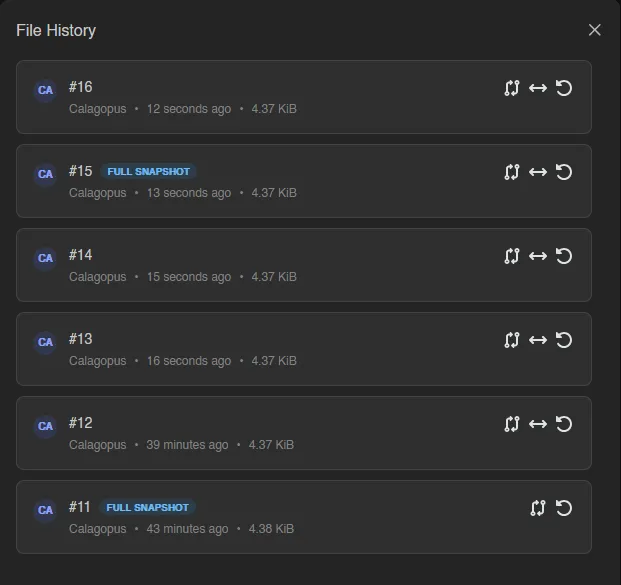
The clock icon ("File History") in the editor header opens a drawer listing the file's revisions, newest first. Each entry shows the revision number, who made the change, when, its size, and a Full Snapshot badge where the daemon stored the entire file rather than a diff. Per revision you can:
- View diff against current file, which opens
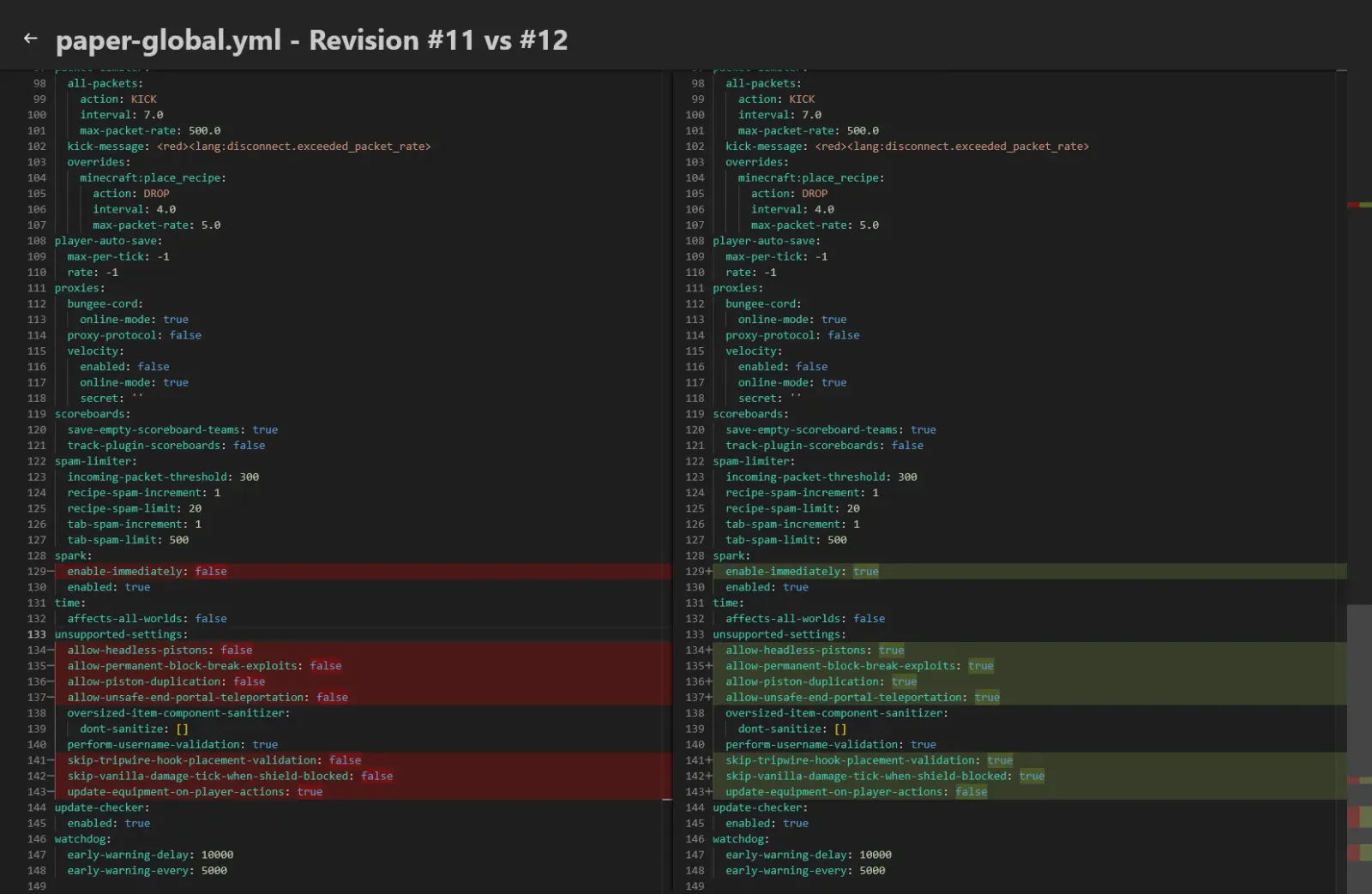
/files/difftitled<file> - Revision #N vs Current. The current side is editable; Save writes it back, and Restore this revision into the editor replaces the file with the old revision. - Compare to previous revision, a read-only
Revision #N vs #Mdiff. - Restore this revision into the editor, which loads the old content into the editor as an unsaved change so you can review before saving.
INFO
Revisions are recorded by Wings for edits made through the file manager and SFTP. Admins control this via the system.file_history options, including retention and the per-file size cap; files above the cap are not tracked.
Live Collaboration
Collaborative editing normalizes mixed line endings to one style when saving. Files with mostly CRLF or CR line endings use CRLF; otherwise they use LF. An existing UTF-8 byte-order mark is preserved.
When several people open the same file, the editor switches to a shared real-time session: everyone's avatar appears in the header, and edits merge live. Save persists the shared document for everyone. Each participant also gets a colored cursor and selection labeled with their name, in both Monaco and Pierre. The VS Code extension supports the same real-time collaboration, synchronized through the panel.
If the file changes on disk outside the session (for example via SFTP), a warning banner appears with View Diff to compare, Load Disk Version to replace the session contents with the file on disk, or Keep Editor Version to overwrite the disk with what the session has.
Keyboard Shortcuts
The file manager is fully keyboard-driven: Ctrl+A select all, Ctrl+X/Ctrl+C/Ctrl+V cut/copy/paste, Delete, F2 rename, Ctrl+K search, Ctrl+Z undo, arrow keys to move the selection, and Alt+ArrowUp to go up a directory. See Keyboard Shortcuts for the full list and how to rebind them.
Undo
Four operations can be taken back: moving files by dragging them, a single rename, a batch rename, and a permissions change. Each one shows an Undo button on its confirmation toast, and Ctrl+Z undoes the most recent one without having to reach for the toast.
The window is short: an entry expires when its toast does, after about seven and a half seconds, and only the last ten are kept. Deleting and copying are not undoable, so deletion is permanent.