
Assets
Assets (System > Assets) is a small file browser for publicly served files. Anything you upload here gets a public URL, which is exactly what the Icon and Banner fields in Settings > Application expect: those fields autocomplete from your uploaded assets.
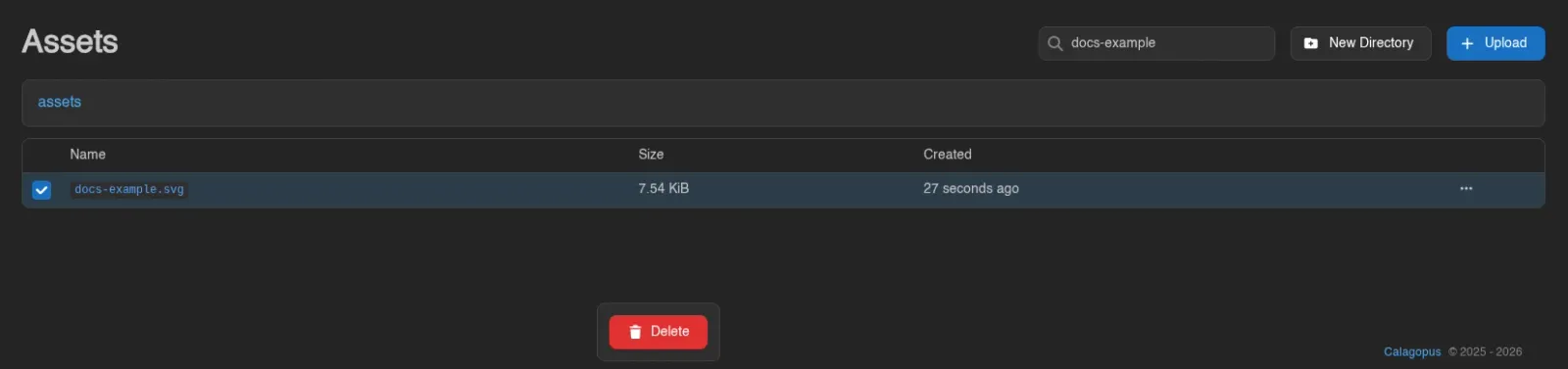
The browser shows a breadcrumb (starting at assets) and a table with Name, Size, and Created. Click a directory to enter it, click a file name to open it in a new tab, and use the search box to find assets in the current directory by name.

Uploading and Organizing
- Upload picks files from your machine; you can also drag and drop files anywhere on the page ("Drop files here to upload"). Uploads continue if you navigate away, with a progress toast ("Uploading 3 files to the admin assets...") whose close button cancels them and whose Show files button brings you back here. There is no restriction on file type or size here - the panel stores whatever you give it and serves it publicly, so treat this as a trusted-admin surface and don't upload anything you wouldn't publish.
- New Directory previews the full path for a new folder inside the current one; the folder itself isn't created until you upload a file into it.
Managing Assets
Right-click a file for:
- Copy Link: copies the asset's public URL.
- Delete: removes the asset after confirmation. Deletion cannot be undone.
You can also select multiple files (checkboxes, Ctrl+click, drag selection, or Ctrl+A for everything on the page) and delete them in one go with the action bar or the Delete key.
Public URLs
With the default filesystem storage driver, assets are served by the panel itself at <panel URL>/assets/<path>, e.g. https://panel.example.com/assets/branding/icon.png. With the S3 storage driver, links use the bucket's configured Public URL instead. The storage driver is set in Settings > Storage.
Uploading requires the assets.upload admin permission, deleting assets.delete, viewing assets.read. See the Permissions Reference.