
File Manager
The file manager has twelve slot points, three handler lists, its own editor plugin system, a nested registry for the trash page and one for the disk usage bar, which makes it the widest extension surface on any single Panel page. All of it hangs off one registry:
ctx.extensionRegistry.pages.server.files;INFO
Not to be confused with File Storage, which is the backend abstraction for files your extension owns. This page is about the UI a user browses their server's files with.
The Three Surfaces
The same registry drives three different screens, and a slot point rarely appears on all three:
| Surface | URL | What it is |
|---|---|---|
| List view | /server/<id>/files | The table of files, one directory at a time |
| Tree workspace | /server/<id>/files | The same page with the tree sidebar and editor panes, toggled by the user |
| Editor page | /server/<id>/files/<action> | One file, full screen, its own route |
List and tree are the same route. Which one a user gets is a per-user preference they flip with the two buttons in the toolbar, so you cannot assume either. A component slotted into the list toolbar appears in both; a component slotted into the tree toolbar appears in one of them.
The editor page is a separate route, and the tree workspace embeds the same editor component inside a pane. That pairing shows up throughout the registry as surface: 'page' versus surface: 'inline'.
Where Your Components Land
Nine of the twelve slot points take components. Seven of those are plain lists: prependComponent and appendComponent, and your component is rendered with no props.
public initialize(ctx: ExtensionContext): void {
  ctx.extensionRegistry.pages.server.files.enterFileToolbar((toolbar) =>
    toolbar.appendComponent(MyToolbarButton),
  );
}
The toolbar and action bar slots come out either side of the stock controls, with a placeholder component sitting in each of the four:
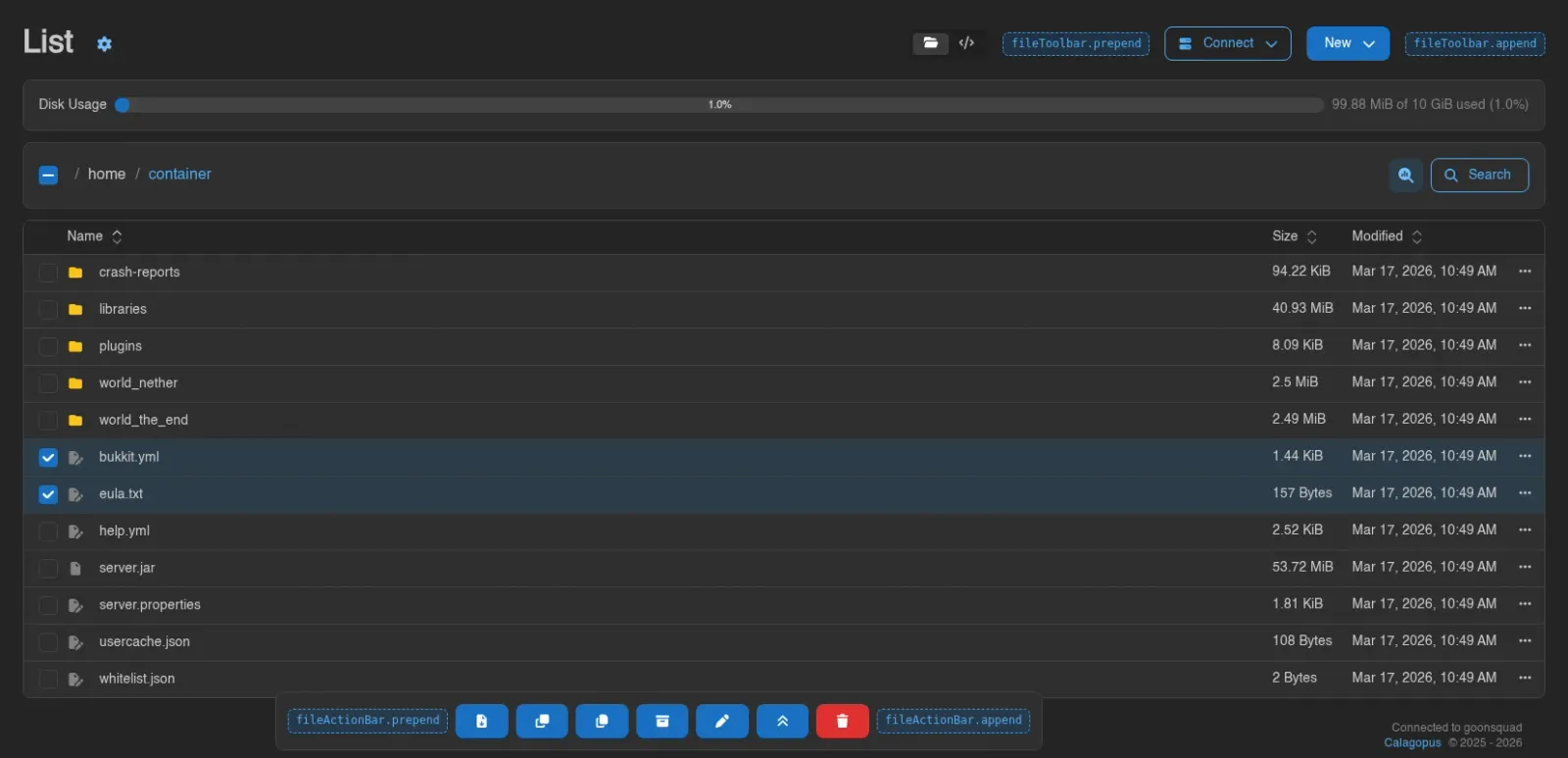
The full list:
| Slot | Enter with | Renders | Visible when |
|---|---|---|---|
container | enterContainer | Around the whole /files page | Always. See the warning below |
editorContainer | enterEditorContainer | Around the editor route | Editor page only, not inside a tree pane |
fileToolbar | enterFileToolbar | Either side of the Connect and New buttons | Both views |
fileTreeToolbar | enterFileTreeToolbar | The icon row at the top of the tree sidebar | Tree view only |
fileActionBar | enterFileActionBar | The floating bar that rises when rows are selected | While something is selected or queued for copy or move |
fileOperationsProgress | enterFileOperationsProgress | Inside the operations popover | Only while an archive, extract or upload is running, and only once the user opens the popover |
fileSettings | enterFileSettings | The gear popover beside the page title | Both views |
fileEditorSettings | enterFileEditorSettings | The gear popover beside the file name in the editor | edit and new only |
fileImageViewerSettings | enterFileImageViewerSettings | The same popover for the image viewer | image only |
The three settings slots all land inside a popover dropdown laid out as a narrow vertical stack, so put compact controls there - a switch, a select, a short number input. A card will look wrong.
WARNING
container components sit outside the file manager's provider. The /files page renders FileManagerProvider as a child of the container, and the container's slots render outside that child, so a component slotted into container cannot call useFileManager or useFileManagerApi - the hook throws. Use container for chrome that does not need file state, and fileToolbar or fileSettings for anything that does.
editorContainer is the other way round: it renders inside the provider, so it can read file state.
container and editorContainer are ContainerRegistry instances rather than plain lists, which gives them three insertion points instead of two - prependComponent (above everything), prependContentComponent (below the header, above the content) and appendContentComponent (below the content).
Context Menus
Three menus take interceptors. Unlike the component slots, an interceptor is handed the array of menu items that core built and mutates it in place:
import { faWandMagicSparkles } from '@fortawesome/free-solid-svg-icons';

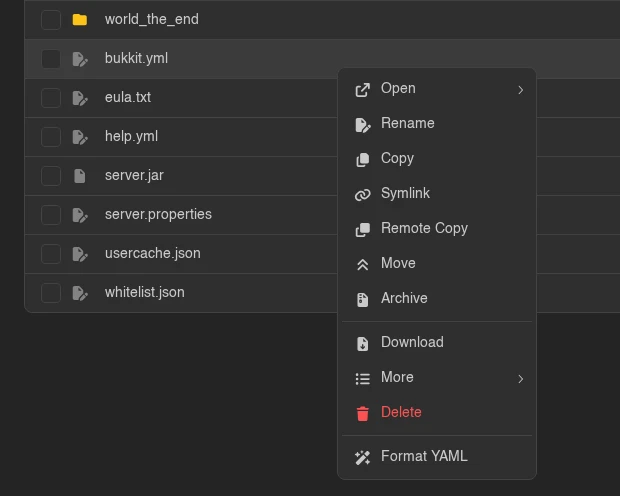
ctx.extensionRegistry.pages.server.files.enterFileContextMenu((menu) =>
  menu.addItemInterceptor((items, { file, directory, surface }) => {
    if (!file.name.endsWith('.yml')) return;

    items.push(
      { type: 'divider' },
      {
        type: 'action',
        icon: faWandMagicSparkles,
        label: 'Format YAML',
        color: 'gray',
        onClick: () => formatYaml(join(directory, file.name)),
      },
    );
  }),
);
| Menu | Enter with | Props your interceptor receives |
|---|---|---|
fileContextMenu | enterFileContextMenu | { file, directory, surface: 'table' | 'tree' } |
newFileContextMenu | enterNewFileContextMenu | None |
fileMassContextMenu | enterFileMassContextMenu | None |
newFileContextMenu is shared: it backs the New button in both views and the right-click menu on empty space in the tree.
INFO
enterFileMassContextMenu was added in 1.2.3. On earlier Panels the field is there but the helper is not, so reach for it directly: ctx.extensionRegistry.pages.server.files.fileMassContextMenu.addItemInterceptor(...).
Which Interceptor Kind To Use
Every context menu registry takes two kinds:
addItemInterceptor(fn)- a plain function,(items, props) => void. Cannot use hooks.addComponentItemInterceptor(Component)- a React component rendered with{ items, ...props }. Mutatesitemsduring its own render, and can use hooks to get there.
For the mass context menu the component form is not a preference, it is the only thing that works: that menu passes no props at all, so a plain function has no way to learn which files are selected. A component interceptor can call useFileManager and read selectedFiles itself.
WARNING
Push your items during render, on every render. The item array is rebuilt from scratch each time the menu's props change, so an interceptor that adds its entries once - from a useEffect, or behind a "have I run yet" flag - loses them on the next rebuild.
Two more things about the items themselves: submenus are exactly one level deep, so an item's items array cannot hold further nested items, and menu items only fire on real user clicks, which is worth knowing if you drive the Panel from a test script.
Async Items
Since 1.2.8, an item's onClick may return a promise. The menu still closes straight away, but every item in that menu stays disabled until the promise settles, so a second click can't run the action twice. In the meantime the row's ⋯ toggle shows a spinner, and so does the item itself (and its parent, for a submenu item) if the user opens the menu again. An open menu updates as soon as the promise settles. Return the promise whenever the click starts a request. The Format YAML item above already does if formatYaml returns one, because an arrow without braces returns whatever it calls.
The clipboard item in the trash example is tracked as well, because navigator.clipboard.writeText returns a promise, so its menu is disabled for the moment the copy takes. Wrap the call in braces when you don't want that.
The mass menu and the tree have no row toggle, so the spinner doesn't show there. For anything that can take a while, raise a pending toast from the handler as well, the way the Panel's downloads do.
If an interceptor wraps a core item's onClick, return the original result, or the core item loses its pending state:
menu.addItemInterceptor((items) => {
  for (const item of items) {
    if (item.type !== 'action' || !item.onClick) continue;

    const original = item.onClick;
    item.onClick = (e) => {
      console.debug('menu item clicked', item.label);
      return original(e);
    };
  }
});
To show the state by hand, set loading: true on an item. It swaps the item's icon for a spinner and disables it, which suits work your extension tracks itself, such as a job that outlives the click. Extensions that render their own ContextMenu from @/elements/overlays/ContextMenu.tsx can also pass its loading prop, which disables every item and puts the spinner on that menu's ContextMenuToggle.
The Trash Page
When a server has the trash enabled, deleting a file moves it to /server/<id>/files/trash instead of removing it. That page has its own nested registry with three slot points:
ctx.extensionRegistry.pages.server.files.trash;| Slot | Enter with | Renders | Visible when |
|---|---|---|---|
container | enterContainer | Around the whole trash page | Always |
actionBar | enterActionBar | Either side of the Restore, Restore to... and Delete Permanently buttons | While entries are selected |
entryContextMenu | enterEntryContextMenu | The row menu, interceptors receive { entry } | Always |
The trash page is its own route and does not render FileManagerProvider, so nothing slotted here can call useFileManager. An entry carries uuid, name, path (where it was deleted from, relative to the server root), directory, size and deletedAt.
import { faCopy } from '@fortawesome/free-solid-svg-icons';

ctx.extensionRegistry.pages.server.files.enterTrash((trash) =>
  trash.enterEntryContextMenu((menu) =>
    menu.addItemInterceptor((items, { entry }) => {
      items.push({
        type: 'action',
        icon: faCopy,
        label: 'Copy Original Path',
        color: 'gray',
        onClick: () => navigator.clipboard.writeText(`/${entry.path}`),
      });
    }),
  ),
);
The Disk Usage Bar
Servers with a disk limit get a usage bar above the file list. It is split into sections, and its registry lets you add your own or change the stock ones:
ctx.extensionRegistry.pages.server.files.diskUsageBar;A section is { id, label, color, bytes }. The Panel ships two:
id | bytes | Shown when |
|---|---|---|
files | null, the remainder | Always |
trash | The total size of the trash | The node reports it (Wings 1.2.8 and newer) |
The section whose bytes is null is sized last, to whatever disk usage the other sections leave over. That is what lets you carve something out of the total: push a section with its own byte count and files shrinks by the same amount, the same way the trash does. Once any section other than the remainder takes up space, a legend appears under the bar.
There are two ways in. addSectionInterceptor takes a plain function, which is enough for recolouring, relabelling, reordering or removing a section:
ctx.extensionRegistry.pages.server.files.enterDiskUsageBar((bar) =>
  bar.addSectionInterceptor((sections) => {
    const trash = sections.find((section) => section.id === 'trash');
    if (trash) trash.color = 'orange';
  }),
);
When the section needs data you have to fetch, use addSectionHook. It is called as a React hook on every render of the bar, so it can use useQuery or any other hook, and returns the interceptor to run once the plain ones are done:
function useWorldSection({ diskBytes }: DiskUsageBarProps) {
  const server = useServerStore((state) => state.server);
  const { data } = useQuery({
    queryKey: ['my-extension', server.uuid, 'world-size'],
    queryFn: () => getWorldSize(server.uuid),
  });

  return (sections: DiskUsageSection[]) => {
    if (data === undefined) return;

    sections.splice(1, 0, { id: 'world', label: 'World', color: 'teal.7', bytes: Math.min(data, diskBytes) });
  };
}

ctx.extensionRegistry.pages.server.files.enterDiskUsageBar((bar) => bar.addSectionHook(useWorldSection));
Both receive { diskBytes, limitBytes }. The usual hook rules apply to the hook itself: call the same hooks in the same order every time, and keep any condition inside the returned function. The bar is not rendered in the tree workspace or on servers without a disk limit.
Icons and Openability
Two handler lists decide how an entry looks and what happens when a user opens it. The pair reads as symmetric and behaves differently in ways that matter.
import { faScroll } from '@fortawesome/free-solid-svg-icons';

ctx.extensionRegistry.pages.server.files
  .addFileIconHandler((file) => (file.name.endsWith('.mcfunction') ? faScroll : undefined))
  .addFileOpenableHandler((file) =>
    file.name.endsWith('.mcfunction')
      ? { openable: true, handleOpen: ({ handleFileOpen }) => handleFileOpen(file.name, 'mcfunction', {}) }
      : { openable: false },
  );
Icon handlers run first, before every built-in check. Return undefined to pass and let the next handler or the stock icon logic decide. Return an icon and it is used - including for directories, which is almost never what you want, so check file.directory before you return anything.
Openable handlers run in the middle. Directories and browsable archives are resolved before your handler is called, and the sqlite, image, audio and text-editor checks happen after it. So:
- You cannot claim a directory, a
.zip, a.7zor a.ddup. - You can claim anything else, including files the Panel would otherwise refuse as too large.
- There is no veto. The loop takes the first handler that returns
openable: trueand ignores every{ openable: false }along the way. You cannot use a handler to make something stop being openable, and thereason: 'tooLarge'field is only ever set by core.
WARNING
Claiming an oversized file only gets you past the frontend check. The same limit is enforced by the backend: the file contents endpoint passes max_file_manager_view_size to Wings and returns 413 above it, and writes are capped the same way. A custom editor for very large files has to fetch its content from your own extension route - the Panel's content endpoint will refuse.
The Open Handler Contract
handleOpen is where most of the sharp edges live, because it is replayed in three different contexts and only one of them is a normal page navigation:
- The list view calls it with real
navigateandsetSearchParams. - The tree workspace calls it to resolve a workspace tab.
handleFileOpenopens a pane tab instead of navigating anywhere. fileOpenUrlcalls it against stub callbacks that record where you wanted to go, then hands the resulting URL to a new browser tab, a popup or a virtual window.
Which gives one rule:
WARNING
Route through handleFileOpen and handleDirectoryOpen, and treat handleOpen as pure. Calling navigate() or setSearchParams() yourself works in the list view and then breaks everywhere else: in the tree workspace it navigates the user out of their workspace rather than opening a tab, and under fileOpenUrl any side effect you perform runs while the Panel is merely computing a URL for a middle-click. Side effects belong in the component you open, not in the handler that opens it.
handleFileOpen(file, action, params) takes the entry's name, the action name that selects the editor, and extra query parameters. Two details worth having:
- The first argument does not have to be the file that was clicked - pass a different name to open a sibling.
paramsis part of a workspace tab's identity, so opening the same file twice with differentparamsgives the user two tabs rather than reusing one.
The whole path is gated on files.read-content. If the user lacks it, nothing opens and your handler is never called.
Custom Editors
An editor action is a component that owns the content pane for one action name:
ctx.extensionRegistry.pages.server.files.addFileEditorAction({
  name: 'mcfunction',
  title: (file) => `Editing ${file}`,
  contentType: 'string',
  content: McFunctionEditor,
  header: {
    rightSection: McFunctionSaveButton,
  },
});
The name becomes a URL segment: registering mcfunction makes /server/<id>/files/mcfunction?directory=...&file=... a working route, which is exactly the URL handleFileOpen(file, 'mcfunction', {}) produces. It is also the string the tree workspace matches on when it decides what to render in a pane, so one registration covers both surfaces.
Your content component's props are typed for you:
import type { FileEditorStringContentProps } from 'shared/src/registries/pages/server/files.ts';

export default function McFunctionEditor({ content, setContent, readOnly, context }: FileEditorStringContentProps) {
  /* ... */
}
Reserved And Overridable Names
There is no reserved-name check and no deduplication between extensions, so name collisions resolve by accident:
diffandsqliteare unreachable. Both are registered as their own routes ahead of/files/:action, and the tree checks forsqlitebefore it checks your action. An action under either name is dead code.new,edit,imageandaudiosilently win. A custom action is matched before the built-in branches on both surfaces, so registeringname: 'edit'replaces the Panel's file editor for every text file on the instance. That is occasionally what someone wants; it should never be an accident.- Two extensions registering the same name: whichever initialised first takes it.
Prefix your action names the way you prefix everything else.
String Or Blob
contentType decides what your component is handed, and the Panel always fetches the file first either way - there is no opt-out, so a custom editor costs one full download even if it never reads the result.
contentType | Your content receives | Stock Save button |
|---|---|---|
'string' | The decoded text, plus setContent | Works inside a tree pane, does nothing on the editor page |
'blob' | The raw Blob, plus setContent | Never works. Persistence is yours |
The Save column needs spelling out. On the editor page the stock Save button writes whatever your component last passed to setContent: the string as text/plain, or the blob as raw bytes, to the file the page was opened for. Panels before 1.2.3 rendered the button but silently did nothing for custom actions, and showed Create instead of Save for them. Supplying header.rightSection with your own save control removes the stock button, since on that surface rightSection replaces the entire stock button group.
The Header, And How It Differs Per Surface
header has two optional components, and they do not behave the same way:
header.settingsreplaces the gear popover next to the title, on both surfaces. Because it replaces it, a custom action also suppresses thefileEditorSettingsandfileImageViewerSettingsslots - those live inside the stock popovers, which no longer render.header.rightSectionreplaces the whole right-hand group on the editor page, but is rendered alongside the stock revert, history, save and close controls inside a tree pane. Design it so it reads correctly next to those, not only instead of them.
title(file) is your page title, and it wins over every built-in title rule. A tree pane falls back to the bare file name if no action matched.
Reading The Context
Both surfaces pass a context prop to your content component:
interface FileEditorActionContext {
  surface: 'page' | 'inline';
  directory: string;
  file: string;
  path: string;
  params: Readonly<Record<string, string>>;
  workspace?: { paneId: string; paneIndex: number; paneCount: number; active: boolean };
}
workspace is present only when surface is 'inline', and describes the pane you are rendering in. Users split panes by dragging a tab, so paneCount is genuinely variable and active tells you whether the user is currently looking at your pane:
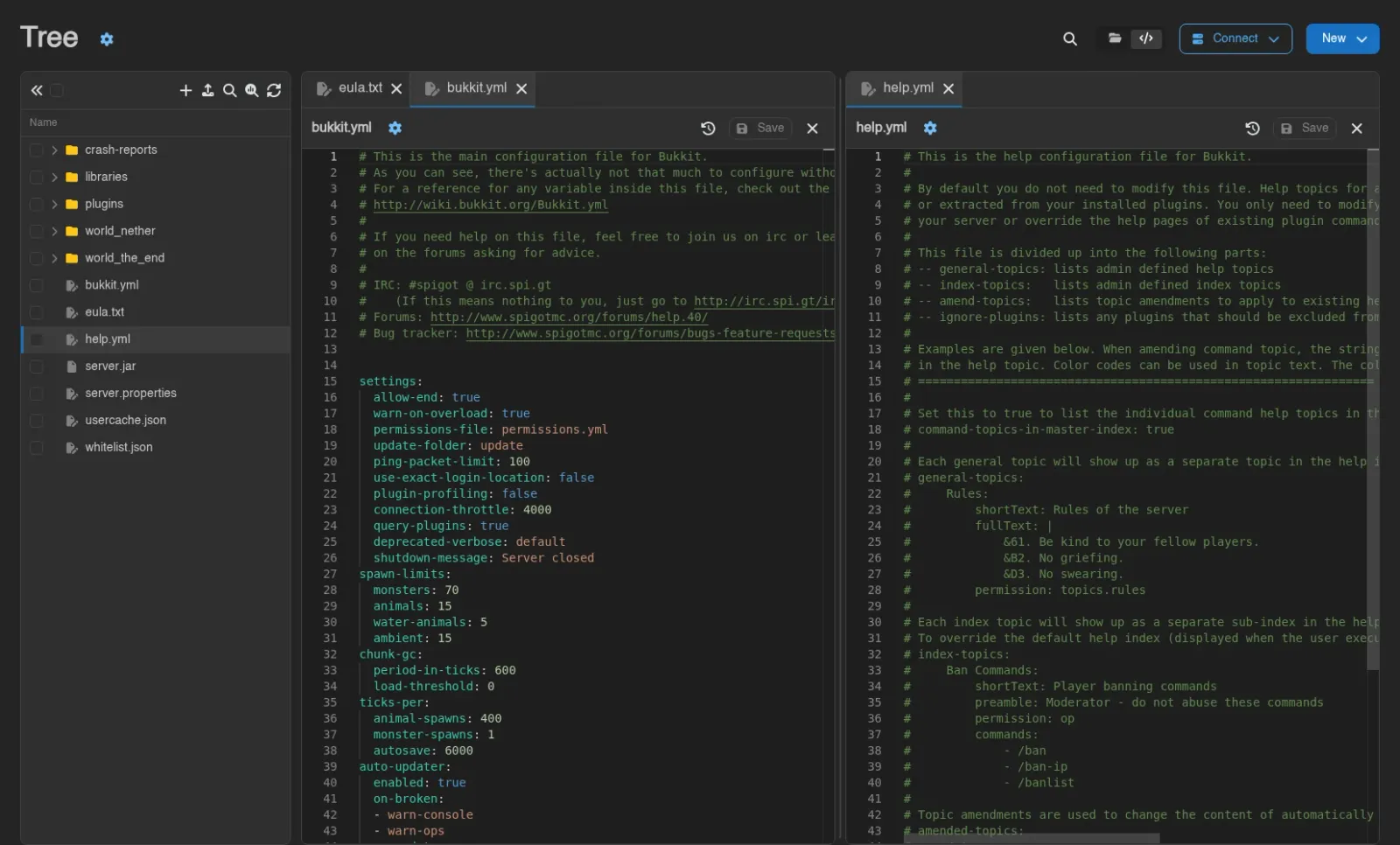
Size your editor for a pane that can be half a screen wide and is not necessarily focused. An action that only makes sense full width should check context?.surface.
INFO
An action name the Panel does not recognise renders a 404 screen on the editor page, and a yellow "No editor is available for this file type." notice inside a tree pane. If your action shows one of those, the registration did not run.
Reading File Manager State
The file manager's store is scoped to a React context, not global like useServerStore. useFileManager(selector) and useFileManagerApi() only work inside FileManagerProvider, which is why the container slot cannot use them and every other slot can.
import { useFileManager } from '@/providers/contexts/fileManagerContext.ts';

const directory = useFileManager((state) => state.browsingDirectory);
The fields extensions usually want:
| Field | What it tells you |
|---|---|
browsingDirectory | The directory currently open |
browsingWritableDirectory | Whether writes are allowed here |
browsingPrimaryFilesystem | Whether this is the server's real filesystem. Gates revisions and collaborative editing |
browsingFastDirectory | Whether the backing filesystem supports archive browsing |
browsingBackup | The backup being browsed, or null |
selectedFiles, actingFiles | The current selection and the copy or move queue |
searchInfo | The active search, or null |
Gate destructive menu items on browsingWritableDirectory, not on permissions alone. A user with files.delete still cannot delete anything while browsing a backup.
TIP
Entries can be virtual - file.virtual is set for things that are not files on disk, such as entries inside a browsed archive or backup. Your icon and openable handlers are called for them exactly as for real files, so check the flag before you offer an operation that assumes a real path.
Monaco And Pierre
Editor hooks are not part of this registry. They live under elements, and they fire for every editor instance in the Panel, not only the file manager's:
ctx.extensionRegistry.elements
  .enterMonacoEditor((monaco) =>
    monaco.addOnMountHandler((editor, api) => {
      /* register a language, add an action, set a theme */
    }),
  )
  .enterPierreEditor((pierre) =>
    pierre.addOnMountHandler((handle, editor) => {
      /* editor.setMarkers(...), editor.setSelections(...), handle.setValue(...) */
    }),
  );
The catch is local to this page. The file manager is the only place in the Panel that offers a second editor engine: users pick Monaco or Pierre in the editor settings, and only the handlers for the engine they picked run. Every other editor in the Panel - the YAML editors, the email template editor, the database query console, the node log viewer, the egg installation script editor - is unconditionally Monaco. A feature that only hooks Monaco therefore goes missing for Pierre users on this one screen without any error, so hook both engines.
The Pierre handler receives the Panel's PierreEditorHandle (getValue, setValue, applyEdits, setCarets, focus) and the raw @pierre/diffs Editor instance behind it, which is where setMarkers, setSelections, undo and getViewState live. Both registries also take addDiffOnMountHandler for the diff views, meaning the revision comparison and the save-conflict modal. The Pierre diff view is read-only and hands its handler only the handle.
INFO
enterPierreEditor was added in 1.2.3. On earlier Panels Pierre instances run no extension handlers at all, and there is nothing to fall back to.
Permissions
The file manager surfaces read files.read-content, files.create, files.update, files.archive, files.delete, and files.query-raw for the SQLite query page. The trash page needs files.read to open, and files.delete covers everything you can do to an entry there: restoring it, deleting it permanently and emptying the trash. Gate your own UI with ServerCan as described in Permissions.
One file-manager-specific difference: context menu items take a canAccess boolean rather than being wrapped, and an item with canAccess: false is removed from the menu entirely. If every item ends up removed the row's whole menu affordance disappears, so a permission-gated item should set canAccess, not render an empty menu.
What Has No Extension Hook
These parts of the file manager expose nothing at all, which is worth knowing before you go looking for a registry that is not there:
- Drag and drop, including the tab drags that split editor panes
- Uploads, the upload manager and the incomplete-uploads banner
- Search, its filters and the inline content previews under results
- File revisions, the history drawer and the diff view
- Collaborative editing
- The editor tab context menu, which builds its items directly rather than through a registry
- Every modal - rename, permissions, extract, pull, mass rename and the rest
The only escape hatch is a route interceptor that replaces the whole page, described in Mounting UI. Replacing the file manager means you own keeping it working as the Panel evolves, so weigh that against the feature you wanted.
Version Notes
The component slots, the context menus and addFileIconHandler have been there since the first 1.0.0 pre-releases. Everything else arrived later:
| Added | In |
|---|---|
fileMassContextMenu | 1.0.0 |
addFileOpenableHandler, addFileEditorAction | 1.0.2 |
reason: 'tooLarge' | 1.1.3 |
fileTreeToolbar, FileEditorActionContext, the surface prop on file context menus, readOnly on editor content props | 1.2.0 |
enterFileMassContextMenu, elements.enterPierreEditor | 1.2.3 |
trash, enterTrash | 1.2.6 |
diskUsageBar, enterDiskUsageBar, promise-returning context menu items | 1.2.8 |
An extension using the 1.2.0 additions will not build against an older Panel.