
Putting the Panel Behind a Reverse Proxy
This guide covers the Panel. For a standalone Wings node, see Putting Wings Behind a Reverse Proxy instead. The All-in-One image doesn't need that guide, since this guide already covers the bundled Wings.
See Setting up a Reverse Proxy for how a reverse proxy fits into the request path if you haven't read that yet.
Prerequisites
Have these ready before you start:
- The Panel is installed with Docker and reachable at
http://<server-ip>:8000. - A domain name with an
Arecord (andAAAAif you use IPv6) pointing at the server's public IP. This guide uses<domain>as a placeholder; replace it everywhere it appears. - Ports
80and443open in your firewall and forwarded on your router if the server is at home. - A TLS certificate for the domain, unless you pick Caddy (which issues one by itself). See Generating SSL Certificates. The examples below use the paths certbot creates under
/etc/letsencrypt/live/<domain>/. - The proxy software installed on the same machine as the Panel:
apt install nginx,apt install apache2, or the Caddy install guide. For a proxy that runs in Docker, see Proxies running in Docker first.
WARNING
A broken proxy configuration makes the Panel unreachable until it is fixed, so keep a terminal open and know how to roll back. Nothing in this guide touches the Panel's data.
Step 1: Prepare the Panel
All of the changes in this step happen in the compose.yml you created during installation.
Stop Exposing Port 8000
The compose file publishes the Panel on every interface of the host:
    ports:
      - 8000:8000
Once the proxy is in place, nobody but the proxy should be able to reach that port. Restrict it to the loopback interface:
    ports:
      - 127.0.0.1:8000:8000
Leave any other port mappings alone. On the All-in-One image, 2022:2022 (SFTP) must stay reachable from outside.
Proxy in Docker?
If your proxy runs as a container (Traefik, Nginx Proxy Manager), it reaches the Panel over a Docker network instead of a published port. Follow Proxies running in Docker for this step rather than the loopback binding.
Trust the Proxy's Address
Connections that arrive at the Panel from the proxy come from the gateway of the Panel's Docker network. Run this inside the Panel's compose directory to print that address:
docker inspect -f '{{range .NetworkSettings.Networks}}{{println .Gateway}}{{end}}' $(docker compose ps -q web)It prints something like 172.18.0.1 (one line per network the container is on; use the one that belongs to the compose network). Set APP_TRUSTED_PROXIES to that value on the web service:
services:
  web:
    environment:
      # ...existing variables...
      - APP_TRUSTED_PROXIES=172.18.0.1
The variable takes a comma-separated list of IPs or CIDR ranges. Only list addresses you control. When a request arrives from a trusted address, the Panel believes the X-Forwarded-For and X-Real-IP headers on it; when it arrives from anywhere else, those headers are ignored and the connecting address is used. Trusting too much lets a visitor spoof their IP by sending the header themselves.
Apply the Changes
docker compose up -dThe Panel is now only reachable from the machine itself. Confirm that with:
curl -s -o /dev/null -w '%{http_code}\n' http://127.0.0.1:8000A 200 (or a redirect status) means the Panel answers on the loopback address and the proxy will be able to reach it.
Step 2: Configure the Proxy
Every configuration below does the same four things. If you use a proxy that isn't listed, these are the settings to replicate:
| Setting | Why the Panel needs it |
|---|---|
Forward to http://127.0.0.1:8000 | The address the Panel listens on after Step 1 |
Pass Upgrade and Connection headers through | The server console, live statistics and file manager use WebSockets, which start as an HTTP upgrade |
Raise the request body limit (default in the examples: 100 MB) | File uploads through the file manager go through the proxy; anything larger than the limit fails with 413 |
Set X-Forwarded-For and X-Real-IP | Real client IPs for logs and rate limiting. The Panel reads these two; X-Forwarded-Proto and Host are set for completeness and are what most other applications expect |
Pick the proxy you use:
1. Add the WebSocket map. Open /etc/nginx/nginx.conf and add this block inside http { ... }, next to the other include lines. It must not be inside a server { ... } block.
map $http_upgrade $connection_upgrade {
    default upgrade;
    ''      "";
}
This sends Connection: upgrade only on requests that actually ask for a WebSocket. Without it Nginx sends the header on every request, and multipart uploads and other ordinary traffic break.
2. Create the site. Save the configuration as /etc/nginx/sites-available/calagopus.conf on Debian and Ubuntu, or /etc/nginx/conf.d/calagopus.conf on RHEL-based systems. Replace <domain> in the server_name and certificate lines.
server {
    listen 80;
    listen [::]:80;
    server_name <domain>;
    return 301 https://$server_name$request_uri;
}

server {
    listen 443 ssl http2;
    listen [::]:443 ssl http2;
    server_name <domain>;

    access_log /var/log/nginx/calagopus.app-access.log;
    error_log  /var/log/nginx/calagopus.app-error.log error;

    sendfile off;
    # Largest request body the proxy accepts. Uploads through the
    # file manager bigger than this fail with HTTP 413.
    client_max_body_size 100M;

    ssl_certificate     /etc/letsencrypt/live/<domain>/fullchain.pem;
    ssl_certificate_key /etc/letsencrypt/live/<domain>/privkey.pem;
    ssl_protocols       TLSv1.2 TLSv1.3;
    ssl_ciphers         HIGH:!aNULL:!MD5;
    ssl_prefer_server_ciphers on;
    ssl_session_cache   shared:SSL:30m;
    ssl_session_timeout 10m;
    ssl_session_tickets on;

    # See https://hstspreload.org/ before uncommenting the line below.
    # add_header Strict-Transport-Security "max-age=15768000; preload;";
    add_header X-XSS-Protection          "1; mode=block";
    add_header X-Robots-Tag              "noindex, nofollow" always;
    add_header Permissions-Policy        "camera=(), microphone=(), geolocation=(), fullscreen=(self), clipboard-read=(self)" always;
    add_header Referrer-Policy           "same-origin";

    location / {
        proxy_http_version 1.1;
        # WebSocket support (uses the map from step 1)
        proxy_set_header Upgrade          $http_upgrade;
        proxy_set_header Connection       $connection_upgrade;
        # Tell the Panel who the visitor is
        proxy_set_header Host             $host;
        proxy_set_header X-Real-IP        $remote_addr;
        proxy_set_header X-Forwarded-For  $proxy_add_x_forwarded_for;
        proxy_set_header X-Forwarded-Proto $scheme;
        proxy_redirect off;
        proxy_buffering on;
        proxy_request_buffering on;
        proxy_pass http://127.0.0.1:8000;
        proxy_pass_header Content-Security-Policy;
    }

    location ~ /\.ht {
        deny all;
    }
}server {
listen 80;
listen [::]:80;
server_name <domain>;
access_log /var/log/nginx/calagopus.app-access.log;
error_log /var/log/nginx/calagopus.app-error.log error;
sendfile off;
# Largest request body the proxy accepts. Uploads through the
# file manager bigger than this fail with HTTP 413.
client_max_body_size 100M;
add_header X-XSS-Protection "1; mode=block";
add_header X-Robots-Tag "noindex, nofollow" always;
add_header Permissions-Policy "camera=(), microphone=(), geolocation=(), fullscreen=(self), clipboard-read=(self)" always;
add_header Referrer-Policy "same-origin";
location / {
proxy_http_version 1.1;
# WebSocket support (uses the map from step 1)
proxy_set_header Upgrade $http_upgrade;
proxy_set_header Connection $connection_upgrade;
# Tell the Panel who the visitor is
proxy_set_header Host $host;
proxy_set_header X-Real-IP $remote_addr;
proxy_set_header X-Forwarded-For $proxy_add_x_forwarded_for;
proxy_set_header X-Forwarded-Proto $scheme;
proxy_redirect off;
proxy_buffering on;
proxy_request_buffering on;
proxy_pass http://127.0.0.1:8000;
proxy_pass_header Content-Security-Policy;
}
location ~ /\.ht {
deny all;
}
}Why is there a "Without SSL" variant at all?
Only for testing on a network you trust, or when TLS is terminated somewhere in front of Nginx (a load balancer or Cloudflare with "Flexible" mode). Passkeys, secure cookies and the browser's clipboard access all need HTTPS, so do not run a real installation this way.
3. Enable it and reload. On Debian and Ubuntu, link the site into sites-enabled. On RHEL-based systems the file in conf.d/ is already active.
sudo ln -s /etc/nginx/sites-available/calagopus.conf /etc/nginx/sites-enabled/calagopus.conf
sudo nginx -t
sudo systemctl reload nginx
nginx -t checks the configuration before anything is reloaded. If it reports an error, fix the file first; the running Nginx keeps its old configuration until the reload succeeds.
Step 3: Verify
- Open
https://<domain>in a browser. You should see the Panel's login page with a valid padlock. If the page doesn't load, check the troubleshooting section. - Log in, then open Account → Activity. The login entry's IP column must show your own public IP. If it shows the proxy's address (something like
172.18.0.1),APP_TRUSTED_PROXIESis wrong; go back to Step 1. - Open a server and check that the console connects and shows live output. If it stays on "connecting", the WebSocket headers aren't reaching the Panel.
- Confirm the old address no longer works from another machine:
http://<server-ip>:8000should time out or be refused.
Step 4: Set the Panel URL
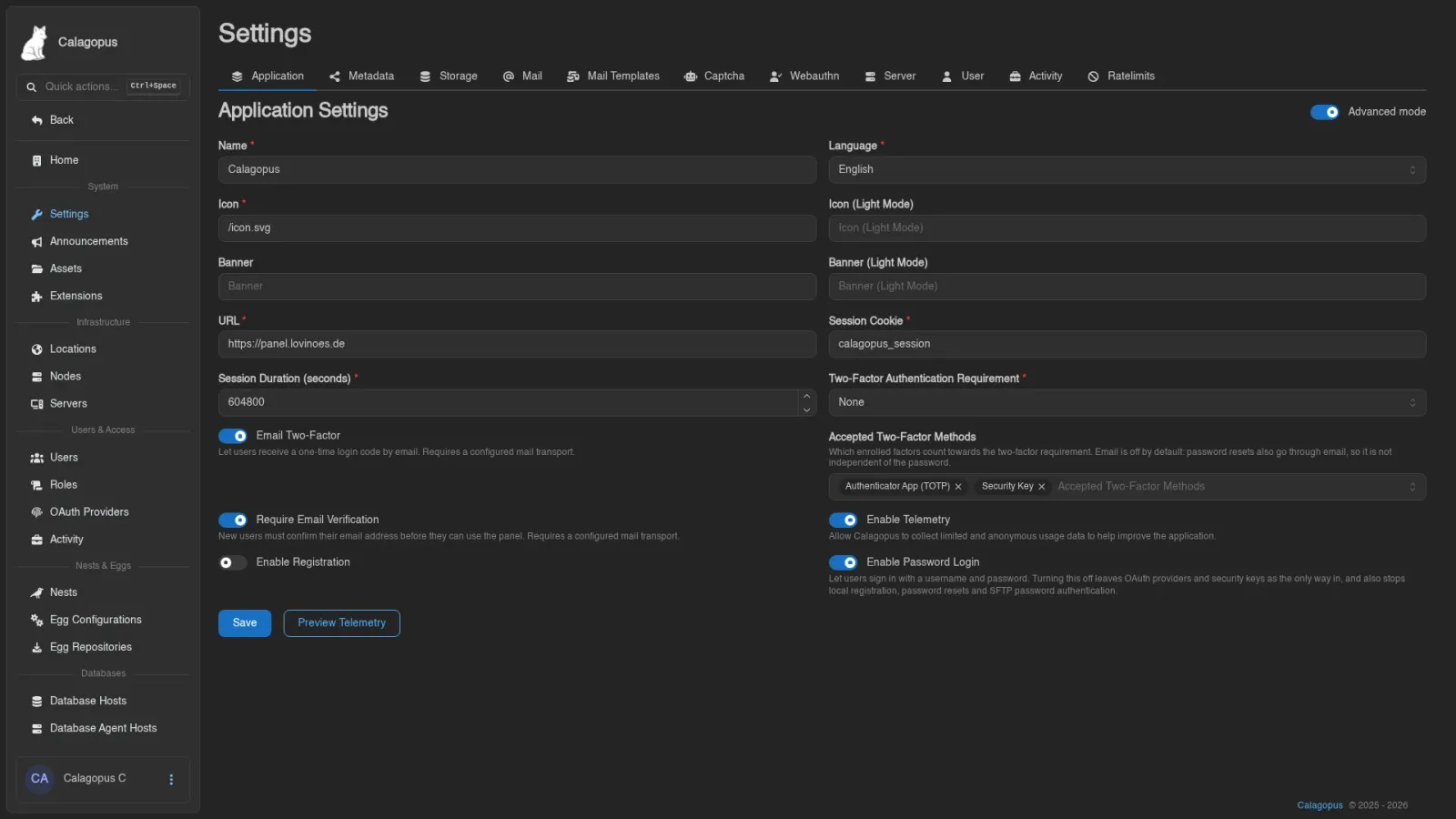
The Panel builds links from a URL you configure, not from the address a visitor happened to use. Go to Admin → Settings → Application, set URL to https://<domain>, and save. Email links, OAuth callbacks, node connections and the generated Wings configuration all use this value, so it has to match the address the proxy serves.
Proxies Running in Docker
Traefik, Nginx Proxy Manager and similar tools run as containers themselves. Two things change compared to a proxy installed on the host:
The proxy reaches the Panel over a Docker network, not a published port. Create a network the proxy container is already attached to (or attach it to one), add the Panel's web service to that same network, and remove the 8000:8000 port mapping entirely. The proxy then forwards to web:8000, using the service name as the hostname.
docker network create proxy
docker network connect proxy <proxy-container-name>services:
web:
# ...existing configuration, with the 8000:8000 ports entry removed...
networks:
- default
- proxy
networks:
proxy:
external: trueThe default entry keeps the Panel connected to its database and cache. On the All-in-One image, keep the 2022:2022 SFTP port mapping.
The trusted proxy address is the proxy container's, not the gateway's. Trust the whole shared network so the value survives container restarts:
docker network inspect proxy -f '{{range .IPAM.Config}}{{.Subnet}}{{end}}'services:
web:
environment:
- APP_TRUSTED_PROXIES=172.19.0.0/16Only containers on that network can reach the Panel, so trusting the subnet is safe as long as you control everything attached to it.
Cloudflare
If your domain is proxied through Cloudflare (orange cloud), the proxy chain becomes Browser → Cloudflare → your proxy → Panel. Three adjustments:
Trust Cloudflare's addresses too. Cloudflare puts the visitor's IP in
X-Forwarded-For, and your proxy appends Cloudflare's edge address behind it. The Panel walks that list from the right and skips every trusted address, so it only reports the real visitor if Cloudflare's ranges are trusted as well. Build the list with:bashecho "172.18.0.1,$( (curl -s https://www.cloudflare.com/ips-v4; echo; curl -s https://www.cloudflare.com/ips-v6) | grep . | paste -sd,)"Replace
172.18.0.1with your own gateway address from Step 1 and put the whole output inAPP_TRUSTED_PROXIES. Cloudflare updates its ranges rarely; the list is published at cloudflare.com/ips.This works as written with Nginx and Nginx Proxy Manager, which append to the
X-Forwarded-Forheader Cloudflare sends. Caddy and Traefik replace that header unless Cloudflare's ranges are also trusted in the proxy itself: Caddy throughtrusted_proxiesinside thereverse_proxyblock, Traefik throughforwardedHeaders.trustedIPson the entrypoint.Set the SSL/TLS mode to Full (strict) in the Cloudflare dashboard, so Cloudflare verifies your certificate instead of connecting over plain HTTP.
Keep non-HTTP hostnames DNS-only (grey cloud). Cloudflare's proxy only carries HTTP and WebSocket traffic. SFTP (port
2022), game server ports and the private network tunnel do not pass through it. Give Wings nodes a hostname that resolves directly to the machine, or turn the proxy off for those records. The same applies to a standalone node's own hostname; see Cloudflare on the Wings guide.
Cloudflare also caps the size of a single request per plan (100 MB on Free), and that cap applies before your own body size limit. Server file uploads through the file manager are sent in chunks of at most 95 MiB, so they pass through Cloudflare on any plan. Admin asset uploads are not chunked and stay subject to the cap.
Troubleshooting
| Symptom | Fix |
|---|---|
| 502 Bad Gateway, or the proxy's own error page | The proxy can't reach the Panel. Check that the container is running with docker compose ps, and that curl -I http://127.0.0.1:8000 answers on the host. If the proxy runs in Docker, make sure both containers are on the same network and the forward target is the service name, not 127.0.0.1. |
| The page loads, but the console stays on "connecting" and statistics never appear | WebSocket upgrades aren't getting through. On Nginx, confirm the map block exists in nginx.conf and both Upgrade and Connection headers are set. On Apache, check the version note above. On Nginx Proxy Manager, enable Websockets Support. |
Uploads fail with 413 Request Entity Too Large | Raise the body limit in the proxy configuration (client_max_body_size, LimitRequestBody, max_size). |
Activity shows 172.x.x.x or 127.0.0.1 for every user, or rate limits trigger for everyone at once | APP_TRUSTED_PROXIES doesn't contain the address the proxy connects from. Re-run the docker inspect command from Step 1; the gateway can change if the compose network was recreated. |
Links in emails or OAuth callbacks point at http:// or the wrong host | The Panel builds links from the URL in Admin → Settings → Application, not from the request. Make sure it starts with https:// and matches the domain the proxy serves. |
The Panel is still reachable at http://<server-ip>:8000 | The port mapping wasn't restricted to 127.0.0.1, or the change wasn't applied. Edit compose.yml and run docker compose up -d again. |
| Browser shows a certificate warning | The certificate has expired or was issued for a different name. See Generating SSL Certificates for renewal problems. |
Problems that aren't caused by the proxy, such as the node URL, tokens or clock skew, are collected on the Troubleshooting page.