
TrueNAS SCALE Panel Installation
TrueNAS SCALE only
This guide targets TrueNAS SCALE Electric Eel (24.10) or later, which supports the Apps system. TrueNAS CORE is FreeBSD-based and is not supported.
Calagopus is available directly in the TrueNAS Community Apps catalog. The app ships the All-in-One (AIO) image, which bundles both the Panel and Wings in a single container, no separate Wings installation or node registration required.
Running game servers on a NAS
Wings is included in the TrueNAS app and will work, but game servers are CPU- and RAM-intensive workloads that compete with TrueNAS's storage duties. This setup is well-suited for homelab use. For production hosting, consider running Wings on a dedicated machine connected to a standalone Panel instead.
Why the container runs as root
The AIO image runs Wings as root by default, it needs that to manage other containers via the Docker socket. This is a deliberate, documented design choice with kernel-enforced isolation around it, not an oversight. See Daemon isolation for what that does and doesn't expose, and how to enable rootless mode if you'd rather not run as root.
1. Open the Apps Catalog
In the TrueNAS web UI, navigate to Apps in the left sidebar, then click Discover Apps.
Search for Calagopus.
Click on the Calagopus app, then click Install.
2. Configure the App
The installer presents a form with several sections. These are the most important ones, but make sure every required field is filled out.
Application Name
Leave the default (calagopus) or set a custom name if you plan to run multiple instances.
Panel Configuration
Fill in the required fields:
- Timezone, your local timezone, used for scheduled tasks and logs
- Image Configuration, choose the image variant
| Variant | Use when |
|---|---|
| AIO | Standard install, Panel + Wings, no extensions |
| AIO Heavy | You plan to install extensions, includes the build tooling needed to compile them |
Encryption Key, a random string of 32 characters. Generate one in the TrueNAS shell:
bashcat /dev/urandom | LC_ALL=C tr -dc 'a-zA-Z0-9' | fold -w 32 | head -n 1Trusted Proxies, if you put a reverse proxy (e.g. Nginx, Traefik) in front of the panel, enter its IP address or CIDR range here. Leave empty if accessing the panel directly.
Server Name, a display name for your panel instance (e.g.
My Calagopus Panel)
Network Configuration
The default ports are:
| Port | Purpose |
|---|---|
30438 | Panel web UI and API |
30439 | SFTP access to game server files via Wings |
Change these if they conflict with other services on your TrueNAS host. Note that your game servers will also need their own port allocations, configure those as additional host-network ports on the Wings node after setup.
3. Install
Click Install at the bottom of the form. TrueNAS pulls the container images and starts the app. You can watch progress under Apps → Installed.
Once the status shows Running, the panel is ready.
4. Access the Panel
Open your browser and navigate to:
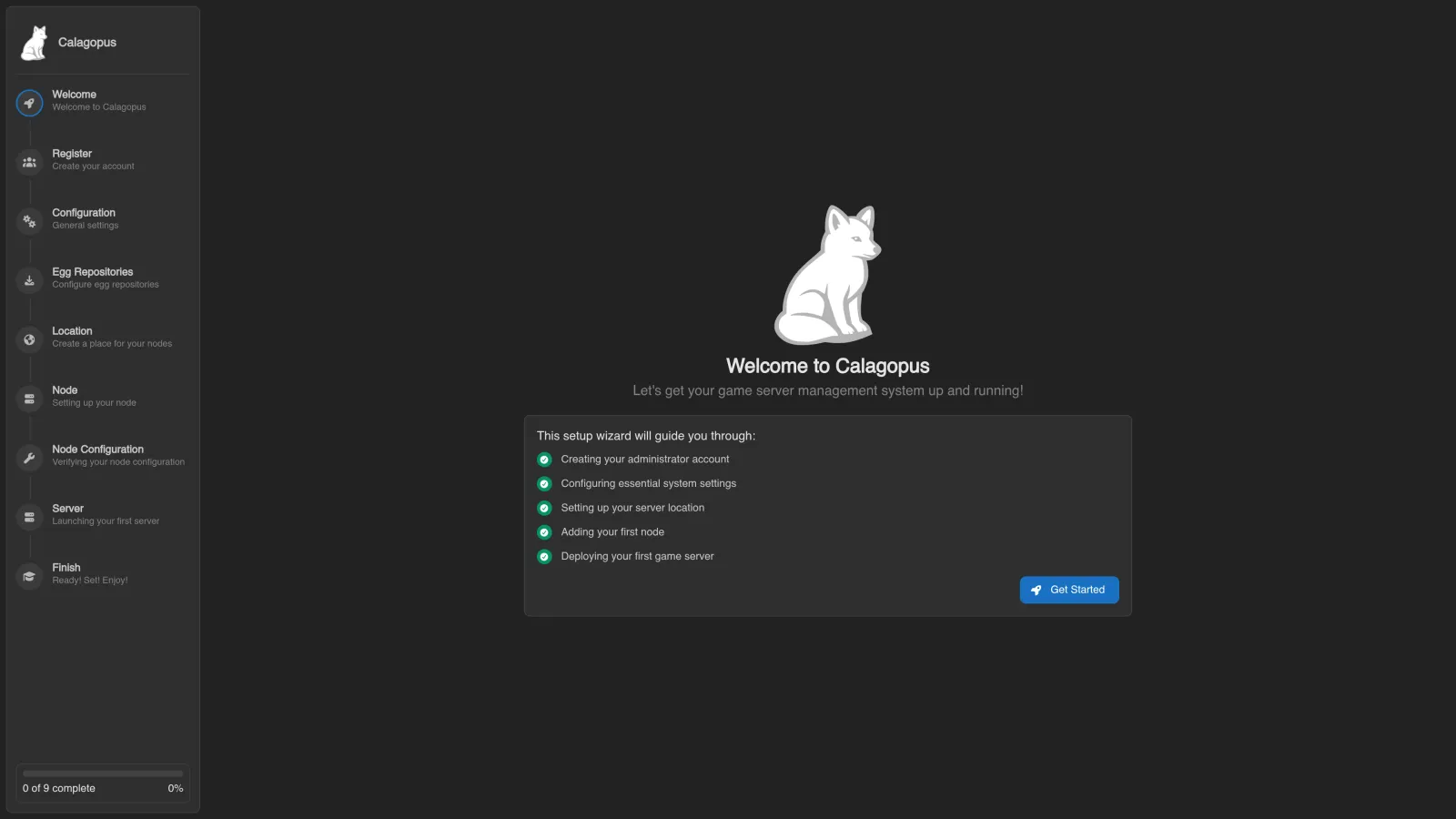
http://<truenas-ip>:30438You will see the OOBE (Out Of Box Experience) setup screen where you create your first admin account and complete initial configuration.
Updating
TrueNAS notifies you when a new version of the app is available. Go to Apps → Installed, click the Calagopus app, and use the Update button. TrueNAS handles pulling the new image and restarting the container; your data volumes are preserved.