
Databases
Calagopus has two kinds of server databases. Classic Databases are single databases provisioned on a shared database host, the familiar setup from other panels. Managed Databases are full database instances run for you by DB Agent, with their own container, power controls, and live stats.
Both kinds count toward the same limit, shown at the top of the page as "6 of 15 maximum databases created."; the limit is part of the server's feature limits. The page splits into a Databases tab for classic databases and a Managed Databases tab at /databases/instances, each with its own search box and Create button.
A tab only appears when it's relevant to your server: classic when you have databases or a database host to create on, managed when you have instances or templates to create from. With only one relevant, the tab bar hides and you get a single plain list.

Classic Databases
The Databases tab lists each database's name, type (MySQL, PostgreSQL, or MongoDB), address, username, size, and whether it's locked. Click the address to copy it.
Creating a Database
Click Create. Pick a Database Name and a Database Host; hosts are grouped by database type, and a host marked Under Maintenance can't be selected. The button is disabled with a tooltip once the shared limit is hit, or with "No hosts found" when there's nothing to provision on.
INFO
Database hosts are set up by administrators and attached to locations, see Database Hosts. Users only ever pick from the hosts made available to their server.
Connection Details
Right-click a database and choose Details to open the Database connection details modal: database name, host, username, password, and a ready-made JDBC Connection String in the form jdbc:mysql://<username>:<password>@192.0.2.1:3306/<database>.
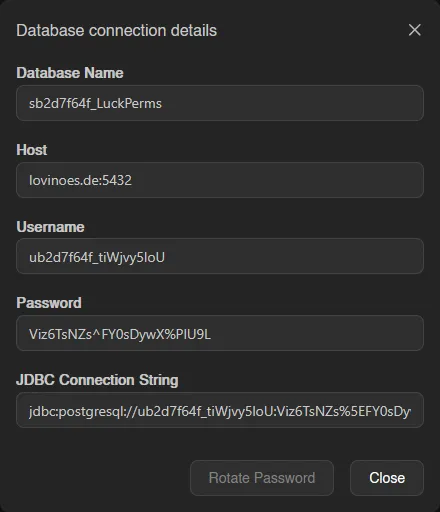
The password is only visible with the databases.read-password permission. From the same modal, Rotate Password generates a new password immediately, invalidating the old one.
Editing, Recreating, and Deleting
The rest of the right-click menu:
| Action | What it does |
|---|---|
| Explore Data | Opens the Data Explorer. |
| Edit | Toggle Locked. A locked database can't be recreated or deleted, and its password can't be rotated. |
| Recreate | Wipes all data and creates a fresh, empty database with the same connection details. Type the database name to confirm. |
| Delete | Permanently deletes the database and all data. Type the database name to confirm. |
Managed Databases
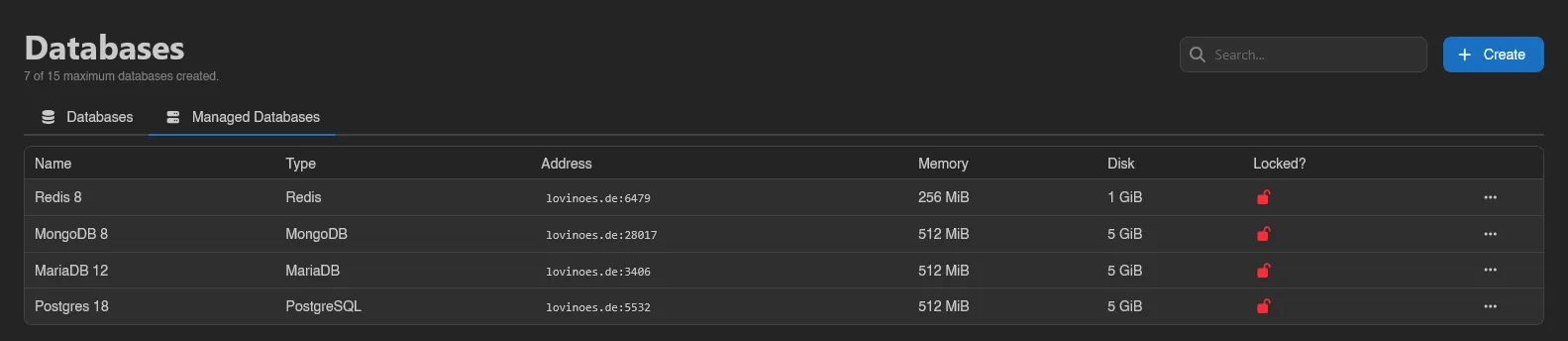
Managed databases are dedicated Redis, MongoDB, PostgreSQL, or MariaDB instances. The Managed Databases tab lists each instance's name, type, address, memory, disk, and lock state; an instance with a pending template update also shows an Update Available badge. Right-click a row for power actions (Start, Restart, Stop, Kill) and Delete, or click it to open the instance page.
Creating a Managed Database
Click Create on the Managed Databases tab. Choose a Database Name and a Template; templates are grouped by database type, and each one defines the instance's resource limits (memory, swap, disk, CPU, and IO weight). If the template offers more than one Docker Image, you pick one too.
INFO
Templates and the resource limits they carry are configured by administrators under Database Agent Templates; the per-instance database and user caps live in Settings > Server. See the DB Agent docs for how instances are provisioned.
The Instance Page
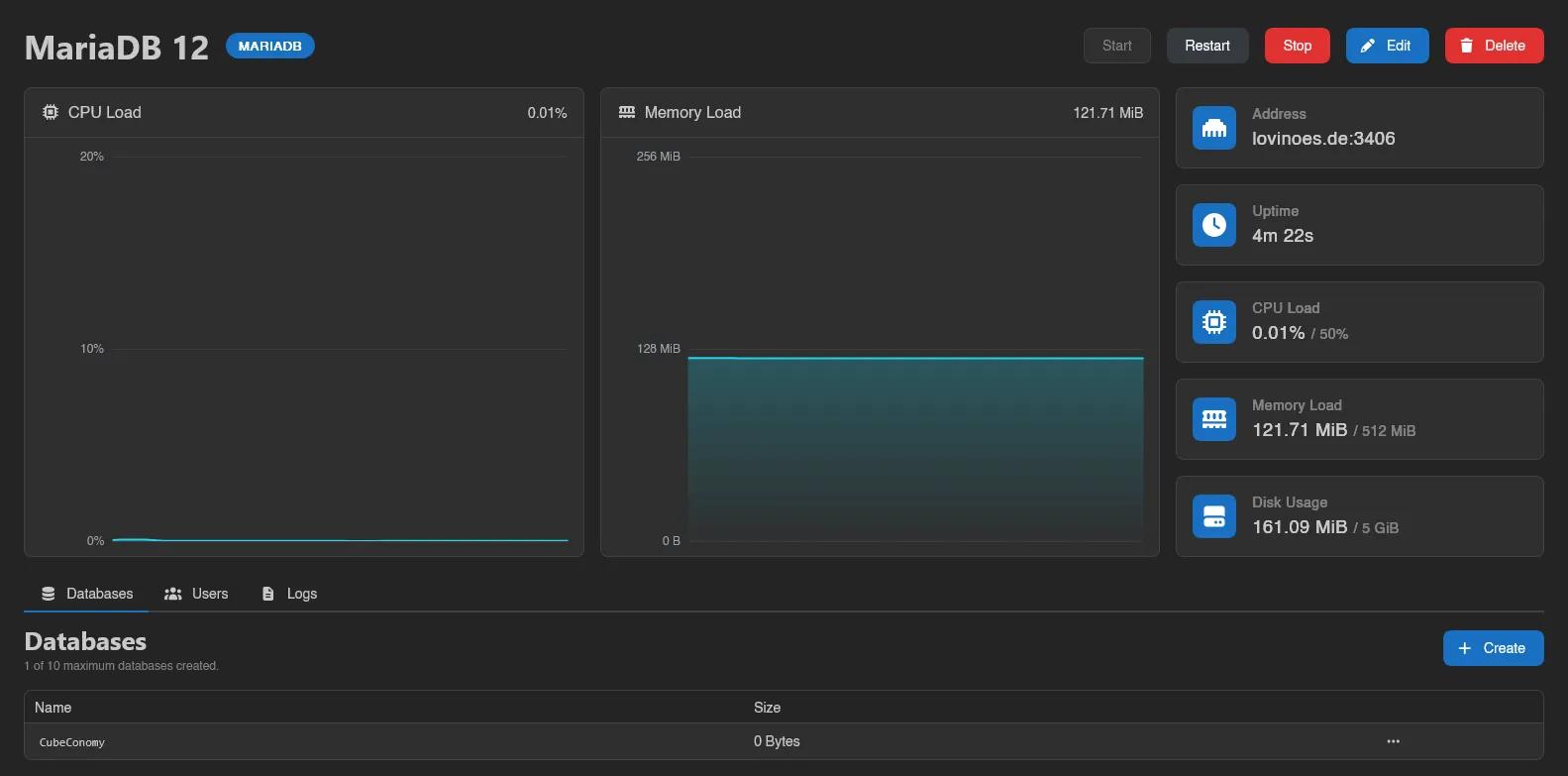
Each instance has its own page at /server/<id>/databases/instances/<id> with the instance name, its type badge, and badges for Locked and Update Available where relevant.
Along the top:
- Start, Restart, and Stop power buttons. While the instance is stopping, Stop turns into Kill; killing warns you first, since forcibly killing a database can corrupt data.
- Export and Import (Redis only, and only while running): download a dump of the whole instance, or upload one, optionally with Wipe all existing data before importing.
- Apply Update, shown when the instance's template has a newer configuration. Applying it restarts the database on the updated template.
- Edit to rename the instance or toggle Locked. A locked instance can't be deleted, template updates can't be applied, and its user passwords can't be rotated.
- Delete to remove the instance and all its data. Type the name to confirm.
Below that are live CPU Load and Memory Load graphs (with an "Instance is offline" overlay when it's off) and stat tiles for Address, Uptime, CPU Load, Memory Load, and Disk Usage. Tiles show usage against the template's limits; a limit of zero displays as Unlimited. If a background operation like a remote import is running, a progress ring appears next to the power buttons where you can watch or cancel it, or Cancel all operations at once.
Databases Tab
Not shown for Redis, which has no named databases. Lists the databases inside the instance with their size, up to its own per-instance cap. Create asks only for a name (letters and numbers only) and requires the instance to be running. A warning icon next to a database means it has no user attached yet, so nothing can connect to it.
Right-click a database for:
| Action | What it does |
|---|---|
| Explore Data | Opens the Data Explorer. |
| Export | Downloads a dump of this database. |
| Import | Uploads a Dump File, optionally wiping existing data first. MongoDB imports also need the Source Database name the dump was taken from. |
| Import from Remote | Dumps another database server over a Connection String and imports the result. An optional Source Database field "Overrides the database named in the connection string", and a wipe toggle clears the target first. The connection string is only used to take the dump, it is never stored. Runs in the background as a cancellable operation. |
| Recreate | Wipes all data and recreates an empty database with the same name and user access. Type the name to confirm. |
| Delete | Permanently deletes the database and its data. |
Users Tab
Per-instance database users, also capped ("0 of 10 maximum users created."). Create takes a Username (letters and numbers only) and, for everything except Redis, the Database the user is granted access to.
Right-click a user for Details, which opens the Database Credentials modal: address, username, password, and a JDBC Connection String, plus the same Rotate Password button classic databases have. Delete removes the user.
Logs Tab
A live log stream from the instance's container, the managed-database equivalent of the server console (read-only, no command input). While the agent is pulling a new Docker image, pull and extract progress bars appear beneath the log.
Data Explorer
Explore Data on a classic database or on a database inside a managed instance opens a database browser built into the panel, no external tool needed. MongoDB databases cannot be explored, nor can Redis instances.
A searchable Tables sidebar (collapsible via Hide Tables) lists the database's tables with estimated row counts; views carry a View badge. Three tabs work on the selected table:
- Rows: browse with pagination and stackable column filters (equals, contains, starts with, greater or less than, and more); column headers show each column's type and sort the listing. Edit cells inline and hit Save, insert with New Row (columns can keep their Database default), or select rows and delete them after confirmation.
- Structure: the column list shows Name, Type, Nullable, Key, Default, and Attributes. Create tables (columns with Type, Nullable, Primary Key, and Auto Increment), add, rename, and delete columns, and rename or delete whole tables; deleting a table or column permanently destroys its data, and adding a non-nullable column to a table that already has rows fails.
- Query: a SQL console with syntax highlighting, a Row Limit (default 100), and Run. Read-only is on by default ("Rejects statements that change data or structure."); turn it off to run writes.
Browsing needs the databases.query permission (database-instances.query inside instances); editing rows, editing structure, deleting structure, and the Query tab each map to their own key, see the Permissions Reference. Treat query-raw like handing out the database credentials themselves, and note that a database host in maintenance mode blocks the explorer entirely. SQLite files in the file manager get the same treatment via the files page.