Reverse Proxies
This guide explains how to set up a Reverse Proxy for the Calagopus Panel running in Docker. Using a reverse proxy allows the internal web server (default port 8000) to be served securely over standard HTTP/HTTPS ports.
WARNING
Ensure that the Panel is already installed and running before continuing. Misconfigured proxy settings may make the Panel inaccessible.
INFO
We assume you already have Let’s Encrypt certificates generated for your domain. All <domain> placeholders should be replaced with your actual domain name.
Trusted Proxies
When running the Panel behind a reverse proxy, you must configure the APP_TRUSTED_PROXIES variable. This ensures that the Panel logs correct client IP addresses and operates securely.
services:
  panel:
    environment:
      APP_TRUSTED_PROXIES="172.18.0.1"
Container IP Address
The internal IP address used by your reverse proxy to forward traffic to the Panel depends on your Docker network and may be different on your system.
Before continuing, determine the IP address of the running Panel container and update your reverse proxy configuration accordingly.
You can run the following command from anywhere on the host to automatically detect the Panel container and print its internal IP address:
docker inspect -f '{{range .NetworkSettings.Networks}}{{.IPAddress}}{{end}}' $(docker ps --format '{{.Image}} {{.ID}}' | awk '$1 ~ /^ghcr\.io\/calagopus\/panel/ {print $2}')This command will output an IP address (for example 172.18.0.1). Use this address wherever your reverse proxy needs to forward traffic to the Panel.
Proxy Servers
Create /etc/nginx/sites-available/panel.conf (or /etc/nginx/conf.d/panel.conf on RHEL-based systems) with the following content:
server {
    listen 80;
    listen [::]:80;
    server_name <domain>;
    return 301 https://$server_name$request_uri;
}

server {
    listen 443 ssl http2;
    listen [::]:443 ssl http2;
    server_name <domain>;

    access_log /var/log/nginx/calagopus.app-access.log;
    error_log  /var/log/nginx/calagopus.app-error.log error;

    sendfile off;
    client_max_body_size 100M;

    ssl_certificate /etc/letsencrypt/live/<domain>/fullchain.pem;
    ssl_certificate_key /etc/letsencrypt/live/<domain>/privkey.pem;
    ssl_session_cache shared:SSL:30m;
    ssl_protocols TLSv1.2 TLSv1.3;
    ssl_ciphers HIGH:!aNULL:!MD5;
    ssl_prefer_server_ciphers on;

    # Optional DH params and ECDH curve can be uncommented if needed
    # ssl_dhparam /etc/letsencrypt/ssl-dhparams.pem;
    # ssl_ecdh_curve X25519:secp384r1:secp256r1;
    ssl_session_timeout 10m;
    ssl_session_tickets on;

    # See https://hstspreload.org/ before uncommenting the line below.
    # add_header Strict-Transport-Security "max-age=15768000; preload;";
    add_header X-XSS-Protection "1; mode=block";
    # Prevent search engines from indexing or following links
    add_header X-Robots-Tag "noindex, nofollow" always;
    add_header Permissions-Policy "camera=(), microphone=(), geolocation=(), fullscreen=(self), clipboard-read=(self)" always;
    add_header Referrer-Policy "same-origin";

    location / {
        proxy_http_version 1.1;
        proxy_set_header Upgrade $http_upgrade;
        proxy_set_header Connection "upgrade";
        proxy_set_header Host $host;
        proxy_set_header X-Real-IP $remote_addr;
        proxy_set_header X-Forwarded-For $proxy_add_x_forwarded_for;
        proxy_set_header X-Forwarded-Proto $scheme;
        proxy_redirect off;
        proxy_buffering off;
        proxy_request_buffering off;
        # Make sure this IP matches your Panel container's IP address
        proxy_pass http://172.18.0.1:8000;
        proxy_pass_header Content-Security-Policy;
    }

    location ~ /\.ht {
        deny all;
    }
}server {
listen 80;
listen [::]:80;
server_name <domain>;
access_log /var/log/nginx/calagopus.app-access.log;
error_log /var/log/nginx/calagopus.app-error.log error;
sendfile off;
client_max_body_size 100M;
add_header X-XSS-Protection "1; mode=block";
# Prevent search engines from indexing or following links
add_header X-Robots-Tag "noindex, nofollow" always;
add_header Permissions-Policy "camera=(), microphone=(), geolocation=(), fullscreen=(self), clipboard-read=(self)" always;
add_header Referrer-Policy "same-origin";
location / {
proxy_http_version 1.1;
proxy_set_header Upgrade $http_upgrade;
proxy_set_header Connection "upgrade";
proxy_set_header Host $host;
proxy_set_header X-Real-IP $remote_addr;
proxy_set_header X-Forwarded-For $proxy_add_x_forwarded_for;
proxy_set_header X-Forwarded-Proto $scheme;
proxy_redirect off;
proxy_buffering off;
proxy_request_buffering off;
# Make sure this IP matches your Panel container's IP address
proxy_pass http://172.18.0.1:8000;
proxy_pass_header Content-Security-Policy;
}
location ~ /\.ht {
deny all;
}
}Enabling Configuration
# On RHEL-based systems, placing the file in /etc/nginx/conf.d/ is sufficient, so no symlink is needed.
sudo ln -s /etc/nginx/sites-available/panel.conf /etc/nginx/sites-enabled/panel.conf

# Finally restart nginx regardless of the OS.
sudo systemctl restart nginx# You do not need to run any of these commands on RHEL-based systems.
sudo a2enmod rewrite headers proxy proxy_http proxy_wstunnel ssl http2
sudo a2ensite panel.conf
sudo systemctl restart apache2# You do not need to run any of these commands on RHEL-based systems.
sudo a2enmod rewrite headers proxy proxy_http proxy_wstunnel
sudo a2ensite panel.conf
sudo systemctl restart apache2systemctl restart caddyVerify Access
Visit https://<domain> in your browser. You should now see the Panel login page served via your chosen Proxy Server.
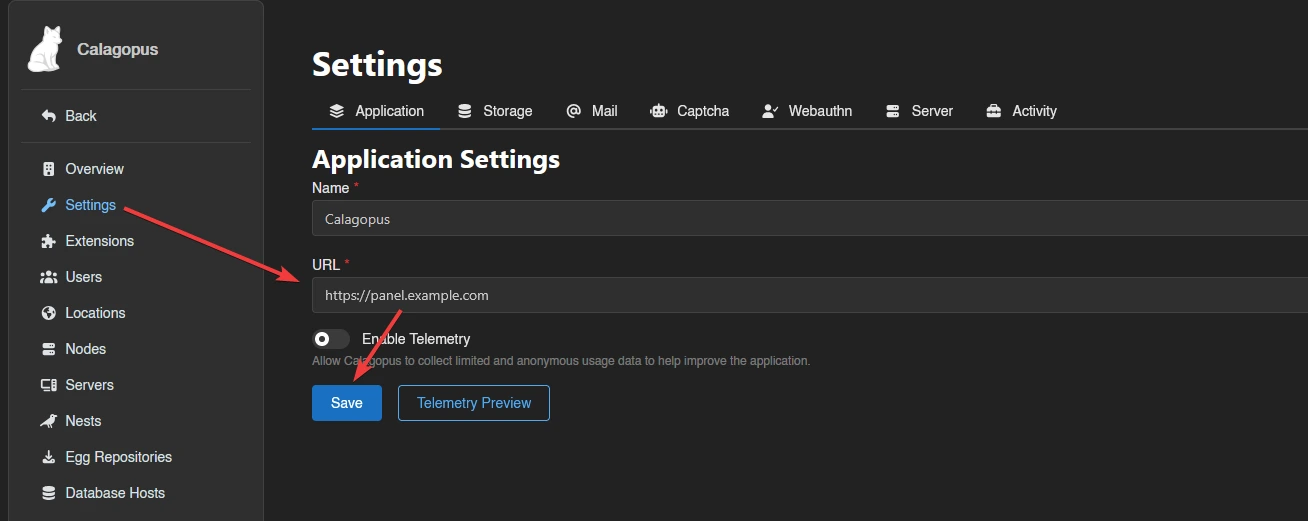
Set Server URL
After verifying access, go to your Panel’s Admin page, set the server URL, and click Save. This URL is used for links, API calls, and Wings node connections.