
MySQL (MariaDB)
This guide explains how to install and configure a MariaDB (or MySQL) database server to use as a database host in the Calagopus Panel. Once set up, your users will be able to create databases for their game servers directly from the panel.
INFO
The panel connects to this host using a privileged account to provision databases and users on demand. Each game server then receives its own isolated credentials.
Installation
Create a directory for the service and enter it:
mkdir mariadb && cd mariadbCreate a compose.yaml with the following content:
services:
  mariadb:
    image: mariadb:12
    restart: unless-stopped
    environment:
      MARIADB_ROOT_PASSWORD: <strong-root-password>
    volumes:
      - ./data:/var/lib/mysql
    ports:
      - "0.0.0.0:3306:3306"
Start the service:
docker compose up -dThen open a shell inside the container to continue with user setup:
docker compose exec mariadb mariadb -u root -pConfiguring Remote Access
By default, MariaDB only listens on 127.0.0.1. To accept connections from the panel and Wings nodes, update the bind address.
INFO
If you used Docker Compose, the ports entry already handles this - skip this section.
Edit /etc/mysql/mariadb.conf.d/50-server.cnf:
[mysqld]
bind-address = 0.0.0.0
Restart MariaDB:
sudo systemctl restart mariadbCreating the Panel User
Inside the MariaDB shell, create a dedicated account that the panel uses to provision user databases:
DANGER
The user below can connect from any IP address (%). Use a long, randomly generated password - a weak password on an exposed port is a critical security risk.
CREATE USER 'calagopus'@'%' IDENTIFIED BY '<strong-password>';
GRANT ALL PRIVILEGES ON *.* TO 'calagopus'@'%' WITH GRANT OPTION;
FLUSH PRIVILEGES;
INFO
WITH GRANT OPTION is required so the panel can create per-game-server users and grant them access to their individual databases.
Adding the Host to the Panel
- Go to Admin → Database Hosts → Create.
- Change the Credential Type to Details.
- Fill in the form:
| Field | Value |
|---|---|
| Name | A friendly label, e.g. MariaDB |
| Host | IP address or hostname of the database server |
| Port | 3306 |
| Username | calagopus |
| Password | The password you set above |
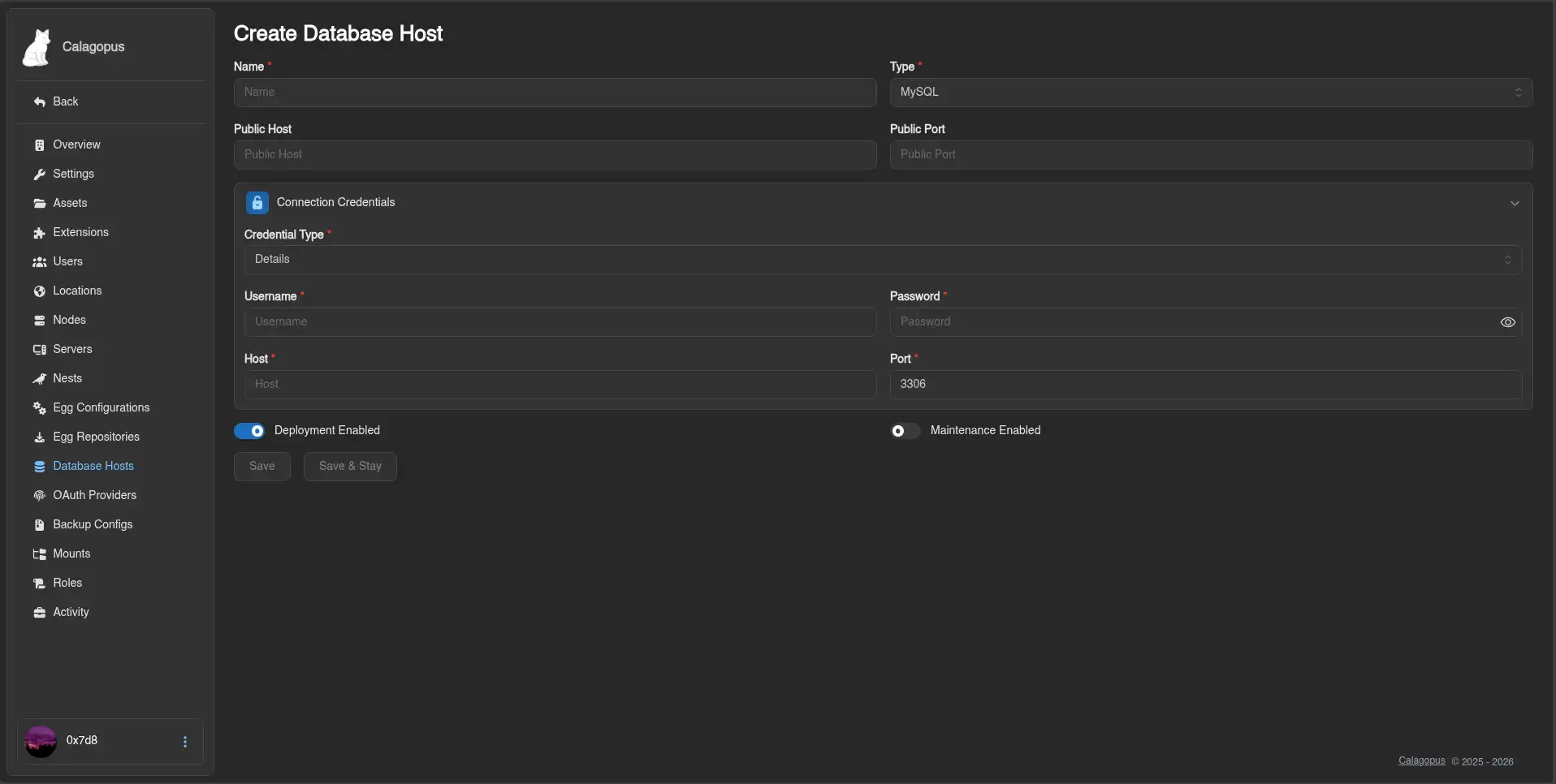
- Click Save. You will be able to verify the connection afterwards.
Making the Database Host Show Up for Users
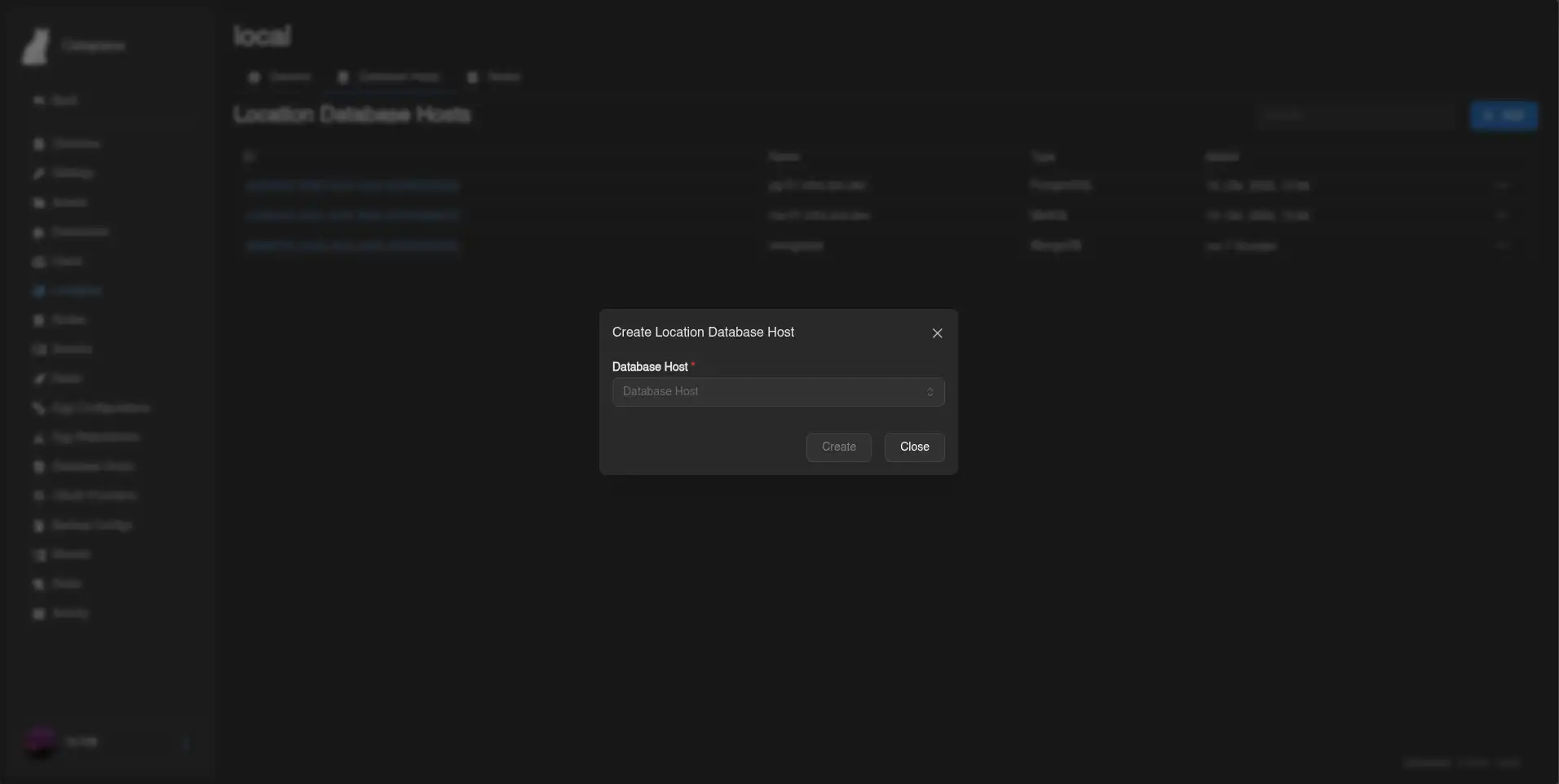
By default, new database hosts are not visible to any client API endpoints. To fix this, we need to add the database host to the Locations Database Host List.
- Go to Admin → Locations and click on the location you want to add the database host to.
- Click the Database Hosts tab at the top.
- Click Add and select the database host you just created from the dropdown, then submit.
INFO
For further reference on MariaDB configuration, see the official MariaDB documentation.