
Discord OAuth Setup
This guide walks through setting up Discord OAuth for your Calagopus Panel.
Prerequisites
To set up Discord OAuth, you need:
- A Discord account
- A running Calagopus Panel
Downloading required files
Download the discord.yml template to import the Discord provider configuration without entering values manually.
Right-click the link below and save the file locally.
Import the template config
Once discord.yml has been downloaded, head to your Calagopus Panel's admin page, and click on OAuth Providers on the side. 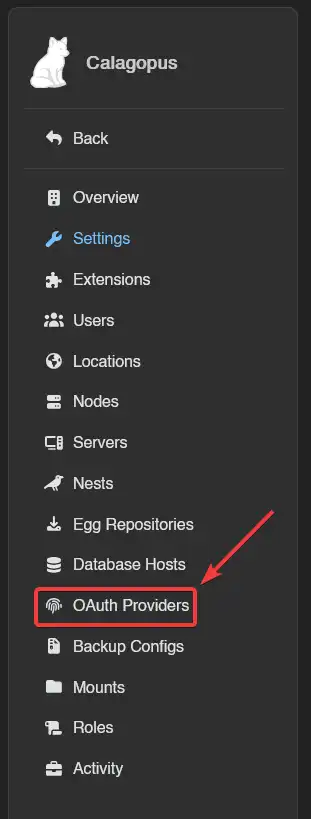
Then, click on the Import button and import the discord.yml file. 
Once imported, click on the newly created Discord provider's ID and you should arrive to a page similar to this: 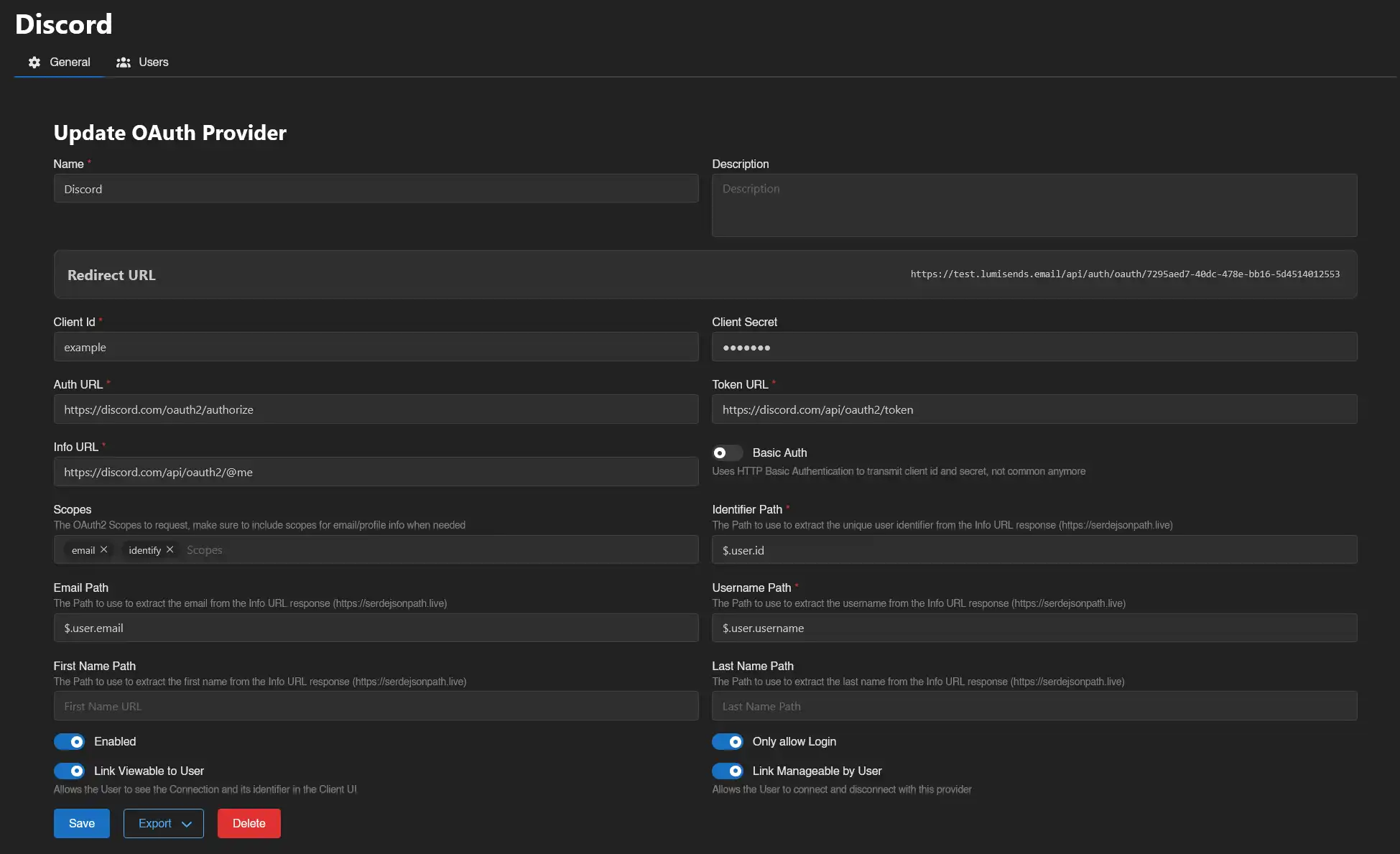
Copy the Redirect URL provided by the panel and proceed to the next step.
Setting up Discord OAuth
Creating the application
Go to Discord's Developer Portal, and create an application. 
In the popup, type the name of your application, which will be shown on the Discord login page. Select a team if you have one and then click on Create. 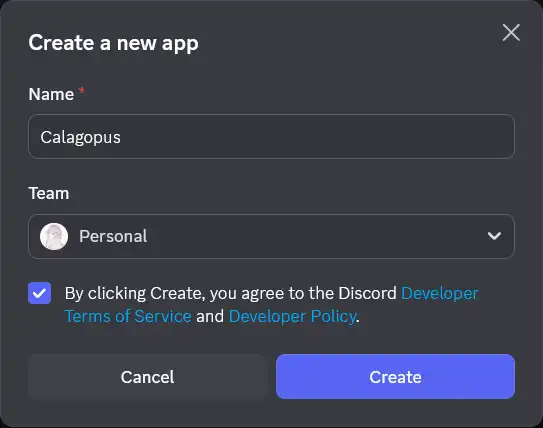
On the General Information page, you can optionally set an icon and description - this is not required and is not covered further here.
Add your Redirect URL to Discord OAuth
On the left sidebar, click on OAuth2. 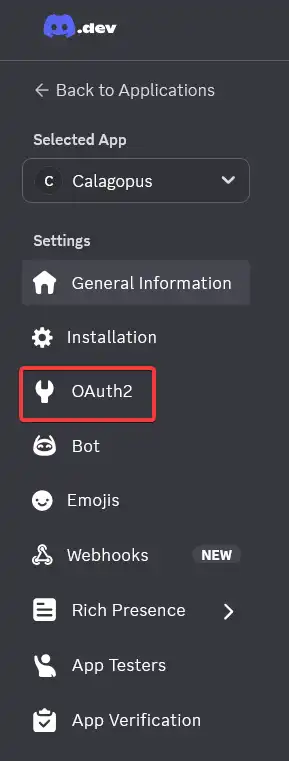
On the Redirects section, click on Add Redirect and paste the redirect URL Calagopus Panel has given you. 
At the bottom, you should see the warning below:  Click on the
 Save Changes button below.
Issue a OAuth Client ID and Secret
On the same OAuth2 page, look for the Client information section. Reset your Client Secret by clicking on the Reset Secret button. 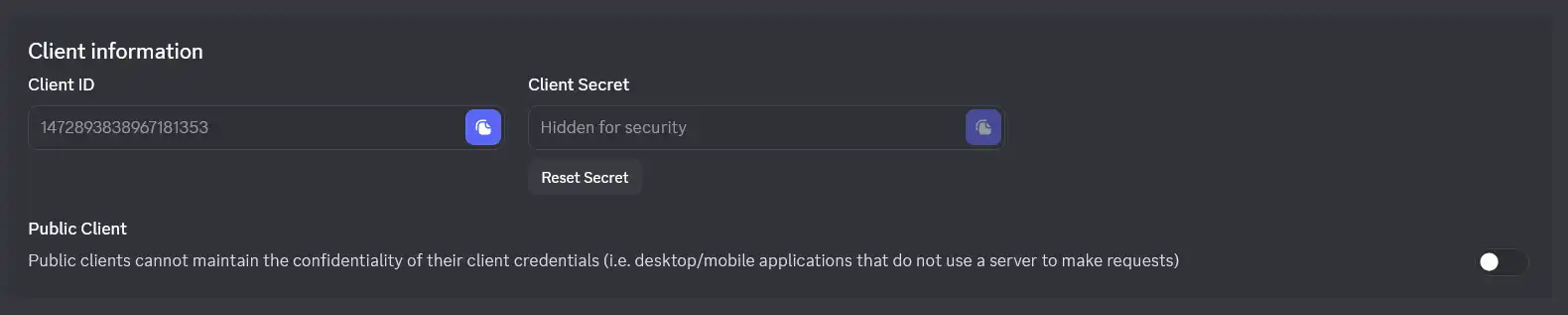
Once you reset your Client Secret, copy both your Client ID and Client Secret. You will need those for the next step.
Configuring the OAuth Provider
Back in the panel, enter the Client ID and Client Secret you copied from Discord.
On the switches below, choose if you want to enable Discord OAuth, only allow login, allow the user to view the connection and allow the user to link and unlink their accounts.
It should normally look like this:
Finally, save your changes, and you should be done!
Test the configuration
To test your configuration, head into your account settings, click on OAuth Links at the sidebar, and connect to your Discord account. 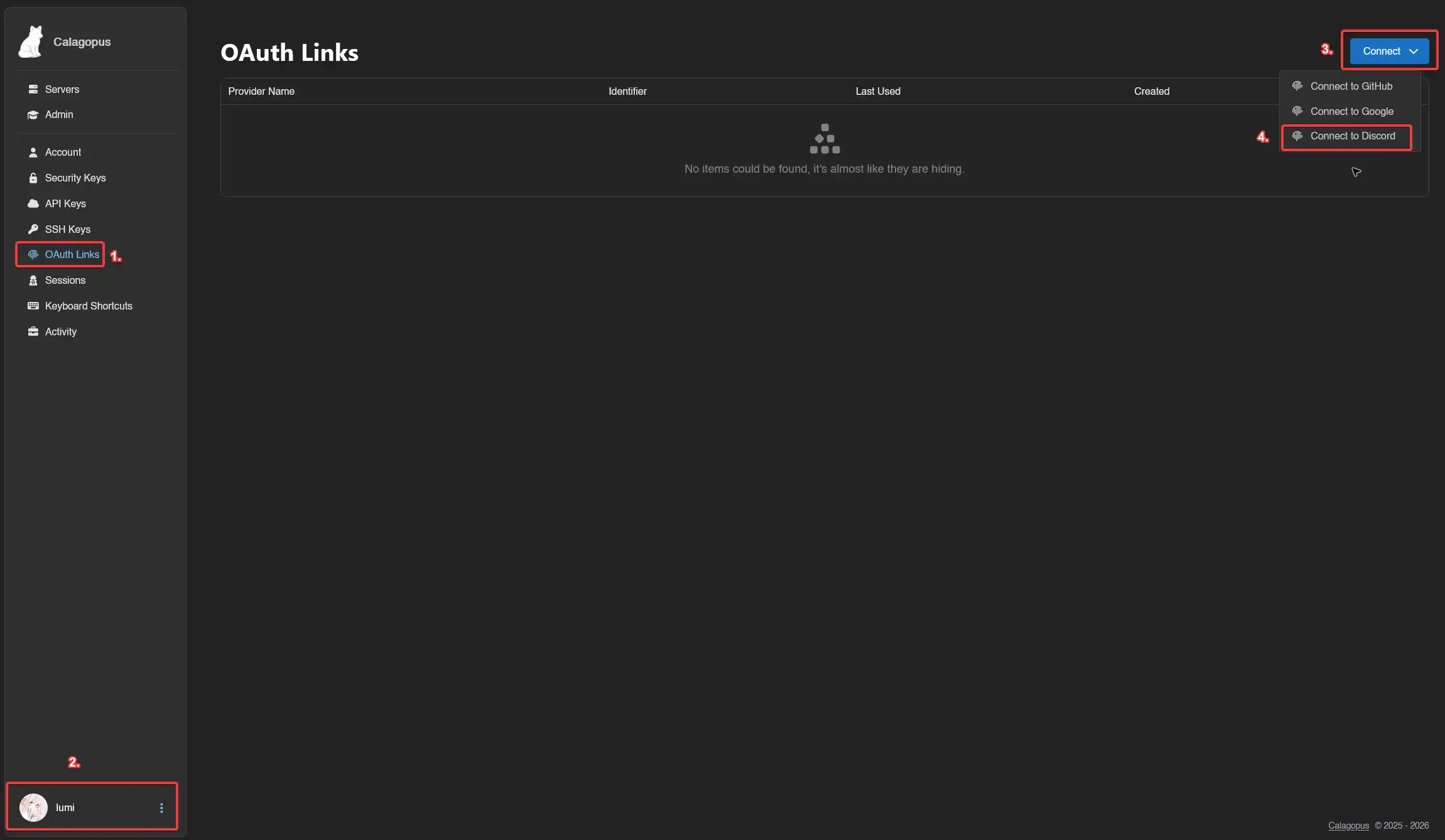
If everything works correctly, you should now be able to see your Discord account in your list. 
Troubleshooting
Error: "Invalid OAuth2 redirect_uri"
You may have put the wrong redirect URL in Discord than the one Calagopus Panel has provided you.
Solution:
- Go back to your Calagopus Panel OAuth provider configuration page
- Copy the exact Redirect URL shown
- Go to Discord Developer Portal and select your application
- Navigate to OAuth2, then Redirects
- Ensure the redirect URL matches exactly (including
https://, trailing slashes, etc.) - Click
Save Changes
Error: "Unknown application"
The Client ID and Client Secret set on the panel is invalid.
Solution:
- Go to Discord Developer Portal and select your application
- Navigate to OAuth2
- Copy your Client ID
- Click
Reset Secretto generate a new Client Secret and copy it - Update both values in your Calagopus Panel OAuth provider configuration
- Save the changes