
Migrating from Docker Compose to Standalone
This guide walks you through migrating an existing Calagopus Docker Compose installation to a standalone binary install. The process involves copying your encryption key, exporting the PostgreSQL database from Docker, and importing it into the host PostgreSQL instance.
No data transformation is required. The schema is identical between installations.
Before You Start
Make sure you have:
- A running Calagopus Docker Compose installation
- Access to your
compose.ymlfile - PostgreSQL and Valkey installed on the target host (follow the binary installation guide if not)
- The Calagopus binary installed but not yet configured - you need to land on the OOBE screen and stop there
Don't click through the OOBE
The OOBE creates database records that can conflict with the import. If you've already clicked through, drop and recreate the database first. 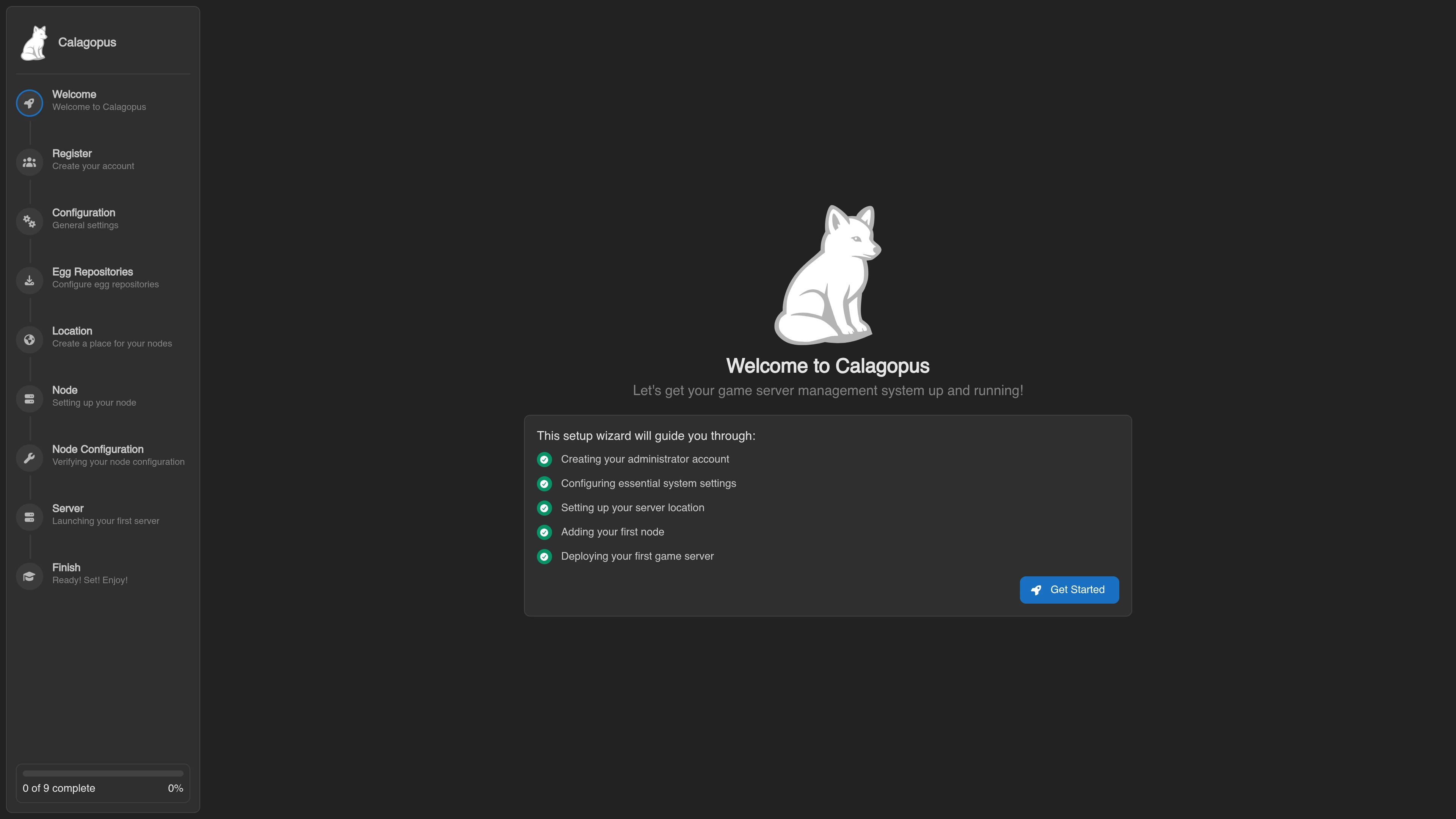
I already clicked through - how do I undo it?
You'll need to drop and recreate the database. Pick the matching tab for how Calagopus is installed:
Stop Calagopus first:
# Linux
systemctl stop calagopus-panel

# Windows
nssm stop "Calagopus Panel"
Connect to Postgres and recreate the database:
# Linux/MacOS
sudo -u postgres psql

# Windows: see the binary install guide for psql access
# https://calagopus.com/docs/panel/installation/binary#database-configurationDROP DATABASE panel WITH (FORCE);
CREATE DATABASE panel OWNER calagopus;
GRANT ALL PRIVILEGES ON DATABASE panel TO calagopus;
exitStart Calagopus back up:
# Linux
systemctl start calagopus-panel

# Windows
nssm start "Calagopus Panel"
Collect values from your existing installation
Open your compose.yml and find the web service environment variables. You need two values:
APP_ENCRYPTION_KEY:
- APP_ENCRYPTION_KEY=Ab3xZ9qR2mKp7vLwThe database password, found in POSTGRES_PASSWORD on the db service:
- POSTGRES_PASSWORD=yourPasswordWARNING
The APP_ENCRYPTION_KEY must be copied exactly as-is. It is used to decrypt sensitive data stored in your database. If it is wrong or missing, that data cannot be recovered.
Keep both values handy. You'll need them shortly.
Configure the binary installation
Open /etc/calagopus/.env on your target host and set the following values.
Set APP_ENCRYPTION_KEY to the value copied above:
APP_ENCRYPTION_KEY=Ab3xZ9qR2mKp7vLwSet DATABASE_URL to point at your host PostgreSQL instance. Use the same password from your Docker setup, or a new one - it must match what you set when creating the database user:
DATABASE_URL="postgresql://calagopus:yourPassword@localhost:5432/panel"Export the database from Docker
Run this from the directory containing your compose.yml. Replace yourPassword with the POSTGRES_PASSWORD collected earlier:
docker exec calagopus-db-1 pg_dump \
  -U panel \
  -d panel \
  -F c \
  -f /tmp/panel.backup

docker compose cp db:/tmp/panel.backup ./panel.backup
This copies the dump out of the container to ./panel.backup on your host.
Migrating to a different host?
Copy panel.backup to /opt/calagopus/ on the target machine before continuing.
Import the database into the host PostgreSQL
First, make sure the database user and database exist. Connect to PostgreSQL:
sudo -u postgres psqlThen create the user and database:
CREATE USER calagopus WITH PASSWORD 'yourPassword';
CREATE DATABASE panel OWNER calagopus;
GRANT ALL PRIVILEGES ON DATABASE panel TO calagopus;
exit
Now restore the dump:
PGPASSWORD="yourPassword" pg_restore \
  -h 127.0.0.1 \
  -U calagopus \
  -d panel \
  --no-owner \
  --clean \
  --if-exists \
  panel.backup
You may see some harmless notices about dropping objects that don't exist yet. That's normal. The restore is successful as long as the command exits without errors.
Start the binary
systemctl start calagopus-panelThe panel will run any pending database migrations automatically on first boot.
Verify the migration
Open Calagopus in your browser and check:
- You can log in with your existing credentials
- Your servers are visible and intact
- No setup wizard (OOBE) appears (if it does, the database import likely did not work, see below)
- Wings nodes are still connected
Troubleshooting
Setup wizard (OOBE) appears after starting: The database was not imported correctly. Stop the panel with systemctl stop calagopus-panel, drop and recreate the database, re-run the import, then start again.
Login fails / encrypted data appears corrupted: The APP_ENCRYPTION_KEY in /etc/calagopus/.env does not match the one from your Docker installation. Stop the panel, correct the key, and start it again.